

Our Top Picks
 Philips 24 Inch Computer Monitor FHD 100Hz VA24 inch 100Hz8.7 x 21.3 x 16.4 Inches6.4 poundsCheck on Amazon
 Philips 22 Inch Computer Monitor FHD 100Hz VA22 inch 100Hz8.7 x 19.4 x 14.5 inches9.3 PoundsCheck on Amazon
 Acer 27in FHD 1920x1080 IPS 120Hz Gaming Monitor27-inch8.27 x 24.07 x 17.44 Inches11 PoundsCheck on Amazon
 Sceptre Curved 24-inch Gaming Monitor 1080p R1500 98%24-Inches16.04 x 21.61 x 9.06 inches6 poundsCheck on Amazon
The best monitor for a Chromebook is one that your Chromebook can actually drive, and on that score all eight listings below share the same answer: an HDMI input, reached through whatever video-out port your laptop has. Most Chromebooks send video from a USB-C port or an HDMI port, so a USB-C-to-HDMI cable or adapter is the likely bridge, and whether a given USB-C port carries video is a question for your laptop’s documentation. Among these eight, the Philips 241V8LB and the Acer KB242Y G0bi are the plain 24-inch 1080p choices that fit most desks; the rest trade size, curve or stand quality.
The eight screens in one table
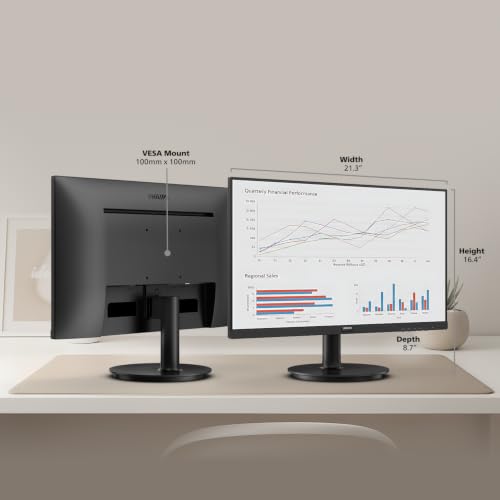
Philips 24 Inch Computer Monitor FHD 100Hz VA VESA Flicker-Free, 241V8LB | 1920×1080 LED Monitor, 4ms GtG, Adaptive Sync, HDMI 1.4, Tilt Adjust, Low Blue Light, 4yr Advance Replacement Warranty




As an Amazon Associate we earn from qualifying purchases. Product prices and availability are accurate as of the date/time indicated.
Philips 22 Inch Computer Monitor FHD 100Hz VA VESA Flicker-Free, 221V8LB | 1920×1080 LED Monitor, 4ms GtG, Adaptive Sync, HDMI 1.4, Tilt Adjust, Low Blue Light, 4yr Advance Replacement Warranty


As an Amazon Associate we earn from qualifying purchases. Product prices and availability are accurate as of the date/time indicated.

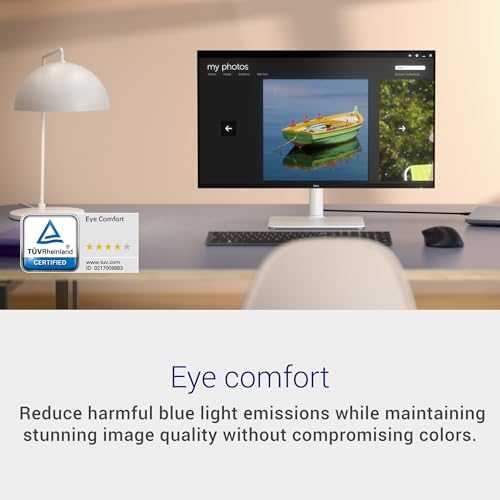
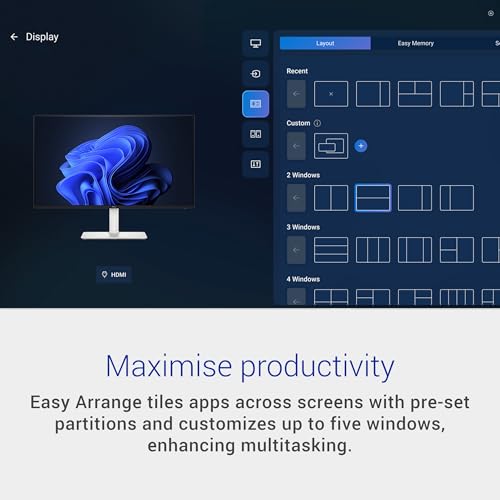
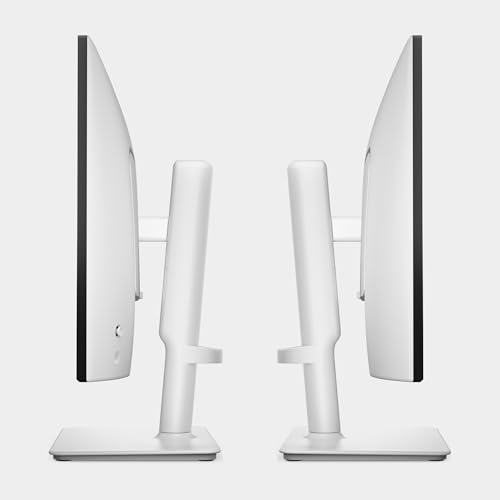
Dell 24 Plus Monitor - S2425HSM - 23.8-inch FHD (1920x1080) 144Hz 1ms Display, 2 x 3W Speakers, HDMI Connectivity, Height/Tilt/Pivot/Swivel Adjustability, AMD FreeSync - Ash White








As an Amazon Associate we earn from qualifying purchases. Product prices and availability are accurate as of the date/time indicated.

Acer 21.5in FHD 1920x1080 100Hz Office Monitor KB220Q H2bi | 1ms, AdaptiveSync (FreeSync Compatible), sRGB 99%, HDMI, VGA, VESA Mountable, Bluelight Filter, Flickerless Technology


As an Amazon Associate we earn from qualifying purchases. Product prices and availability are accurate as of the date/time indicated.
Acer 27in FHD 1920x1080 IPS 120Hz Gaming Monitor | Office KB272 G0bi | 1ms, AdaptiveSync, sRGB 99%, HDMI, VGA, VESA Mountable, Bluelight Filter


As an Amazon Associate we earn from qualifying purchases. Product prices and availability are accurate as of the date/time indicated.
Sceptre Curved 24-inch Gaming Monitor 1080p R1500 98% sRGB HDMI x2 VGA Build-in Speakers, VESA Wall Mount Machine Black (C248W-1920RN Series)


As an Amazon Associate we earn from qualifying purchases. Product prices and availability are accurate as of the date/time indicated.

Samsung 27" Essential S3 (S36GD) Series FHD 1800R Curved Computer Monitor | 100Hz, Game Mode, Advanced Eye Comfort, HDMI and D-sub Ports (LS27D366GANXZA)


As an Amazon Associate we earn from qualifying purchases. Product prices and availability are accurate as of the date/time indicated.

Acer 23.8in FHD 1920x1080 IPS 120Hz Office Monitor KB242Y G0bi | 1ms, AdaptiveSync (FreeSync Compatible), sRGB 99%, HDMI, VGA, VESA Mountable, Bluelight Filter, Flickerless Technology
As an Amazon Associate we earn from qualifying purchases. Product prices and availability are accurate as of the date/time indicated.
| Model | Key point from title | Price tier | Best for |
|---|---|---|---|
| Philips 241V8LB | 24-inch VA, HDMI 1.4, tilt, 4-year warranty claim | Budget | A simple 24-inch office screen |
| Philips 221V8LB | 22-inch version of the same series | Budget | Small desks and spare rooms |
| Acer KB220Q H2bi | 21.5-inch, HDMI and VGA, VESA mountable | Budget | Cheapest compact option |
| Acer KB242Y G0bi | 23.8-inch IPS, 120 Hz claim, HDMI and VGA | Budget | IPS viewing angles for less |
| Sceptre C248W-1920RN | Curved 24-inch, two HDMI, speakers | Budget | Two sources and built-in sound |
| Acer KB272 G0bi | 27-inch IPS, 120 Hz claim, labeled gaming and office | Mid-range | A larger 1080p screen |
| Samsung S36GD | 27-inch curved, 100 Hz, HDMI and D-sub | Mid-range | Large curved display, basic needs |
| Dell 24 Plus S2425HSM | 23.8-inch, 144 Hz, speakers, full stand | Premium | Adjustable stand and sound |
What a Chromebook needs from a monitor
Port and cable checklist
Before comparing screens, check three things on your Chromebook’s manufacturer page: whether the USB-C port supports video output, whether there is a full-size or micro HDMI port, and whether the charger shares a port with the display. None of the eight monitors lists a USB-C input in its title, so single-cable docking with charging is not on offer here. If you need power too, look for an adapter or hub with power passthrough.
Refresh rate versus what the link can carry
Chromebooks and adapters often cap output below the monitor’s headline figure. Raw pixel data for 1080p, 24-bit, is our own arithmetic and ignores blanking, which adds roughly 10 to 20 percent.
| Mode | Raw data (Gbit/s, estimate) |
|---|---|
| 1080p at 60 Hz | 3.0 |
| 1080p at 100 Hz | 5.0 |
| 1080p at 120 Hz | 6.0 |
| 1080p at 144 Hz | 7.2 |
HDMI 1.4, which the Philips titles name, carries roughly 8 Gbit/s of data, so 100 Hz fits but 144 Hz has little headroom. The Dell and Acer titles do not give an HDMI version. Whether your laptop outputs 100 or 120 Hz depends on the laptop, the cable and the adapter, so treat those figures as optional extras, not guarantees.
Size and sharpness
All eight are 1080p. At 24 inches that is about 92 pixels per inch, at 27 inches about 82 and at 22 inches about 100 (our arithmetic). A Chromebook’s own 1080p panel is far denser, so text on an external 27-inch screen looks larger and softer. ChromeOS has scaling settings, but they cannot add pixels.
Panel type, inputs and stands
IPS panels generally hold color and contrast better from side angles; VA panels trade angles for contrast. VGA and D-sub inputs are analog and mostly irrelevant to a modern Chromebook. Tilt-only stands are common at this price, so a riser or arm adds comfort; see our monitor stands and monitor arms guides, and check that the monitor lists VESA mounting.
Response time labels
The 1 ms and 4 ms numbers are seller claims; only the Philips title says 4 ms GtG. For documents, video calls and browsing, they hardly matter.
Eight monitors, one at a time
Philips 241V8LB 24-inch FHD 100Hz
The most completely described plain office monitor in the group: 24-inch FHD, 100 Hz, VA, flicker-free, 4 ms GtG, Adaptive Sync, HDMI 1.4, tilt adjustment, low blue light and a four-year advance replacement warranty. The warranty and HDMI 1.4 wording are seller statements, so read the terms. It has no VESA or height adjustment in the title. VA panels usually give stronger contrast but more color shift from the side than IPS. Check that the stand tilts enough for your seating height, since nothing else adjusts, and use a riser if it sits low.
Pros
- Warranty claim and HDMI version stated
- Flicker-free and low blue light labels
- Budget price tier
Cons
- Tilt-only stand per the title
- VA viewing angles are narrower than IPS
Who it’s for: students and home users who want a plain, low-cost 24-inch.
Philips 221V8LB 22-inch FHD 100Hz
The same series in a smaller 22-inch size, with identical 1080p, 100 Hz, VA and HDMI 1.4 claims, tilt-only stand and the same warranty wording. Density is higher at about 100 pixels per inch, so text looks a bit sharper than on the 24-inch. It fits tight shelves or a compact desk. The title offers no VESA mention, so mounting is not promised. The price is close to its larger sibling, so size is the only real choice. Its low blue light and flicker-free labels are brand wording, and neither is a medical claim, and the 22-inch size suits close seating.
Pros
- Smaller footprint for tight spaces
- Same HDMI and warranty wording as the 24-inch
Cons
- Little saving over the 24-inch model
- No VESA mention in the title
Who it’s for: compact desks where 22 inches is plenty.
Acer KB220Q H2bi 21.5-inch FHD 100Hz
A 21.5-inch Acer with 100 Hz, a 1 ms claim, AdaptiveSync, 99% sRGB claim, HDMI and VGA, VESA mounting, a bluelight filter and flickerless technology. It is the cheapest of the group and the only one that pairs a small size with explicit VESA support. The sRGB figure is a seller claim, and the 1 ms response basis is not given. VGA is of little use on a modern Chromebook, and the bluelight filter is a display setting, not a hardware feature to pay for. Check the listing for whether an HDMI cable ships in the box.
Pros
- Lowest price tier, with VESA support
- Compact 21.5-inch footprint
Cons
- 1 ms basis not stated
- VGA input is of little use with Chromebooks
Who it’s for: someone who wants the cheapest compact screen that can go on an arm.
Acer KB242Y G0bi 23.8-inch IPS 120Hz
A 23.8-inch IPS Acer with a 120 Hz claim, 1 ms, AdaptiveSync, 99% sRGB, HDMI, VGA, VESA and a flickerless label. It sits at the same price tier as the Philips 24-inch, so the question is IPS and VESA versus the Philips warranty claim. For a Chromebook, a 120 Hz mode is only useful if the laptop and adapter can output it, so confirm your own hardware first. If your laptop tops out at 60 Hz, the IPS panel and the stand mounting are the reasons to choose this over the Philips.
Pros
- IPS panel stated in the title
- VESA mountable per the title
- Budget tier
Cons
- 120 Hz may not work through a Chromebook link
- VGA input is of little practical use
Who it’s for: anyone who prefers IPS angles and wants a mountable 24-inch.
Sceptre C248W-1920RN Curved 24-inch
A curved 24-inch with an R1500 curve, two HDMI ports, VGA, built-in speakers and a VESA wall mount, with a 98% sRGB claim. Two HDMI inputs mean a console or second computer can share the screen. The title labels it a gaming monitor, which says little about Chromebook use. Curve at 24 inches is gentle, but some people find it distracting for text. Panel type is not stated. With two HDMI ports you can switch between a Chromebook and another device, though each source needs its own cable and the sound path depends on the input you select on the screen.
Pros
- Two HDMI inputs and speakers
- VESA wall mount mentioned
Cons
- Panel type not stated
- Curved screen is a taste matter for text work
Who it’s for: a shared desk that also hooks up a console.
Acer KB272 G0bi 27-inch IPS 120Hz
A 27-inch IPS Acer at 120 Hz with a 1 ms claim, AdaptiveSync, 99% sRGB, HDMI, VGA and VESA support. The title mixes the words gaming and office, which is marketing rather than a spec. At 27 inches on 1080p, density falls to about 82 pixels per inch, so text appears larger and softer than on a 24-inch. It suits viewers who sit a little back and want a bigger screen. Mount arms and risers help set the height, as a 27-inch panel stands tall on a tilt-only base, and a Chromebook user at a small desk may find it too large.
Pros
- IPS panel stated in the title
- Larger screen at a mid-range tier
Cons
- Lower density than the 24-inch models
- Gaming/office labeling is vague
Who it’s for: people who want a bigger display for video and browsing.
Samsung 27-inch Essential S36GD Curved
A 27-inch curved 1800R Samsung with 100 Hz, Game Mode, Advanced Eye Comfort, HDMI and a D-sub port. The 1800R curve is gentle and the title names no panel type, resolution beyond FHD or stand adjustments. D-sub is analog and mostly redundant with a Chromebook. It is the other 27-inch option, and at a mid-range tier it competes with the Acer 27, which names IPS and VESA. Because the title says little about the stand, assume tilt only until the listing proves otherwise, and check that the D-sub cable, if you want it, is not an extra purchase.
Pros
- Large curved screen at a mid-range tier
- HDMI input stated
Cons
- Panel type and stand not detailed in the title
- Analog D-sub port is of little use
Who it’s for: someone who prefers a gentle curve and wants size over detail.
Dell 24 Plus S2425HSM 23.8-inch FHD 144Hz
The most feature-rich and priciest listing: 23.8-inch FHD, 144 Hz, 1 ms, two 3-watt speakers, HDMI, AMD FreeSync and a stand that adjusts for height, tilt, pivot and swivel. Pivot mode turns the screen upright for reading long pages. The 144 Hz figure runs into the same cable and Chromebook output limits discussed above. The title lists only HDMI, so there is no VGA clutter. The speakers save a desk accessory, though the sound depends on the HDMI path your adapter passes through, so confirm audio works once connected.
Pros
- Full height, tilt, pivot and swivel stand
- Built-in speakers
- HDMI only, no legacy ports
Cons
- Premium tier for a 1080p screen
- 144 Hz is hard to use on many Chromebooks
Who it’s for: a daily-driver desk where the stand and sound matter more than price.
Mistakes that cause a blank screen or blurry text
- Assuming every USB-C port outputs video. Some Chromebook ports only charge and move data; check the manufacturer’s page first.
- Buying on the headline refresh rate. The cable, adapter and Chromebook may cap the picture at 60 Hz.
- Counting on VGA. Modern Chromebooks rarely have it, and the analog path can blur small text.
- Forgetting power. If one port handles charging and display, you need a hub with passthrough.
- Choosing a 27-inch 1080p for text work. Larger pixels mean softer small text.
- Skipping the cable. Confirm one is included, and that it fits your adapter’s output.
- Judging by the 1 ms label. It has no bearing on documents or video calls, and its basis is rarely stated in the title.
How we picked these
The ranking uses titles, published specifications, manufacturer documentation and buyer reviews in general terms. Nobody on the team used or measured these units. We sorted by input type, size and stand details, and flagged claims such as 1 ms, 120 Hz or sRGB percentages as seller statements. Port compatibility on your own Chromebook is the one thing no listing can promise, so the tables and checklists here are a starting point, not a guarantee. Price tiers are relative to these eight and change often.
Verdict
From the titles, the Philips 241V8LB is the simplest 24-inch to recommend: HDMI 1.4 is stated and so are the warranty and flicker-free claims. The Acer KB242Y G0bi is the IPS alternative with VESA mounting. The Acer KB220Q or Philips 22-inch suit small desks, the Acer KB272 suits a bigger view, and the Dell is the premium choice for its adjustable stand. Confirm your Chromebook’s video output first, and then pick on size, stand and input rather than headline speed claims.
Chromebook monitor questions
Does a Chromebook work with any HDMI monitor?
In most cases, yes, provided the Chromebook has a video output and you use the right cable or adapter. The remaining variables are the resolution and refresh rate your laptop can send. Check the manufacturer’s page for your model, and set the display scale in ChromeOS settings if text looks too large or too small once it is connected.
Do I need a USB-C adapter?
Probably, unless your Chromebook has a full-size HDMI port. A USB-C-to-HDMI cable or adapter is the common route, and it only works if the USB-C port on your laptop supports video output. If you also need charging through the same port, choose an adapter or hub with power passthrough, and check its stated maximum resolution.
Will my Chromebook run 100, 120 or 144 Hz?
Not guaranteed. The monitor, cable, adapter and laptop all have to support the mode together. Many setups settle at 60 Hz in practice. ChromeOS display settings show the options your connection offers on many devices, so look there first. For documents and browsing, 60 Hz is perfectly adequate, so treat higher figures as a bonus.
What size and resolution suit a Chromebook?
All eight monitors here are 1080p. A 24-inch screen is a comfortable match for desk distance and about 92 pixels per inch, while 27 inches is larger and softer. If you read a lot of small text, pick 24 inches or smaller, and consider a higher-resolution model beyond this list.
Can the monitor charge my Chromebook?
None of these eight listings mentions a USB-C input or power delivery in its title, so assume not. Plan on the Chromebook’s own charger or a hub with passthrough. Check the product page if charging through the display matters to you, because titles often omit such details, and choose a USB-C monitor beyond this list if single-cable docking is a priority.




Write Your Review
No reviews yet. Be the first to share your experience!