

Our Top Picks
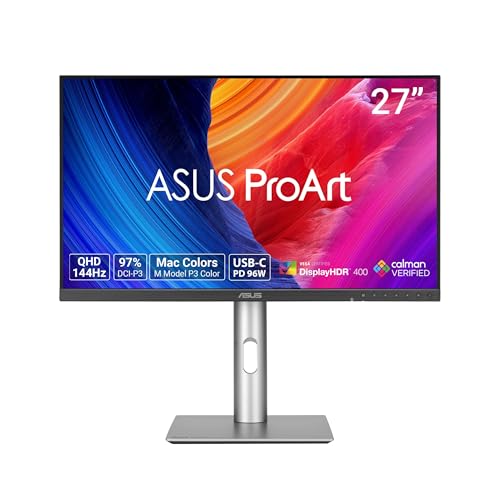 ASUS ProArt PA278CGRV 27 Inch 1440p USB-C Professional27 Inch7.5 x 24.1 x 21.1 inches14.6 poundsCheck on Amazon

A programming monitor is judged by one thing: how text looks after eight hours of reading it. Code is small and dense, full of characters that differ by a single pixel — l, 1, |. A blurry panel turns those into eye strain and real bugs. That is why 4K matters for programmers, and why this guide starts with pixel density, not refresh rate or HDR.
The honest headline first: $300 buys a monitor, not the whole setup. The best 4K monitor here costs $299.99, leaving exactly one cent for everything else. The cheapest honest full desk — monitor, webcam, and headset — is $292.97, but only on the cheapest monitor here.
As an Amazon Associate, we earn from qualifying purchases.
Our top picks

Best for: Laptop programmers who want one cable, sharp text, and a portrait pivot in a single purchase
Check price on Amazon
Best for: Desktop programmers on DisplayPort, or anyone who already owns a USB-C dock
Check price on Amazon
Best for: Programmers who want the sharpest text per dollar and a full desk — monitor, arm, and webcam — under $300
Check price on Amazon
Best for: Programmers who want a big screen without scaling fights, or the cheapest desk that is ready for calls
Check price on Amazon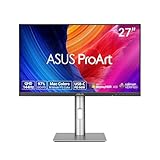
Best for: Developer-designers who need accurate color and a KVM for two machines more than they need 4K text
Check price on AmazonQuick Picks
| Pick | Monitor | Price | Why it wins for programming |
|---|---|---|---|
| Top pick | Dell S2725QC | $299.99 | Sharpest text, USB-C 65W, 120Hz |
| Best value 4K | Dell S2725QS | $279.99 | Same 4K 120Hz panel, has DisplayPort |
| Cheapest real 4K | ASUS VY27UQ | $217–$257 | 99% sRGB, eye care, only desk with an arm |
| Biggest screen | Samsung ViewFinity S71H | $189.99 | Only 32-inch 4K under $300 |
| Color-accurate pick | ASUS ProArt PA278CGRV | $299 | Delta E < 2 and KVM, but 1440p |
How to Choose a 4K Gaming Monitor for Programming
Pixel density is the spec that matters most. A 27-inch 4K panel packs 3840 x 2160 pixels into 27 inches, about 163 pixels per inch (ppi) — dense enough that individual pixels disappear and code fonts render cleanly. A 32-inch 4K panel spreads the same pixels wider, about 138 ppi, visibly softer if you sit close. A 27-inch 1440p panel is only about 109 ppi. For programming, 27-inch 4K at 163 ppi is the sweet spot.
One 4K screen replaces two 1080p screens. A 3840 x 2160 panel is exactly four 1920 x 1080 windows tiled together: editor, documentation, and terminal at once — or two code files side by side. A 1440p panel can hold an editor and a terminal, but not all three at readable sizes.
Set your scaling expectations before you buy. At 27 inches, 4K at 100% scaling makes interface text too small for most people. Windows users typically run 150% scaling and macOS users a Retina-style scaled mode, which still leaves far more usable space than 1440p. Linux users should check fractional scaling first. A 32-inch 4K panel is more forgiving at 100% scaling — a genuine reason to pick the Samsung.
USB-C single-cable docking is a programming feature, not a luxury. If you code on a laptop, a monitor with USB-C video and charging turns your desk into a one-cable dock: one cable lights the screen, charges the laptop, and powers your keyboard and mouse through the hub. The Dell S2725QC delivers 65W, enough for most ultrabooks; the ProArt delivers 96W, enough for heavier machines. Monitors with no USB-C need a separate dock costing $50 or more.
KVM matters when you run two machines. A built-in KVM lets one keyboard and mouse switch between a work laptop and a personal desktop with a button press. The ProArt has Auto KVM; the Dells do not, so budget a $30–$40 USB switch or pick the ProArt and accept its 1440p panel. As for refresh rate, 120Hz only makes scrolling smoother.
Eye care, pivot, and warranty are working-hours specs. All five picks are flicker-free with a low-blue-light mode, and the VY27UQ adds a rest reminder. A panel rotated 90 degrees shows far more lines of a long file; the two Dells and the ProArt pivot on their included stands, while the VY27UQ and the Samsung are tilt-only, so portrait on those two means a VESA arm. Dell and ASUS back theirs with 3-year warranties, Samsung with 1 year.
1. Dell S2725QC — Top Pick
Specs: 27-inch 4K IPS, 3840 x 2160, 120Hz, 99% sRGB, 163 ppi, USB-C 65W, 2x HDMI 2.1, USB hub, 2x 5W speakers, pivot stand, 3-year warranty. Price checked November 2026: $299.99 on Amazon; $349.99 at Dell direct. Check price on Amazon
This is the only monitor here that does everything a programmer needs in one box: the sharpest text at 163 ppi, true 120Hz scrolling, one-cable USB-C docking at 65W, a USB hub, speakers good enough for stand-ups, and a stand that pivots to portrait. At 150% scaling you get an editor, docs, and a terminal on screen at once.
The catch is the price. The $299.99 reading is a deal price, not a street price: Dell’s own store lists it at $349.99, and one tracker shows $349.99 as current with $299.99 as a recent sale. It fits by exactly $0.01, only at the $299.99 reading. If you see $349.99, wait for the sale or buy the QS below.
Pros: Sharpest text here at 163 ppi; one-cable USB-C docking at 65W; speakers good enough for calls; true 120Hz; pivot stand; 3-year warranty.
Cons: Fits by $0.01 and only at the $299.99 deal reading; no DisplayPort (Dell manual, May 2026); 65W will not fast-charge a 16-inch laptop.
Best for: Laptop programmers who want one cable, sharp text, and a portrait pivot in a single purchase.
Desk math: $299.99 leaves $0.01. No webcam, no headset, no arm fits — a monitor-only purchase.
2. Dell S2725QS — Best Value 4K
Specs: 27-inch 4K IPS, 3840 x 2160, 120Hz, 99% sRGB, 163 ppi, DisplayPort 1.4, 2x HDMI 2.1, no USB hub, no speakers, pivot stand, 3-year warranty. Price checked November 2026: $279.99 on Amazon; catalog readings $269.90–$299.99. Check price on Amazon
The QS is the same 4K 120Hz panel as the top pick, with the same 163 ppi text and pivot stand, for $20 less. What you give up is the USB-C port, the USB hub, and the speakers. What you gain is the DisplayPort the QC lacks — confirmed in Dell’s own manual, May 2026: the QC has no DisplayPort, and the QS has no USB at all. If your machine connects over DisplayPort, or you already own a dock, the QS is the smarter buy.
Pros: Same sharp 4K 120Hz panel for $20 less; has the DisplayPort the QC lacks; pivot stand; 3-year warranty.
Cons: No USB-C, so no one-cable docking; no USB hub; no speakers, so calls need a headset.
Best for: Desktop programmers on DisplayPort, or anyone who already owns a USB-C dock.
Desk math: $279.99 leaves $20.01. A webcam at $38 does not fit ($317.99). Like the QC, this is effectively a monitor-only purchase.
3. ASUS VY27UQ — Cheapest Real 4K
Specs: 27-inch 4K IPS, 3840 x 2160, 60Hz, 99% sRGB, 163 ppi, DisplayPort 1.4, 2x HDMI, speaker, Eye Care Plus, flicker-free, tilt-only stand, 3-year warranty. Price checked November 2026: $217 on Amazon; $229 brand-direct; catalog readings $226.71–$266.59. Check price on Amazon
The VY27UQ is the cheapest honest way to get 163 ppi text. Its panel is just as sharp as the Dells — same size, same resolution, same 99% sRGB — and its eye care package is the best here, with a rest reminder. At $217 it leaves $83 of headroom, enough to build the only desk here that includes a monitor arm: monitor, arm, and webcam for $292.99. That arm buys portrait mode, since the included stand only tilts.
The trade-offs are real but honest. It is 60Hz, so scrolling is less smooth than the Dells. Its HDMI ports are TMDS-limited, so run it over DisplayPort. The old $150–$170 price in older roundups is dead: November 2026 readings start at $217.
Pros: Cheapest real 4K text at $217; same 163 ppi as the Dells; best eye care package here; DisplayPort included; 3-year warranty.
Cons: 60Hz scrolling; HDMI is TMDS-limited, use DisplayPort; tilt-only stand, so portrait needs an arm; no USB-C.
Best for: Programmers who want the sharpest text per dollar and a full desk — monitor, arm, and webcam — under $300.
Desk math: $217 + arm $37.99 + webcam $38 = $292.99. The only desk with an arm here, fitting with $7.01 to spare.
4. Samsung ViewFinity S71H — Biggest Screen
Specs: 32-inch 4K IPS, 3840 x 2160, 60Hz, 99% sRGB, 138 ppi, DisplayPort 1.4, 2x HDMI, HDR10, Eye Saver Mode, flicker-free, tilt-only stand, 1-year warranty. Price checked November 2026: $189.99 at Best Buy (Black Friday deal); $199.99 at B&H and Abt. Check price on Amazon
The S71H is the only 32-inch 4K panel under $300. At 32 inches, a 4K screen holds an editor, docs, and a terminal at 100% scaling with text still large enough to read comfortably — no fractional scaling to fight with. The trade-off is pixel density: 138 ppi is softer than the 163 ppi of the 27-inch panels, and if you sit close you will see it in small fonts.
It also makes the cheapest honest full desk possible: at $189.99, a webcam at $38 and a headset at $64.99 bring the total to $292.97 — the only desk here ready for stand-ups and calls on day one. The 1-year warranty is the weakest here, and portrait needs an arm, but at $110 less than the top pick, those are fair trades.
Pros: Only 32-inch 4K under $300; most forgiving at 100% scaling; cheapest honest full desk; 99% sRGB.
Cons: Softer text at 138 ppi; 60Hz; 1-year warranty, the shortest here; tilt-only stand; no USB-C, no speakers.
Best for: Programmers who want a big screen without scaling fights, or the cheapest desk that is ready for calls.
Desk math: $189.99 + webcam $38 + headset $64.99 = $292.97. The only call-ready desk under $300. Swap the headset for an arm and it is $265.98.
5. ASUS ProArt PA278CGRV — Color-Accurate Pick
Specs: 27-inch 1440p IPS, 2560 x 1440, 144Hz, Delta E < 2, Calman Verified, 97% DCI-P3, Auto KVM, USB-C 96W, DisplayPort, HDMI, USB hub, pivot stand, 3-year warranty. Price checked November 2026: $299. Check price on Amazon
Honest exception first: this is not 4K. It is 1440p, about 109 ppi at 27 inches — visibly softer text than every other pick here. For pure programming, buy one of the Dells instead. But this monitor earns its place for the programmer who also does design, photo, or front-end work, where color accuracy decides whether the work ships. Delta E under 2 with Calman verification means on-screen color matches the real thing far more closely than any 4K panel here.
It also has the best connectivity here: USB-C at 96W, the most here, and Auto KVM, the only KVM here. If your desk holds a work laptop and a personal desktop, one keyboard and mouse switch between them at a button press. At $299 it leaves exactly $1, but for a developer-designer the KVM and color accuracy are worth more than the extra pixels.
Pros: Delta E < 2, Calman Verified color; only KVM here; most USB-C power at 96W; pivot stand; 3-year warranty.
Cons: 1440p, not 4K — softest text here at 109 ppi; $299 leaves $1; overkill if you never touch design work.
Best for: Developer-designers who need accurate color and a KVM for two machines more than they need 4K text.
Desk math: $299 leaves $1.00. Nothing else fits — not even the $38 webcam.
What to Avoid
The LG 27US500-W trap — corrected. The previous guide flagged the LG 27US500-W at $249.99 as “reportedly” having 100W USB-C. That flag was wrong: LG’s own listing shows HDMI and DisplayPort only, with no USB port at all. At $249.99 for a 60Hz 4K panel with no USB and no pivot, it is a worse buy than the VY27UQ at $217.
The BenQ PD2706QN at $299.99. It appears in the catalog at $299.99 with 90W USB-C and a built-in KVM — but it is a 1440p panel, so you are paying 4K money for 109 ppi text. The ProArt gives you the same KVM, better color, and 96W USB-C for the same money.
HDMI without checking the version. The VY27UQ’s HDMI ports are TMDS-limited and may not carry full 4K 60Hz cleanly. Run these monitors over DisplayPort, or over USB-C on the Dell QC and the ProArt.
A monitor with no webcam budget. None of these monitors has a built-in webcam, and the honest webcam budget in November 2026 is $38–$40, not the $30 older guides quoted.
FAQ
Is 4K worth it for programming, or is 1440p enough?
For most programmers, yes — 4K at 27 inches gives about 163 ppi, and the difference over 1440p at 109 ppi is visible in the first minute. You fit more code on screen and your eyes work less hard. If you hate display scaling, the 32-inch S71H at 4K is the middle path.
What scaling should I use on a 27-inch 4K monitor?
Most Windows users settle on 150% scaling and most macOS users on a Retina-style scaled mode. Both keep text razor sharp while leaving far more usable space than 1440p. Linux users should test fractional scaling first.
Do I need USB-C on a programming monitor?
Only if you code on a laptop. One cable carrying video, charging, and your keyboard and mouse is the biggest desk-quality improvement after the panel itself. If you code on a desktop with DisplayPort, USB-C adds nothing, and the QS at $279.99 is the better buy.
Which monitor should I buy if I code on a MacBook?
The Dell S2725QC. macOS renders 27-inch 4K text beautifully at Retina scaling, and the USB-C port carries video and 65W charging over one cable.
Verdict
If you code on a laptop, buy the Dell S2725QC at $299.99 — but check the price first, because it only fits at the deal reading and Dell’s own store lists $349.99. If your machine has DisplayPort or you already own a dock, the Dell S2725QS at $279.99 is the same sharp panel for $20 less. If you want the sharpest text per dollar and a complete desk, the ASUS VY27UQ at $217 plus an arm and a webcam at $292.99 is the smartest money here. If you want the biggest screen and a desk ready for calls, the Samsung S71H at $189.99 plus webcam and headset at $292.97 is the only call-ready desk under $300. If your work mixes code with design, the ASUS ProArt PA278CGRV at $299 trades 4K text for color accuracy and the only KVM here.
The honest summary: $300 buys a monitor, not the whole setup. Buy the monitor now, budget the webcam separately, and check the price first.
Suggested Internal Links
- Best 4K Gaming Monitor for Home Office Under $300
- Best 4K Gaming Monitor for Students Under $300
- Best 4K Gaming Monitor for Video Editing Under $300
More from Amazon
Programs that pair well with the guide above. Offers and eligibility are set by Amazon and may change.
Free shipping on eligible items, Prime Video and more. Eligible new members can start with a free trial.
Start a Prime free trialAudiobooks and podcasts to listen to on the go. Eligible new members can start with a free trial.
Try Audible freeAd-free music streaming. Eligible new subscribers can start with a free trial.
Try Music Unlimited freeA free business account with business pricing and bulk-buying tools for work, shop or home office.
Create a business accountAs an Amazon Associate we earn from qualifying purchases.
Write Your Review
No reviews yet. Be the first to share your experience!