

Key takeaways
- The best 4K gaming monitor for remote work under $300 is the Dell S2725QC at $299.99 — the only pick with single-cable USB-C docking, 4K 120Hz, and a full-adjustment stand. Buy it at the sale price; at $349.99 the honest budget is $350.
Remote work changed what a monitor has to do. It is your morning dock, your camera frame, and your after-hours gaming display. For under $300 that sounds like a stretch: $300 buys a monitor, not a home office. The right monitor gets you most of the way there; the wrong one leaves you buying a dock, webcam, and headset.
Every price is a November 2026 reading — check the current price before buying.
As an Amazon Associate, we earn from qualifying purchases.
Our top picks
Best for: The remote worker with one laptop who wants a single cable to do everything
Check price on AmazonBest for: The remote worker with a big laptop and two machines who values charging and KVM over pixels
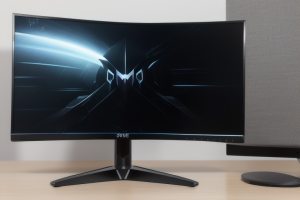
Check price on AmazonBest for: The remote worker who wants 4K text and a complete desk, not a dock
Check price on AmazonBest for: The remote worker who wants the biggest screen and the only all-four desk under $300
Check price on AmazonQuick Picks
| Monitor | Best for | Price (Nov 2026) |
|---|---|---|
| Dell S2725QC | Best overall remote-work monitor | $299.99 |
| Dell S2725QS | Best for desktop PCs | $279.99 |
| ASUS ProArt PA278CGRV | Best USB-C charging + KVM | $299 (1440p) |
| ASUS VY27UQ | Best budget 4K | $217–$257 |
| Samsung ViewFinity S71H | Best big screen + complete desk | $189.99 |
How to Choose
Start with the cable, not the panel. The Dell S2725QC takes one USB-C cable for 4K video, a USB hub, and up to 65W of charging — enough for most ultrabooks, but not a 16-inch MacBook Pro under load. The ProArt PA278CGRV is the only pick with 96W USB-C charging — and it is 1440p, not 4K.
KVM matters if you have two machines. A built-in KVM lets two machines share one screen, keyboard, and mouse. The ProArt has Auto KVM; neither Dell has one, and the QC’s USB hub only works while the USB-C cable is connected — plug in over HDMI and the hub goes dead.
No monitor here has a webcam. All five picks lack a built-in camera, so a remote-work desk needs a webcam on top. The honest webcam budget is $38–$40: the Logitech Brio 100 reads $39.99 at Logitech’s own store and in the catalog. Earlier guides said $30; corrected publicly in batch 189.
Speakers are weak on all five picks. The QC has two 5W speakers; the VY27UQ and S71H have built-in speakers too. All are fine for calls and thin for everything else. The honest headset budget is $24.99 (Logitech H390, noise-cancelling mic).
Pivot is a remote-work feature. A 27-inch 4K panel rotated to portrait holds a full page without scrolling. The two Dells and the ProArt pivot; the VY27UQ and S71H are tilt-only, so portrait needs a Mount-It arm ($37.99). Dell and ASUS cover these monitors for 3 years; Samsung covers the S71H for 1 year.
1. Dell S2725QC — Best Overall Remote-Work Monitor
Specs: 27″ 4K IPS (3840 x 2160), 163 ppi | 120Hz, AMD FreeSync Premium | 99% sRGB, 350 nits, 1500:1 contrast | USB-C 65W PD + hub (1x USB-C + 2x USB-A downstream) | 2x HDMI 2.1 | 2x 5W speakers | Height / tilt / swivel / pivot stand | VESA 100×100 | 3-year warranty
Pros: Only pick with single-cable USB-C docking at 4K; sharpest text here at 163 ppi; 120Hz scrolling; two HDMI 2.1 ports for a console after work; full-adjustment stand with pivot
Cons: Fits by exactly $0.01 and only at the sale price; no DisplayPort input; no headphone jack; 65W charging is not enough for big laptops; USB hub dies on HDMI
Best for: The remote worker with one laptop who wants a single cable to do everything.
The S2725QC is the best remote-work monitor under $300 — and the most fragile pick, because its price flickers. Amazon and Best Buy read $299.99 on sale against a $349.99 list, but Dell’s store and a price tracker now read $349.99 (average $304.11). Catch the $299.99 sale and it fits by one cent; at $349.99 the honest budget is $350.
One USB-C cable carries 4K video, the hub, and 65W of charging for a one-cable dock. The 120Hz panel makes scrolling documents noticeably smoother than 60Hz, and 163 ppi makes text razor-sharp at 150% scaling.
Two listing-page claims are wrong. Some retailer copy claims a DisplayPort input and a headphone jack. Dell’s May 2026 manual confirms neither exists: DisplayPort 1.4 video comes only through USB-C Alt Mode, and there is no headphone jack. The USB hub also only works while the USB-C cable is connected, so a desktop PC on HDMI gets the picture and nothing else.
The desk math is brutal. At $299.99 the monitor alone eats the budget: add the Brio 100 ($39.99) and you are at $339.98; add the H390 ($24.99) and you are at $324.98. It is a monitor-only buy at $300 — still the top pick, because the docking is worth more than the accessories.
2. Dell S2725QS — Best for Desktop PCs
Specs: 27″ 4K IPS (3840 x 2160), 163 ppi | 120Hz, AMD FreeSync Premium | 99% sRGB, 350 nits, 1500:1 contrast | DisplayPort 1.4 + 2x HDMI 2.1 | No USB at all | 2x 5W speakers | Height / tilt / swivel / pivot stand | VESA 100×100 | 3-year warranty
Pros: Same 4K 120Hz panel as the QC for $20 less; has a real DisplayPort input; full-adjustment stand with pivot; 3-year warranty
Cons: No USB of any kind — no hub, no charging, no webcam passthrough; no headphone jack; leaves almost nothing for accessories
Best for: The remote worker on a desktop PC who already owns a dock.
The QS is the QC minus the dock: same 27-inch 4K IPS panel, 120Hz, 99% sRGB, 350 nits, and stand. The back changes instead: a DisplayPort 1.4 input and two HDMI 2.1 ports, and no USB port of any kind — no upstream USB-C, no hub, no charging.
For a desktop PC, the QS is the better buy: a desktop already has USB ports, a power supply, and a graphics card with DisplayPort out, so you are not paying $20 for docking you will never use — and you get a real DisplayPort input the QC lacks. For a laptop, the QS is the wrong buy: you will spend the $20 you saved, and then some, on a USB-C hub.
It reads $279.99 at Dell’s store and in the catalog ($269.90–$299.99 across sellers). Desk math is tight: QS plus the Brio 100 is $319.98, missing by $19.98; QS plus the H390 is $304.98, missing by $4.98.
3. ASUS ProArt PA278CGRV — Best USB-C Charging + KVM
Specs: 27″ 1440p IPS (2560 x 1440), 109 ppi | 144Hz | Delta E < 2, Calman Verified, 97% DCI-P3 | USB-C 96W PD + Auto KVM | DisplayPort + HDMI | Height / tilt / swivel / pivot stand | 3-year warranty
Pros: Only pick with 96W USB-C charging — charges a 14-inch MacBook Pro; Auto KVM for two machines; factory-calibrated color, Delta E under 2; 144Hz
Cons: 1440p, not 4K — 109 ppi against 163 ppi on the Dells; text is visibly softer; monitor-only buy at $299
Best for: The remote worker with a big laptop and two machines who values charging and KVM over pixels.
This is the only pick that is not 4K, and it is here because it solves the two problems the Dells cannot. Its USB-C port delivers 96W, enough to charge a 14-inch MacBook Pro and most 15-inch Windows laptops while they work, and its Auto KVM switches one keyboard and mouse between a work laptop and a personal PC with no extra hardware. For two machines and a power-hungry laptop, those two features beat 4K.
The trade-off is visible: at 27 inches, 1440p is 109 ppi against 163 on the Dells, so text is softer, and most people run it at 125% scaling — which eats back some of the screen space the lower resolution was supposed to give. The consolation is color: Delta E under 2, Calman Verified, 97% DCI-P3 — the best accuracy here.
At $299 it is a monitor-only buy, same as the QC. But the KVM changes the desk math: a standalone KVM switch costs $40–$80, and the ProArt includes one.
4. ASUS VY27UQ — Best Budget 4K
Specs: 27″ 4K IPS (3840 x 2160), 163 ppi | 60Hz | 99% sRGB | HDMI + DisplayPort | Built-in speakers | Tilt-only stand | 3-year warranty
Pros: Cheapest real 4K with 99% sRGB; same sharp 163 ppi text as the Dells; leaves real money for a webcam, headset, and arm; 3-year warranty
Cons: 60Hz only — scrolling is visibly less smooth than 120Hz; tilt-only stand, no pivot without an arm; no USB-C, no hub, no charging; HDMI TMDS trap on some connections
Best for: The remote worker who wants 4K text and a complete desk, not a dock.
The VY27UQ is the cheapest honest way into 4K, and the pick that makes a complete remote-work desk possible. It reads $217 at Amazon, $229 at ASUS’s store, and $226.71 at an authorized retailer ($217–$257 across sellers). The old $150–$170 price older roundups still quote is dead — November 2026 reads start at $217, and any listing under $200 is a trap.
What you give up is motion and connectivity. The panel is 60Hz, so scrolling feels choppier. There is no USB-C, no hub, and no charging, so a laptop needs its own charger and hub. The stand tilts and nothing else: no height, no swivel, no pivot. Watch the HDMI trap: some connections run over TMDS rather than FRL — use DisplayPort or a certified Ultra High Speed HDMI cable.
What you gain is the desk. VY27UQ ($217) plus the Brio 100 ($39.99) plus the H390 ($24.99) is $281.97 — monitor, webcam, and headset, fitting by $18.03. Swap the headset for the Mount-It arm ($37.99) and you get $294.98 — the only desk here with a monitor, a webcam, and an arm under $300, fitting by $5.02. The VY27UQ is not the best monitor here. It is the best desk.
5. Samsung ViewFinity S71H — Best Big Screen + Complete Desk
Specs: 32″ 4K IPS (3840 x 2160), 138 ppi | 60Hz | HDR10 | HDMI + DisplayPort | Built-in speakers | Tilt-only stand | 1-year warranty
Pros: Only 32-inch 4K under $300; biggest screen here for split windows; cheapest monitor in the guide, leaving the most desk money; Best Buy Black Friday deal
Cons: 138 ppi — text is softer than the 27-inch 4K picks; 60Hz; tilt-only stand; 1-year warranty against 3 years on the Dells and ASUS
Best for: The remote worker who wants the biggest screen and the only all-four desk under $300.
The S71H is the biggest screen in this guide and the cheapest, and those two facts make it the best desk buy. It reads $189.99 at Best Buy’s Black Friday pricing and $199.99 at B&H and Abt. At 32 inches, 4K is 138 ppi — softer than the 163 ppi of the 27-inch picks, but the extra five inches hold two full windows side by side in a way no 27-inch panel can. That width is worth more than pixel density for split-screen work.
S71H ($189.99) plus the Brio 100 ($39.99) plus the H390 ($24.99) is $254.97 — the best desk math in the guide, fitting by $45.03 as the cheapest complete remote-work desk. Add the Mount-It arm ($37.99) and you get $292.96, fitting by $7.04 — the only desk here with all four pieces under $300. No other pick can do that.
The compromises are honest: 60Hz, a tilt-only stand, and a 1-year warranty against 3 years on the Dells and ASUS picks. That two-year gap is the real cost of the $110 you save against the QC.
What to Avoid
The LG 27US500-W “100W USB-C” listing. Flagged in batch 188, corrected in batch 189 — and the listing is still out there. The LG 27US500-W has no USB at all — HDMI and DisplayPort only. Any page claiming 100W USB-C on this model is wrong. At $249.99 it is a fine 4K panel, but not a docking monitor.
The BenQ PD2706QN as a 4K pick. At $299.99 it looks like a bargain: 90W USB-C and a built-in KVM. But it is 1440p, not 4K. Buy it as a 1440p KVM monitor, or buy the ProArt instead.
Retailer copy that invents ports. Some S2725QC listings claim a DisplayPort input and a headphone jack; Dell’s May 2026 manual says neither exists. Some VY27UQ listings claim 120Hz; it is 60Hz. Check the manufacturer’s spec sheet, not the store page.
The $30 webcam budget. Earlier guides said $30; that was wrong. The Logitech Brio 100 — the cheapest honest 1080p webcam from a real brand — reads $39.99. Budget $38–$40.
FAQ
Can I run my whole remote-work setup off one USB-C cable?
Only with the S2725QC or the ProArt PA278CGRV, and only if your laptop charges at 65W or 96W. A 16-inch MacBook Pro or a gaming laptop needs its own charger even on the ProArt.
Do I need a webcam if my laptop has one?
Probably not, but check the angle: a laptop camera shoots up your nose from desk height, while a Brio 100 clipped to the top of a 27-inch monitor shoots at eye level. At $39.99 it is the cheapest upgrade to how you look on calls.
Is 120Hz worth it for work?
For scrolling documents and code, yes. For video calls and spreadsheets, no — it is a comfort feature, and the 60Hz VY27UQ and S71H are fine without it.
What is the honest budget for a complete remote-work desk?
$254.97: Samsung S71H ($189.99) + Brio 100 ($39.99) + H390 ($24.99). $292.96 adds the arm. $300 buys a monitor, not a home office.
Verdict
The best 4K gaming monitor for remote work under $300 is the Dell S2725QC at $299.99 — the only pick with single-cable USB-C docking, 4K 120Hz, and a full-adjustment stand. Buy it at the sale price; at $349.99 the honest budget is $350.
But the best desk under $300 is not the QC. It is the Samsung S71H at $189.99 — the only monitor leaving room for webcam, headset, and arm: $292.96 for all four, fitting by $7.04. The VY27UQ at $217 is the middle path: the same sharp 4K text as the Dells, with webcam and headset fitting at $281.97.
Buy the QC for one laptop and one cable. Buy the QS for a desktop PC. Buy the ProArt for two machines and a laptop that needs 96W. Buy the VY27UQ for 4K text and a complete desk. Buy the S71H for the biggest screen and the whole desk under $300.
Suggested internal links
- Best 4K Gaming Monitor for Home Office Under $300
- Best 4K Gaming Monitor for Programming Under $300
- Best 4K Gaming Monitor for Photo Editing Under $300
More from Amazon
Programs that pair well with the guide above. Offers and eligibility are set by Amazon and may change.
Free shipping on eligible items, Prime Video and more. Eligible new members can start with a free trial.
Start a Prime free trialAudiobooks and podcasts to listen to on the go. Eligible new members can start with a free trial.
Try Audible freeAd-free music streaming. Eligible new subscribers can start with a free trial.
Try Music Unlimited freeA free business account with business pricing and bulk-buying tools for work, shop or home office.
Create a business accountAs an Amazon Associate we earn from qualifying purchases.
Write Your Review
No reviews yet. Be the first to share your experience!