

Key takeaways
- Best USB-C Docking Station Under $200 —
/best-usb-c-docking-station-under-200/ - Best 4K Gaming Monitor Under $500 —
/best-4k-gaming-monitor-under-500/ - Best Ultrawide Monitor Under $500 —
/best-ultrawide-monitor-under-500/
A good docking station turns one USB-C cable into a full desk: monitors, keyboard, mouse, Ethernet, and laptop charging, all connected at once. Under $300, you can get dual 4K monitors and 100W charging without paying Thunderbolt prices — but only if you buy the right kind for your laptop. A dock that works perfectly on Windows can show a single mirrored screen on a MacBook, and a 100W dock may leave a 16-inch workstation slowly draining under load.
This guide covers five real USB-C docking stations sold on Amazon US in November 2026, in configurations that fit the under-$300 budget at the time of research. Prices change often, so treat any price below as a snapshot and check the current price before you buy. We have not bench-tested these units.
Top pick: the Anker 675 is the best USB-C docking station under $300 for most desk setups. It combines a 12-in-1 dock with a monitor stand and a wireless phone charger, charges a laptop at 100W, and drives a single 4K monitor at 60Hz. If you need two or more monitors, look at the Plugable UD-3900C4 or the UGREEN Revodok Pro 209.
Quick Picks
| Product | Best for | Key specs | Price note |
|---|---|---|---|
| Anker 675 | Best overall | 12-in-1, monitor stand, 100W PD, single 4K@60Hz HDMI, wireless charging | Check current price; list $249.99, seen at $161–$200 on Amazon |
| Plugable UD-3900C4 | Best for four monitors | 14-in-1, 4x HDMI, 4x 1080p@60Hz, 96W certified charging | Check current price; $244.99 list |
| Dell WD19S 180W | Best budget office dock | Dual 4K@60Hz, 130W PD to Dell / 90W to others, 2x DP + HDMI | Check current price; often under $100 on Amazon |
| UGREEN Revodok Pro 209 | Best for Mac dual monitors | 9-in-1 DisplayLink, dual 4K@60Hz, 100W PD, 10Gbps ports | Check current price; $169.99 MSRP |
| Kensington SD4850P | Best driverless Windows dock | 13-in-1, dual 4K@60Hz, 100W PD, 6 USB ports, 3-year warranty | Check current price; around $200–$213 |
How to Choose a USB-C Docking Station Under $300
Count your monitors first, then check how the dock drives them. Some docks use your laptop’s own video output (DisplayPort Alt Mode or MST); others use DisplayLink, a chip plus a driver that compresses video over plain USB data. DisplayLink docks can drive two 4K monitors from almost any laptop, including MacBooks that otherwise support only one external display.
Match power delivery to your laptop. Most 13- and 14-inch ultrabooks are happy with 65W to 100W, but a 15- or 16-inch performance laptop can draw more under load. If your laptop ships with a 130W or 140W adapter, a 100W dock is a compromise.
Check display support in real terms, not headline terms. “Supports 4K” can mean one 4K monitor at 60Hz, one at 30Hz, or two at 30Hz — and 4K at 30Hz feels laggy when you scroll. Aim for 4K at 60Hz on every monitor, and check the dock’s video ports match your monitors.
Ports: count what you actually plug in. Add up your keyboard, mouse, webcam, headset, external drive, and printer, then make sure the dock has enough USB-A ports left over. USB-C data ports suit fast external SSDs, and an SD slot matters if you move photos from a camera.
Compatibility: Windows, Mac, and ChromeOS are not equal. Most USB-C docks work on Windows with no driver. MacBooks need either a dock that fits Apple’s single-display limit or a DisplayLink dock with the DisplayLink Manager software installed. On a locked-down work laptop, a driverless dock is safer.
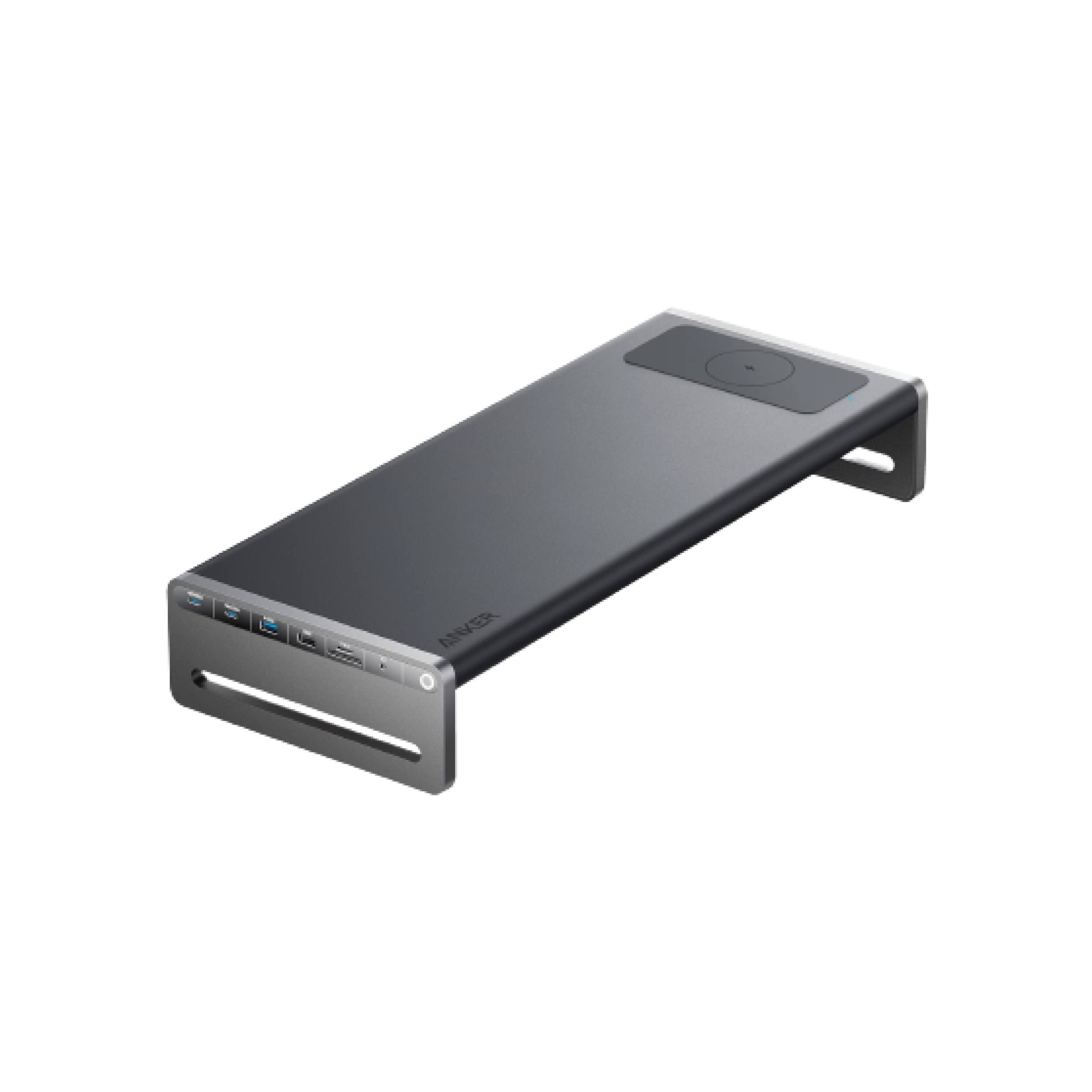
1. Anker 675 — Best Overall
Best for: Most buyers who want one purchase that solves the dock, the monitor stand, and phone charging at the same time.
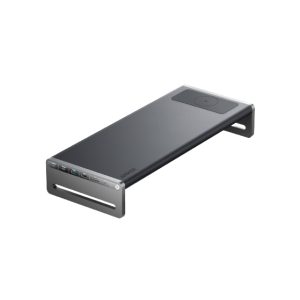
The Anker 675 is the most complete desk setup in this guide: a 12-in-1 docking station built into an aluminum monitor stand, with a wireless charging pad on top. One USB-C cable connects your laptop and charges it at up to 100W, while the stand raises your monitor and hides cable clutter underneath.
The port selection covers a single-monitor setup completely: one HDMI 2.0 port drives a 4K display at 60Hz, three USB-A ports handle a keyboard, mouse, and webcam, two USB-C ports cover data and charging for phones and tablets, and SD and microSD slots cover camera cards.
Specs: 12-in-1; USB-C 3.1 Gen 2 host (10Gbps); 100W laptop charging; 1x HDMI 2.0, 4K@60Hz; 3x USB-A, 2x USB-C (shared 45W); SD/microSD; Gigabit Ethernet; Qi wireless charging pad; monitor stand, 21.26 x 8.66 in.
Pros: Dock, monitor stand, and wireless charger in one unit; 100W charging covers most ultrabooks; solid aluminum build.
Cons: Only one external monitor — the USB-C ports carry data and charging, not video; no DisplayPort output; the stand takes up more desk depth than a small dock.
Who it is best for: Buyers with one external monitor who want a tidy desk and a phone charger built in.
Check price on Amazon — Anker 675 USB-C Docking Station
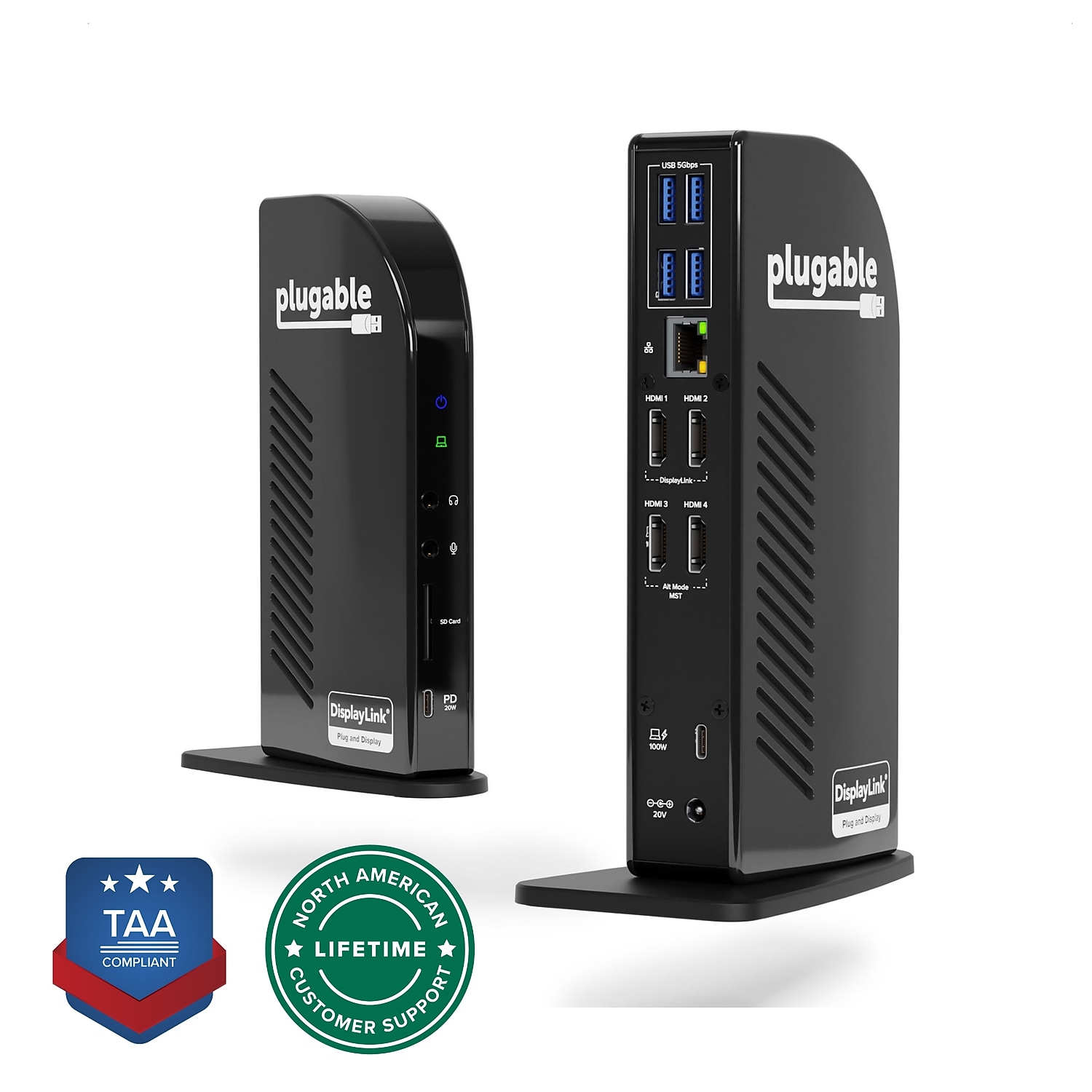
2. Plugable UD-3900C4 — Best for Four Monitors
Best for: Windows users who want the most screens possible from one USB-C cable.
The Plugable UD-3900C4 is the multi-monitor specialist in this guide: a 14-in-1 dock with four HDMI outputs, letting a compatible Windows laptop drive four additional 1080p displays at 60Hz, plus 100W laptop charging (96W certified). If your work means spreadsheets on one screen, email on another, and reference material on a third, this is the dock that does it without Thunderbolt pricing.
The trade-off is resolution: four displays run at 1080p, not 4K — a bandwidth limit of USB-C, not a defect. It works best on Windows 10 or later; Mac support is limited, so check Plugable’s compatibility list before buying for a MacBook.
Specs: 14-in-1; 4x HDMI, up to 4x 1080p@60Hz; 100W laptop charging (96W certified); 4x USB 3.0, 1x USB-C (20W); Gigabit Ethernet; audio in/out; TAA compliant.
Pros: Four external monitors from one cable; 96W certified charging; plenty of USB ports; TAA compliant.
Cons: Four displays are 1080p only, not 4K; Windows-focused — Mac support is limited; large footprint for a desk dock.
Who it is best for: Windows users running three or four monitors, where screen count matters more than 4K resolution.
Check price on Amazon — Plugable UD-3900C4 USB-C Docking Station
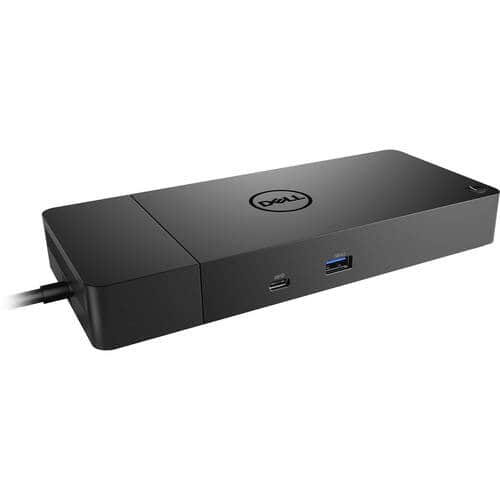
3. Dell WD19S 180W — Best Budget Office Dock
Best for: Office buyers who want a proven Dell dock for dual 4K monitors at the lowest street price in this guide.
The Dell WD19S is the workhorse of this roundup: a slim USB-C dock with two DisplayPort 1.4 outputs and one HDMI port, driving dual 4K monitors at 60Hz, with three USB-A ports, two USB-C ports, and Gigabit Ethernet. It delivers 130W to Dell laptops and 90W to non-Dell machines, enough to keep most 14- and 15-inch office laptops charged under normal use.
The striking thing about the WD19S is its street price. Dell’s list price is around $225, but Amazon listings for the 180W version routinely sell for under $100 — price trackers showed listings around $70 to $115 in November 2026.
Specs: USB-C host with DisplayPort Alt Mode; 2x DisplayPort 1.4, 1x HDMI; dual 4K@60Hz; 130W PD to Dell laptops, 90W to others; 3x USB-A, 2x USB-C; Gigabit Ethernet; 180W power adapter included.
Pros: Dual 4K at 60Hz for often under $100 on Amazon; 130W charging for Dell laptops; slim footprint.
Cons: No 3.5mm audio ports (the WD19S drops them versus the WD19); 90W to non-Dell laptops may not keep a powerful workstation charged under load; older design with no USB4 or Thunderbolt.
Who it is best for: Office buyers — especially Dell laptop owners — who want dual 4K monitors at the lowest price.
Check price on Amazon — Dell WD19S 180W Docking Station
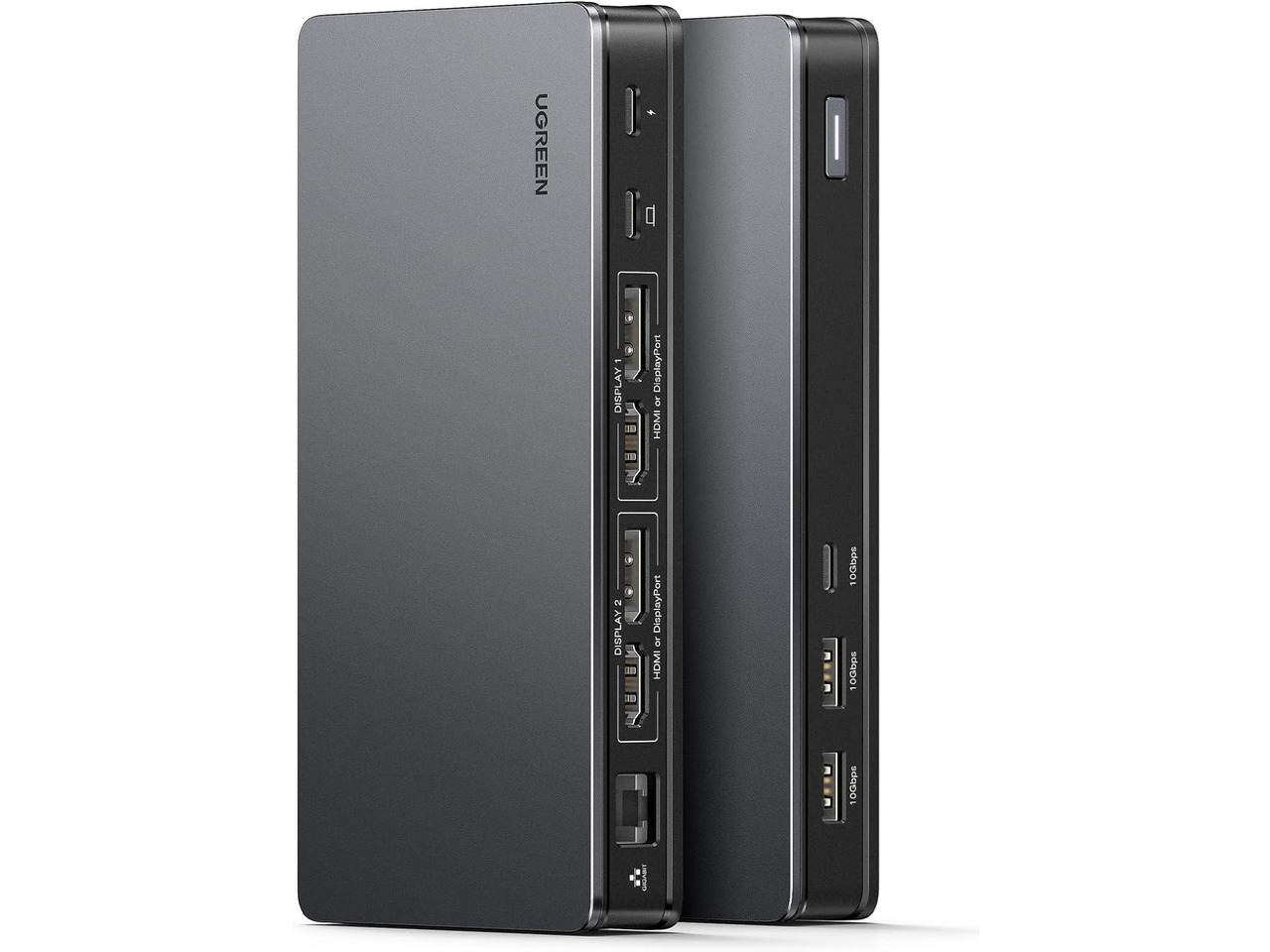
4. UGREEN Revodok Pro 209 — Best for Mac Dual Monitors
Best for: MacBook owners who need two external 4K monitors without buying a Thunderbolt dock.
The UGREEN Revodok Pro 209 solves the Mac problem. It is a 9-in-1 DisplayLink dock, so it drives two 4K monitors at 60Hz through regular USB data after you install the DisplayLink Manager driver — something a native Alt Mode dock cannot do on most M-series MacBooks. It has two HDMI and two DisplayPort connectors, but they work as two video groups: use one port from each group, so you get two active displays, not four.
Beyond video, the 209 is a complete desk dock: 100W power delivery, three 10Gbps USB ports, Gigabit Ethernet, and SD and microSD slots. The DisplayLink driver is the price of admission, and the dock does not support HDCP, so some paid streaming content will not play on the connected monitors.
Specs: 9-in-1 DisplayLink dock; 2x HDMI + 2x DisplayPort (two active displays, dual 4K@60Hz); 100W PD; 1x USB-C 10Gbps, 2x USB-A 10Gbps; Gigabit Ethernet; SD/microSD; Windows and macOS.
Pros: Two 4K monitors on MacBooks that otherwise allow only one; 100W charging; 10Gbps USB ports.
Cons: DisplayLink driver required; no HDCP support for some streaming services; the base dock ships without a power adapter — UGREEN sells a bundle with a 100W GaN charger; only two displays despite four video connectors.
Who it is best for: MacBook owners who need two 4K monitors and are comfortable installing the DisplayLink driver.
Check price on Amazon — UGREEN Revodok Pro 209 Docking Station
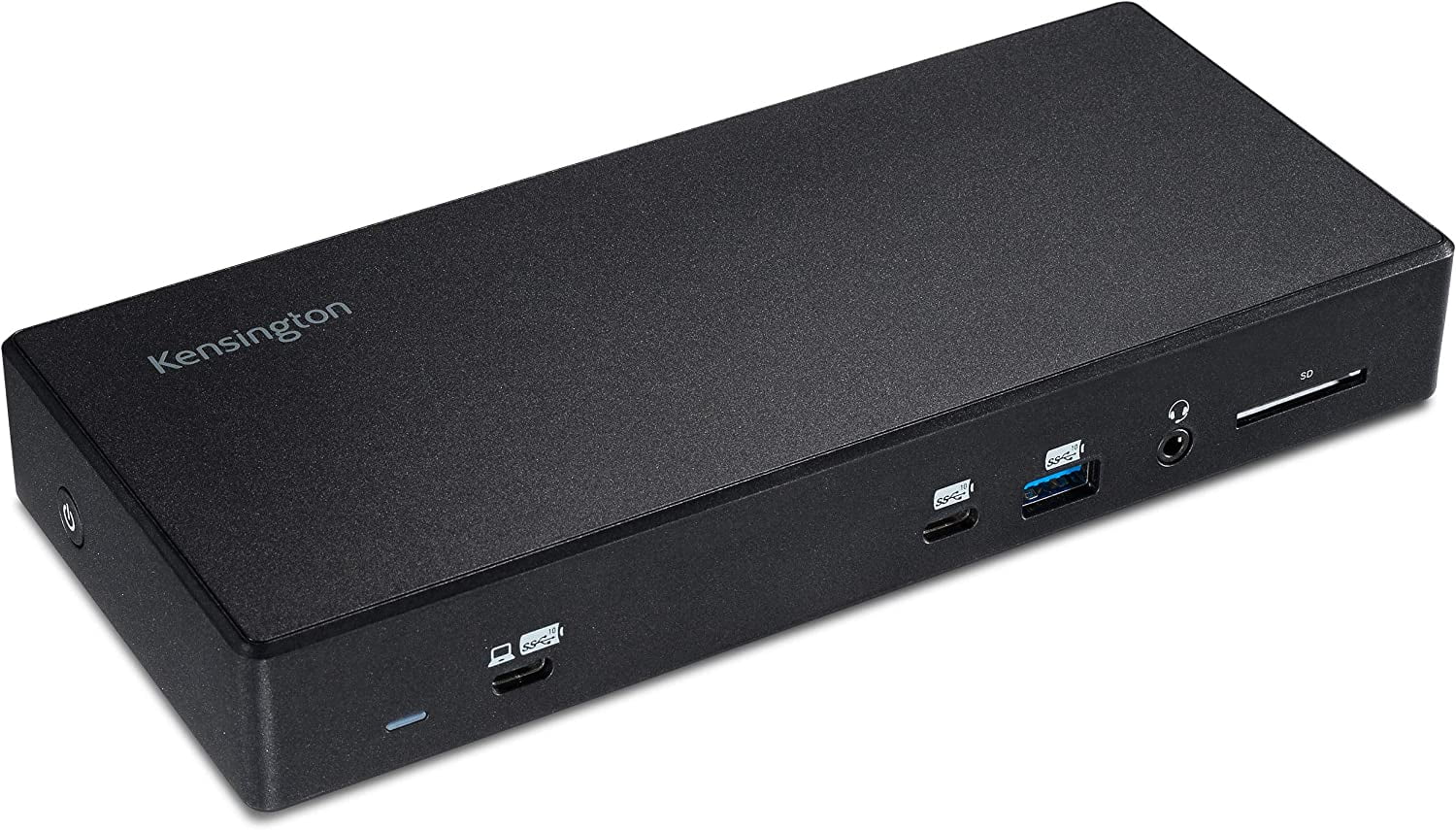
5. Kensington SD4850P — Best Driverless Windows Dock
Best for: Windows users in locked-down offices who cannot install drivers but still want dual or triple 4K monitors.
The Kensington SD4850P is the top-of-the-line driverless dock in Kensington’s USB-C range: a 13-in-1 dock with two DisplayPort++ ports, one HDMI port, and a USB-C video output, supporting dual 4K at 60Hz — and up to triple 4K at 60Hz on a laptop with a DP1.4 HBR3 connection. It charges at up to 100W, carries six USB ports, and comes with a 3-year warranty.
Driverless matters more than it sounds. If your work laptop is managed by IT and you cannot install software, a DisplayLink dock may simply not work for you. The SD4850P needs no driver at all on Windows 7 or above, as long as the laptop’s USB-C port supports DisplayPort Alt Mode and Power Delivery. The trade-off is that it is Windows-only, and availability is worth checking: Kensington’s own store listed it as unavailable with stock expected in early 2027, though third-party retailers still carried it around $200 to $213 in November 2026.
Specs: 13-in-1 driverless dock; 2x DisplayPort++, 1x HDMI, 1x USB-C video; dual 4K@60Hz, triple 4K@60Hz on DP1.4 HBR3; 100W PD; 6x USB ports; Gigabit Ethernet; 3-year warranty; Windows only.
Pros: No driver to install; triple 4K support on capable hosts; 3-year warranty; 100W charging.
Cons: Windows only — not for MacBooks; check availability before buying, as Kensington’s own store showed it out of stock; no Thunderbolt support.
Who it is best for: Windows office users who need two or three 4K monitors but cannot install drivers.
Check price on Amazon — Kensington SD4850P Docking Station
What to Avoid
Do not buy a dock before checking your laptop’s USB-C port. A USB-C-shaped port does not guarantee video output, Thunderbolt, or charging. If your laptop’s port is data-only, no USB-C dock will drive a monitor from it.
Do not assume “dual monitor” means two 4K monitors at 60Hz. Some docks drive two monitors at 30Hz, or one at 4K and one at 1080p. Read the display table in the specifications.
Do not buy a DisplayLink dock if you cannot install drivers. DisplayLink docks need the DisplayLink Manager software — a deal-breaker on a locked-down work laptop or on ChromeOS.
Do not ignore the power adapter. A dock without an included adapter cannot charge your laptop, and a 100W dock cannot replace a 130W or 140W laptop charger under heavy load.
Do not pay Thunderbolt prices for a USB-C dock. Thunderbolt docks like the CalDigit TS4 cost $300 or more and offer 40Gbps bandwidth; under $300 you are buying USB-C bandwidth, usually 10Gbps.
FAQ
What is the best USB-C docking station under $300?
For most desk setups, the Anker 675: a 12-in-1 dock, monitor stand, and wireless phone charger in one, with 100W charging and a single 4K monitor at 60Hz. If you need two monitors, the Dell WD19S is the best budget pick and the UGREEN Revodok Pro 209 is best for MacBooks.
Can a USB-C docking station under $300 run two 4K monitors?
Yes. The Dell WD19S, UGREEN Revodok Pro 209, and Kensington SD4850P all drive dual 4K at 60Hz under $300, and the Plugable UD-3900C4 drives four monitors at 1080p.
Do USB-C docking stations work with MacBooks?
Yes, with limits. Most M-series MacBooks support only one external monitor through a native USB-C dock. To run two, use a DisplayLink dock like the UGREEN Revodok Pro 209 and install the DisplayLink Manager driver.
Is 100W charging enough for my laptop?
For most 13- and 14-inch ultrabooks, yes. For a 15- or 16-inch laptop with a discrete GPU, check the wattage of the charger it shipped with: if it came with a 130W or 140W adapter, a 100W dock may charge it slowly.
What is the difference between a USB-C dock and a Thunderbolt dock?
Bandwidth. A USB-C dock typically runs at 10Gbps, while a Thunderbolt dock runs at 40Gbps — but Thunderbolt docks usually cost $300 or more. For office work with two 4K monitors, a good USB-C dock under $300 is enough.
Verdict
For most buyers, the Anker 675 is the best USB-C docking station under $300: it replaces a dock, a monitor stand, and a wireless charger, charges at 100W, and covers a single 4K monitor setup completely. If you need two monitors on a budget, choose the Dell WD19S, which routinely sells for under $100 on Amazon. If you need two 4K monitors on a MacBook, choose the UGREEN Revodok Pro 209 and install the DisplayLink driver. If you need the most screens possible on Windows, choose the Plugable UD-3900C4. And if your work laptop is locked down and cannot install drivers, choose the Kensington SD4850P — after checking it is in stock.
Whichever you choose, confirm your laptop’s USB-C port supports video output and check the current price on Amazon first.
As an Amazon Associate, we earn from qualifying purchases.
Suggested internal links for chartget.com
- Best USB-C Docking Station Under $200 —
/best-usb-c-docking-station-under-200/ - Best 4K Gaming Monitor Under $500 —
/best-4k-gaming-monitor-under-500/ - Best Ultrawide Monitor Under $500 —
/best-ultrawide-monitor-under-500/
More from Amazon
Programs that pair well with the guide above. Offers and eligibility are set by Amazon and may change.
Free shipping on eligible items, Prime Video and more. Eligible new members can start with a free trial.
Start a Prime free trialAudiobooks and podcasts to listen to on the go. Eligible new members can start with a free trial.
Try Audible freeAd-free music streaming. Eligible new subscribers can start with a free trial.
Try Music Unlimited freeA free business account with business pricing and bulk-buying tools for work, shop or home office.
Create a business accountAs an Amazon Associate we earn from qualifying purchases.
Write Your Review
No reviews yet. Be the first to share your experience!