

Key takeaways
- Clean the sensor window and feet with a dry microfiber cloth. Dust on the sensor can cause skipping, while grime on the feet increases drag.
- Wipe the palm and thumb surfaces occasionally with a lightly damp cloth, then allow the mouse to dry fully. Do not spray liquid directly onto it.
- Expect the click switches and scroll-wheel encoder to show wear before the outer shell. Heavy users may notice double-clicking, missed scroll steps, or a loose wheel after years of use.
- Do not rest the wrist heavily on the desk while gripping the mouse. A vertical shape changes hand rotation, but it does not compensate for excessive pressure or an awkward desk height.
- Keep the mouse close to the keyboard and move from the elbow and forearm rather than making repeated small movements from a fixed wrist position.
- If discomfort persists, becomes severe, or is accompanied by numbness or weakness, stop using the setup and seek advice from a qualified health professional.
Best Vertical Mice for Wrist Comfort
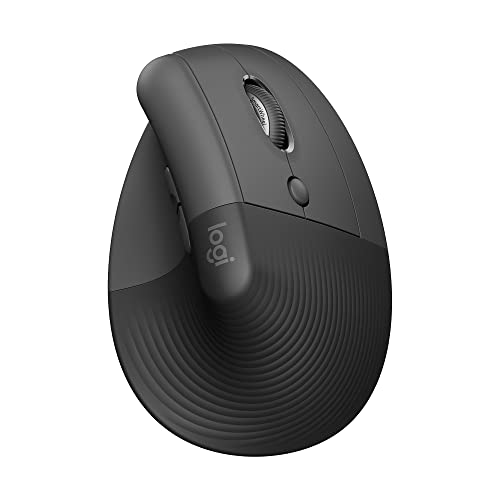
The best vertical mice are the Logitech Lift for smaller or medium hands, the Logitech MX Vertical for larger hands and frequent desktop work, and the Kensington Pro Fit Ergo Vertical for shoppers who want a lower-cost, full-size alternative.
A vertical mouse is not automatically comfortable: the useful differences are hand fit, the angle of the grip, how easily you can reach the buttons, pointer control, and how much charging or adjustment it requires. The right choice depends more on your hand size and working habits than on the number of buttons.
Our top picks


As an Amazon Associate we earn from qualifying purchases at no extra cost to you. Ratings are shown as listed on Amazon.
Best vertical mice at a glance
| Mouse | Best fit | Grip angle | Weight | Power | Useful details |
|---|---|---|---|---|---|
| Logitech Lift | Small to medium hands | About 57 degrees | 125 g with battery | 1 AA battery, up to 24 months | Bluetooth or 2.4 GHz receiver, quiet clicks, four programmable buttons |
| Logitech MX Vertical | Medium to large hands | About 57 degrees | 135 g | Rechargeable, up to about 4 months | 4,000-dpi sensor, USB-C charging, three-device switching |
| Kensington Pro Fit Ergo Vertical Wireless | Medium to large hands | About 60 degrees | Approximately 150–165 g, depending on version | 2 AA batteries, typically many months of use | 2.4 GHz wireless, six-button layout, adjustable pointer speed |
| Anker 2.4G Wireless Vertical Ergonomic Mouse | Medium to large hands on a budget | About 50–55 degrees | Approximately 95 g without battery | 2 AA batteries | Basic 800/1,200/1,600-dpi selection, six-button design |
Dimensions, weight, battery endurance, and included connectivity can vary slightly by regional revision. Treat the table as a buying guide rather than a substitute for the specifications of the exact model being sold.
Our picks by situation
| Your situation | Best starting point | Why | Adjustment expectation |
|---|---|---|---|
| Small hands or short fingers | Logitech Lift | Shorter body and thumb support make the buttons easier to reach | Usually 3–7 days |
| Large hands and long work sessions | Logitech MX Vertical | More palm support and a roomier body | About 1–2 weeks |
| Several hours of office work daily | MX Vertical or Lift | Better materials, sensor consistency, and device switching | About 1–2 weeks |
| Limited desk space | Lift | Compact footprint and lighter movement | Often less than a week |
| Lowest reasonable entry cost | Anker 2.4G vertical type | Usually available in the lower market price range | About 1–2 weeks |
| Need many shortcut buttons | Kensington Pro Fit Ergo Vertical | Its six-button layout offers more direct commands than a basic two-button mouse | About 1–2 weeks |
Logitech Lift: best for smaller hands and compact desks
The Lift is the safest general recommendation when a conventional vertical mouse feels too large. Its body is shorter than the MX Vertical, and its thumb rest is positioned so users with shorter fingers can reach the back and front buttons without stretching.
Its approximately 57-degree handshake position is vertical enough to change how the forearm rests, but not so upright that every movement feels unfamiliar. The main buttons are quiet, and the scroll wheel is easy to locate without looking. Logitech’s software can assign commands to the extra buttons, while Bluetooth and the included wireless receiver make it practical for both a laptop and a desktop.
The 1,000-dpi sensor is adequate for office work, spreadsheets, browsing, and photo organization. It is not aimed at competitive gaming or unusually high-resolution multi-monitor workflows. A replaceable AA battery lasting up to roughly two years is convenient, although battery longevity depends on usage and wireless conditions.
Choose the Lift if your hand is roughly 16–19 cm from wrist crease to the tip of the middle finger, or if you prefer resting less of your palm on the mouse. Larger hands may find the rear of the palm unsupported.
Logitech MX Vertical: best for larger hands and heavy daily use
The MX Vertical has a fuller body and a pronounced thumb shelf, making it a better match for medium-to-large hands. Its 57-degree angle is familiar enough for most users to learn while still providing a strongly upright grip. The textured surface gives the fingers a stable place to rest rather than requiring a tight pinch.
This is the more capable choice for a desk shared between computers. It can connect through Bluetooth, a USB receiver, or a wired USB connection, and its device-switching button is useful when moving between a work computer and a personal machine. The rechargeable battery is rated for up to about four months, with a short charge able to provide substantial additional use.
The 4,000-dpi sensor gives more flexibility than basic office vertical mice. You can use a slower pointer setting for precise selections or a faster setting for a wide display without moving the mouse as far. The trade-off is size: the MX Vertical occupies more desk space and can feel cumbersome for small hands.
Kensington Pro Fit Ergo Vertical: a button-rich office alternative
The Kensington Pro Fit Ergo Vertical is worth considering when you want a full-size shape and more physical controls than the Lift provides. Its roughly 60-degree orientation puts the thumb on one side and the fingers on the other, while the six-button layout can provide browser back and forward commands or application shortcuts.
Its pointer-speed switch is useful for users who alternate between ordinary office work and detailed selections. The 2.4 GHz connection is simple to set up, but it generally does not offer the same multi-device flexibility as the MX Vertical. Two AA batteries also add weight, which can make the mouse feel planted but less nimble.
Expect a lower general market price than Logitech’s premium models, though exact prices vary by wireless version and region. This is a sensible choice for a stationary desktop where comfort and button access matter more than USB-C charging or Bluetooth.
Anker’s 2.4G vertical mouse: inexpensive, but less refined
Anker’s 2.4G wireless ergonomic mouse is a common budget-style vertical design with a steep grip, six buttons, and selectable pointer speeds up to 1,600 dpi. It can demonstrate whether you like a vertical shape without committing to a premium price.
The compromises are predictable. The plastic is lighter and less substantial, the wireless connection is normally receiver-only, and button programming is limited compared with software-supported Logitech models. The sensor is suitable for documents and browsing but may feel less smooth at slow, precise settings. Check compatibility before buying, particularly if your computer has only USB-C ports and the receiver requires a USB-A adapter.
How to choose the correct size and angle
1. Measure your hand
Measure from the wrist crease to the tip of the middle finger. As a rough guide, hands below 17 cm usually have an easier time with compact vertical mice; 17–19 cm can work with either compact or full-size designs; above 19 cm usually benefits from a roomier shell. Width also matters: a broad palm may need a full-size mouse even if its length is average.
2. Check button reach, not just palm support
Place your hand on the mouse with the thumb relaxed. You should reach the primary buttons with a slight bend in the index and middle fingers, not by sliding the whole hand forward. The rear buttons should be reachable by moving the thumb a short distance rather than gripping the side tightly.
3. Start with a moderate sensitivity
Vertical mice often feel slow for the first few hours because the hand is rotating around a different axis. Start near 1,000–1,600 dpi, enlarge the pointer slightly if necessary, and use the mouse for ordinary browsing before judging it. Extremely high sensitivity can make a new vertical grip harder to control.
4. Give the movement pattern time to settle
A practical adjustment schedule is 30–60 minutes on the first day, several normal work sessions over the next few days, and a full week before deciding. Keep the old mouse available for urgent precision work, but switching constantly can slow adaptation because each shape requires a different wrist and finger movement.
Sensor, wireless, and button considerations
For office work, sensor consistency matters more than an impressive maximum dpi figure. A reliable 1,000-dpi sensor is enough for many people using one or two displays. Higher adjustment ranges are useful if you have limited desk depth, large monitors, or a preference for small physical movements.
Bluetooth saves a receiver port but can be affected by crowded wireless environments or computer sleep behavior. A 2.4 GHz receiver usually feels immediate and dependable, while a wired connection is useful during charging. Rechargeable models reduce disposable batteries; replaceable-battery models avoid a permanently aging internal cell. As a simple runtime comparison, a mouse rated for four months of rechargeable use may need three or four charging sessions per year, whereas a two-year AA claim could mean only one battery change during the same period.
Extra buttons help only when they are easy to reach. Two badly positioned thumb buttons are less useful than one comfortable button assigned to back, paste, or a frequently used application command. Avoid assigning important actions to a button that you regularly press accidentally while lifting the mouse.
Ownership, cleaning, and common mistakes
- Clean the sensor window and feet with a dry microfiber cloth. Dust on the sensor can cause skipping, while grime on the feet increases drag.
- Wipe the palm and thumb surfaces occasionally with a lightly damp cloth, then allow the mouse to dry fully. Do not spray liquid directly onto it.
- Expect the click switches and scroll-wheel encoder to show wear before the outer shell. Heavy users may notice double-clicking, missed scroll steps, or a loose wheel after years of use.
- Do not rest the wrist heavily on the desk while gripping the mouse. A vertical shape changes hand rotation, but it does not compensate for excessive pressure or an awkward desk height.
- Keep the mouse close to the keyboard and move from the elbow and forearm rather than making repeated small movements from a fixed wrist position.
- If discomfort persists, becomes severe, or is accompanied by numbness or weakness, stop using the setup and seek advice from a qualified health professional.
Bottom line
Choose the Logitech Lift for a compact, quiet vertical mouse and smaller hands. Choose the Logitech MX Vertical for a larger hand, multiple computers, and demanding daily office use. Pick the Kensington Pro Fit Ergo Vertical if six buttons and a lower general market price matter most. The Anker design is a reasonable low-cost experiment, but its basic sensor, receiver-only connection, and less refined construction make it better as an entry point than as a long-term premium desk mouse.





Write Your Review
No reviews yet. Be the first to share your experience!