

Key takeaways
- Instant PDAF Autofocus
- 4K HD Fidelity— Experience uncompromising video quality
- Plug and Play
The best 4K webcams for most home offices are the Logitech MX Brio for dependable everyday calls, the Razer Kiyo Pro Ultra for difficult lighting, the Elgato Facecam Pro for creators who need 4K at 60 frames per second, and the Insta360 Link 2 for presenters who want automatic tracking and framing.
4K resolution is useful when you sit close to the camera, crop into a recording, or want fine detail in product demonstrations. It does not automatically produce a better call: lighting, autofocus behavior, microphone quality, field of view, and software compatibility often matter more than the extra pixels.
Our top picks
 Acer A640 4K Webcam with AI Noise
- Instant PDAF Autofocus
- 4K HD Fidelity— Experience uncompromising video quality
- Plug and Play
 EMEET NOVA 4K Webcam for PC
- Unrivaled 4K Performance - Experience unparalleled clarity with…
- Precise Autofocus, Clear Display
- Superior Audio Clarity, Unmatched Compatibility
 AOC 4K Webcam for PC
- 4K Ultra HD Video Webcam:See every detail with…
- Wide 80° Field of View & Full 360°…
- True Plug-and-Play Simplicity: No drivers, no fuss
| Product | Key specs | |
|---|---|---|
| Acer A640 4K Webcam with AI Noise | Instant PDAF Autofocus 4K HD Fidelity— Experience uncompromising video quality Plug and Play | Check price |
| EMEET NOVA 4K Webcam for PC | Unrivaled 4K Performance - Experience unparalleled clarity with… Precise Autofocus, Clear Display Superior Audio Clarity, Unmatched Compatibility | Check price |
| AOC 4K Webcam for PC | 4K Ultra HD Video Webcam:See every detail with… Wide 80° Field of View & Full 360°… True Plug-and-Play Simplicity: No drivers, no fuss | Check price |
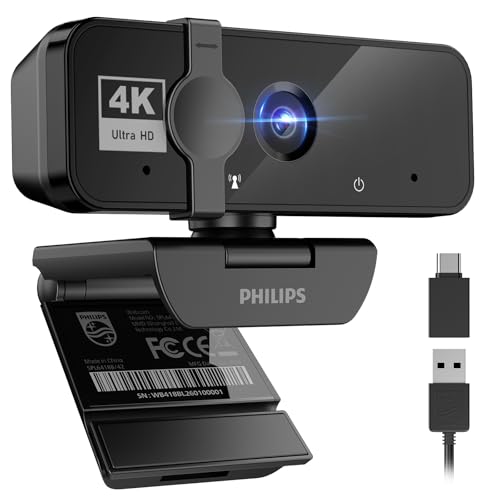 PHILIPS 4K Webcam for PC with Microphone PHILIPS 4K Webcam for PC with Microphone | 【4K ULTRA HD FOR PROFESSIONAL VIDEO】 Upgrade your… 【INTEGRATED MICROPHONE FOR COMMUNICATION】 Stay connected effortlessly 【PHYSICAL PRIVACY SHUTTER & SECURITY】 Protect your digital… | Check price |
As an Amazon Associate we earn from qualifying purchases at no extra cost to you.
Quick comparison of the best 4K webcams
| Webcam | Maximum video | Autofocus and framing | Field of view | Microphones | Approximate market range |
|---|---|---|---|---|---|
| Logitech MX Brio | 4K at 30 fps; 1080p at 60 fps | Autofocus; Show Mode; digital framing | 65°, 78°, or 90° diagonal | Dual beamforming microphones | $150–$200 |
| Razer Kiyo Pro Ultra | 4K at 30 fps; 1080p at 60 fps | Autofocus; background blur; HDR options | 82° diagonal | Omnidirectional microphone | $200–$250 |
| Elgato Facecam Pro | 4K at 60 fps | Fast autofocus; manual controls | 90° diagonal | No built-in microphone | $250–$300 |
| Insta360 Link 2 | 4K at 30 fps; 1080p at 50 or 60 fps | AI tracking, gesture control, automatic framing | 79.5° diagonal | Dual noise-canceling microphones | $150–$200 |
| OBSBOT Tiny 2 | 4K at 30 fps; 1080p at 60 fps | AI tracking, gesture control, preset positions | 85.5° diagonal | Dual microphones | $200–$250 |
| Dell UltraSharp WB7022 | 4K at 30 fps; 1080p at 60 fps | Autofocus; automatic framing; HDR | 65° or 90° diagonal | None | $150–$220 |
Prices are typical market ranges rather than fixed prices. Bundles, sales, and regional pricing can change the value substantially.
Best overall: Logitech MX Brio
The MX Brio is the safest choice for a conventional desk setup. Its 4K image is sharp without demanding the extensive manual tuning associated with enthusiast cameras, and its three selectable fields of view make it easier to adapt the camera to a narrow monitor or a wider two-person setup. At 90 degrees, it includes more of the room; at 65 degrees, it gives a tighter head-and-shoulders composition.
Autofocus is suitable for ordinary calls and occasional demonstrations. Show Mode tilts the camera downward to display an object on the desk, although it is not as flexible as a dedicated overhead camera. The dual microphones are acceptable for meetings when the webcam is close to you, but a headset or separate USB microphone remains better in a noisy room.
Choose the MX Brio if you want one camera for Zoom, Microsoft Teams, Google Meet, recording, and occasional product demonstrations without buying a separate microphone.
Best for poor or uneven lighting: Razer Kiyo Pro Ultra
The Kiyo Pro Ultra is a strong choice for rooms with a bright window behind you, a dim background, or inconsistent evening lighting. Its relatively large 1/1.2-inch sensor gives it more light-gathering potential than many compact webcam sensors. In practice, that can mean cleaner shadows and less aggressive noise reduction, though a small desk light still improves every webcam.
The image has a more camera-like appearance than typical office webcams, and the software provides extensive control over exposure, color, focus, and background effects. Autofocus is useful when you move between a face and an object, but it can still shift briefly if a nearby object enters the frame. The built-in microphone is convenient rather than exceptional.
The main drawbacks are its bulky body and 4K limit of 30 fps. It is better suited to a fixed monitor mount than a laptop screen, and its wide 82-degree view can show more of a cluttered room than you intended.
Best for streaming and polished video: Elgato Facecam Pro
The Facecam Pro is the specialist pick for creators who want 4K at 60 fps. That higher frame rate makes hand movements and demonstrations appear smoother and gives you more flexibility when producing recorded video. Its 90-degree field of view is useful for standing presentations, but it may look too wide for a close desk call unless you crop the image.
Manual controls are a major advantage. You can lock exposure and white balance instead of allowing the camera to change brightness whenever a monitor window or white shirt enters the scene. The autofocus is fast, and the lens can be adjusted for a more deliberate composition.
It has no built-in microphone. That is a weakness for a simple video-call setup but a benefit for creators who already use a dedicated microphone, since you are not paying for an audio system you will bypass. It also needs a reasonably powerful computer and a suitable USB connection to handle high-resolution video reliably.
Best for presenters: Insta360 Link 2
The Insta360 Link 2 is the most useful option when you move during calls, teach from a whiteboard, or need the camera to keep you framed without constant manual adjustment. Its gimbal-mounted camera follows movement, supports automatic framing, and can respond to gestures. These features are more valuable for presenters than for someone who remains seated at a desk.
The 4K image is detailed in good light, while the dual microphones include software noise reduction for ordinary office sounds. The camera can be mounted on a monitor, tripod, or other compatible support. A gimbal also adds moving parts and a larger footprint, so it is less discreet than a conventional webcam.
Tracking is not magic: it can lose you when you leave the frame, when another person enters, or when the room is very dark. Disable tracking for a static interview or a tightly composed professional call.
Best tracking alternative: OBSBOT Tiny 2
The OBSBOT Tiny 2 is another strong pan-and-tilt camera for presenters. It combines 4K video with AI tracking, gesture controls, subject framing, and saved positions. Its wider 85.5-degree view helps when you stand farther from the desk or include a second person.
It makes the most sense in a flexible office, classroom, or presentation area rather than on a small laptop. The microphones are useful for short calls, but the camera’s strongest feature is its mechanical movement, not audio quality. Software support is broad on Windows and macOS, while specific controls may depend on OBSBOT’s desktop utility rather than the calling application itself.
Best for a discreet office setup: Dell UltraSharp WB7022
The WB7022 is a good fit for users who want sharp 4K video without a large gimbal or obvious creator-oriented design. It supports automatic framing, HDR, and multiple viewing angles. The removable magnetic mount and privacy shutter make it practical for a monitor-based office.
There is no built-in microphone, so plan to use a laptop microphone, headset, or USB microphone. This camera is therefore better for a workstation that already has audio equipment. Its software controls can be useful for adjusting exposure and framing, although compatibility with advanced settings varies by operating system and application.
Which 4K webcam fits your situation?
| Your situation | Best choice | Why | What to accept |
|---|---|---|---|
| Frequent work calls and no separate microphone | Logitech MX Brio | Balanced image, usable microphones, adjustable FOV | 4K is limited to 30 fps |
| Dim room or uneven window light | Razer Kiyo Pro Ultra | Larger sensor and extensive exposure controls | Large body and no 4K at 60 fps |
| Streaming, recording, or frequent cropping | Elgato Facecam Pro | 4K60, fast autofocus, strong manual control | You need a separate microphone |
| Teaching, presenting, or moving around | Insta360 Link 2 | Gimbal tracking and automatic framing | More moving parts and software dependence |
| Existing audio equipment and a tidy desk | Dell UltraSharp WB7022 | Compact fixed-camera design and sharp image | No built-in microphone |
What 4K looks like in real video calls
Many calling services resize or compress camera video, and some account tiers or application settings limit the transmitted resolution. A 4K webcam can still help because its image may look cleaner after downscaling, and the extra resolution lets you crop a recording without turning your face into a blur. However, buying a 4K camera will not force a meeting to transmit in 4K.
At a typical desk distance of 60 to 90 centimeters, a 65- to 80-degree field of view usually produces a natural head-and-shoulders shot. A 90-degree view is more useful for two people, a standing presenter, or a small room. It also reveals more background and can make your face appear smaller.
Setup details that affect image quality
- Place the lens at eye level, not below your chin. A monitor arm or a small riser often improves the composition more than another step of resolution.
- Put a soft light in front of you and slightly to one side. Avoid placing a bright window directly behind your head.
- Use the narrowest field of view that includes everyone who needs to appear. This reduces distracting background and avoids excessive digital cropping.
- Set autofocus to face priority when available. Lock focus for demonstrations where your hands or documents repeatedly enter the frame.
- Connect directly to a reliable USB port rather than an overloaded hub if the camera disconnects, freezes, or falls back to a lower resolution.
- Check the calling application’s camera settings after installing the manufacturer’s utility. Applications can retain their own resolution, exposure, and framing choices.
Ownership and maintenance
The first parts likely to cause trouble are not the image sensor but the mount, privacy shutter, cable, and moving gimbal mechanism. Avoid hanging a heavy webcam from a thin laptop display, and do not force a motorized camera by hand. Keep the lens capped or covered when not in use, and clean it with a dry microfiber cloth; household glass cleaner can damage coatings or seep into the housing.
For a webcam used four times per week, a $180 model costs about $0.87 per use during its first year: $180 divided by 208 calls. If it remains reliable for three years, the same camera costs about $0.29 per use, before considering a microphone or lighting. That makes autofocus stability, a durable mount, and dependable software support more important than a small difference in advertised sharpness.
Final recommendation
Buy the Logitech MX Brio for the best balance of image quality, autofocus, microphones, mounting flexibility, and price. Choose the Razer Kiyo Pro Ultra when low-light image quality is your priority, the Elgato Facecam Pro when 4K60 and manual control justify a separate microphone, and the Insta360 Link 2 or OBSBOT Tiny 2 when automatic tracking is central to how you present.





Write Your Review
No reviews yet. Be the first to share your experience!