

Key takeaways
- Best dual monitor setup under $500 — pair a dock from this guide with two monitors and a monitor arm.
- Best standing desk for a dual monitor setup under $300 — a powered dock keeps cables tidy when the desk moves.
- Best USB-C monitor for laptops under $200 — a single-cable monitor can replace a dock on a minimal desk.
The best USB-C docking station under $200 is the Anker Prime Docking Station (14-in-1) for most desk setups. It drives dual 4K monitors at 60Hz, charges your laptop at up to 100W, and adds 14 ports through one cable. It was listed at $179.99 on Amazon in mid-November 2026, down from a $269.99 list price. If your budget is tighter, the UGREEN Revodok Pro 7-in-1 covers the same dual-monitor basics for far less, while Mac users who need two extended displays should look at the Plugable UD-6950PDH.
A good dock does one simple job well: you plug in one cable, and your laptop becomes a desktop. A bad dock drops a monitor at random, charges slowly, or mirrors the same image on both screens. The difference is rarely the port count — it is the display technology inside, the charging wattage, and whether the dock matches your laptop. Prices below are snapshots from November 2026 research; check the current price on Amazon before you buy.
Quick Picks
| Product | Best for | Key specs | Price note |
|---|---|---|---|
| Anker Prime Docking Station (14-in-1) | Best overall | Dual 4K@60Hz, 100W charging, 160W total, 14 ports | Seen at $179.99, list $269.99 |
| Anker Nano Laptop Docking Station (13-in-1) | Triple display | 3 displays, 100W PD, 10Gbps, detachable hub | Seen at $149.99 |
| Plugable UD-6950PDH | Mac dual display | DisplayLink dual 4K@60Hz, 100W charging | $199.99 |
| Dell WD19S 180W | Budget office dock | Dual 4K@60Hz, 130W Dell / 90W others | Often under $100 |
| UGREEN Revodok Pro 7-in-1 (207) | Budget hub | Dual 4K@60Hz, 85W pass-through, 10Gbps | Seen at $29 |
How to Choose a USB-C Docking Station Under $200
Start with your monitors, not the port count. Most docks here offer two HDMI ports, or one HDMI plus one DisplayPort — enough for two monitors on most Windows laptops, but not on its own for a base-model MacBook. Apple’s base M1 through M5 chips support only one native external display, and macOS does not support Multi-Stream Transport (MST), the technology Windows uses to split one video signal across two screens. If you own a base MacBook and want two extended displays, you need a DisplayLink dock, such as the Plugable UD-6950PDH — fine for office work, but not ideal for gaming or protected video. On Windows, check that your USB-C port supports DisplayPort Alternate Mode — a data-only port will not drive a monitor.
Resolution and refresh rate matter more than “4K.” Two monitors at 4K and 60Hz feel smooth; two at 4K and 30Hz feel sluggish. All five picks here can drive at least dual 4K at 60Hz in their intended configurations, but the exact combination depends on your laptop, so confirm the setup you plan to use.
Power Delivery: match the wattage to your laptop. Most 13- to 14-inch ultrabooks are happy with 65W to 85W. A 15- or 16-inch laptop, or one with a discrete graphics card, usually wants 90W to 100W. Four of the five picks here deliver 100W to the laptop. The UGREEN Revodok Pro is the exception: it accepts up to 100W from your own charger but passes up to 85W to the laptop. The Dell WD19S delivers up to 130W to Dell laptops and up to 90W to other brands, using its own 180W adapter. Powered docks come with their own adapter; bus-powered hubs depend on the charger you plug in.
Ports and data speed. Count the ports you use daily: at least three USB-A ports for a keyboard, mouse, and webcam, plus one USB-C port for an external drive. Gigabit Ethernet is worth having for stable video calls. A 5Gbps USB port is fine for peripherals; a 10Gbps port is noticeably faster for an external SSD. The Anker Prime, Anker Nano, and UGREEN Revodok Pro all include 10Gbps ports, while the Plugable and Dell use 5Gbps.
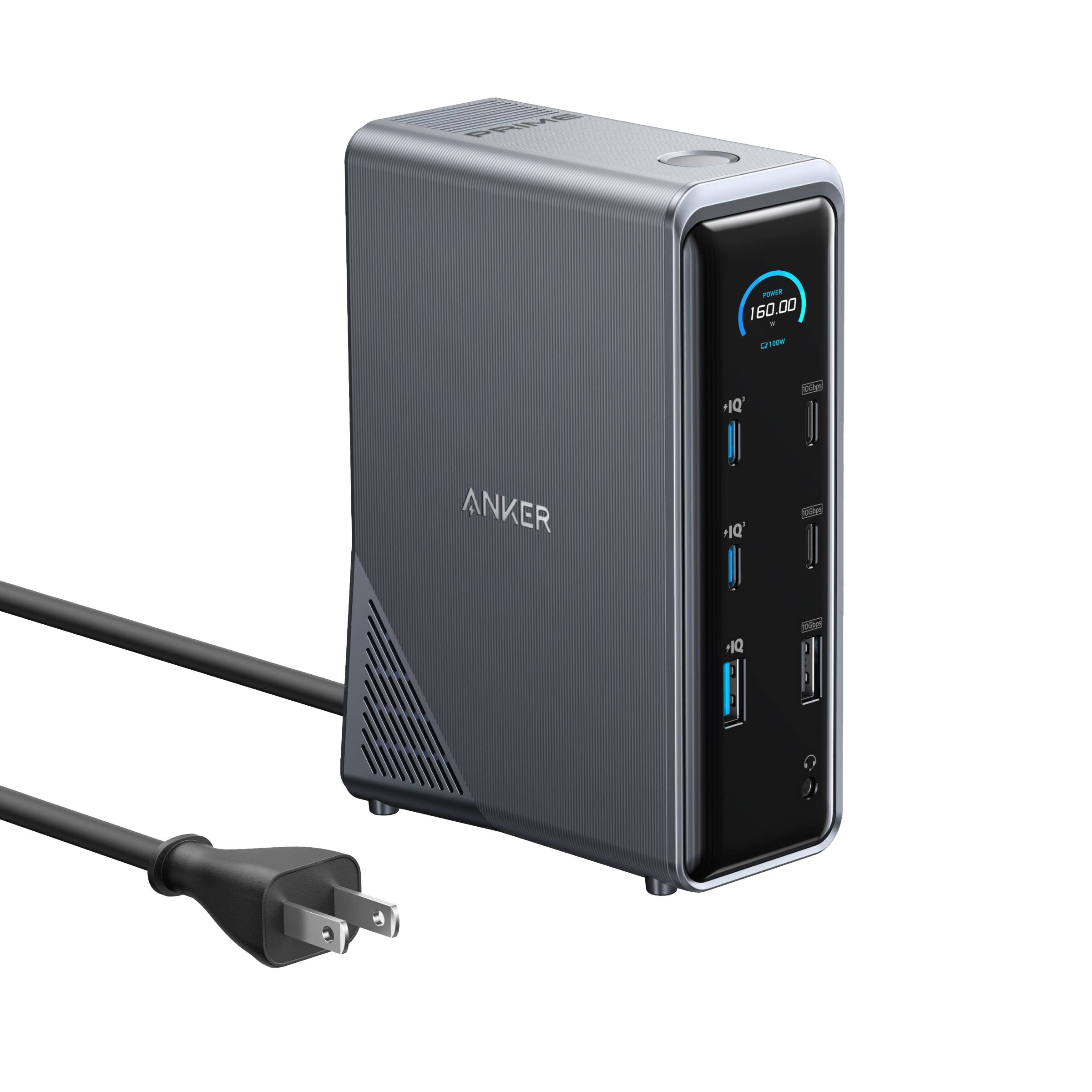
1. Anker Prime Docking Station (14-in-1) — Best Overall
Best for: Most desk setups that want dual 4K monitors, strong charging, and plenty of ports from one cable.
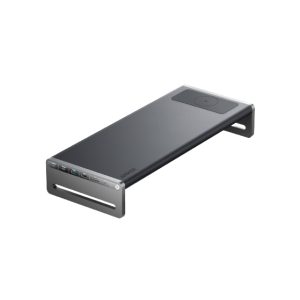
This powered 14-in-1 station has two HDMI ports for dual 4K displays at 60Hz, up to 100W of charging to your laptop, and 160W of total output, so it can charge the laptop while still powering accessories. It also includes 10Gbps data ports, Gigabit Ethernet, and a 3.5mm audio jack, and ships with its own power supply. In mid-November 2026, Amazon listed it at $179.99 through Anker’s own store, AnkerDirect, down from a $269.99 list price.
Specs: 14 ports; dual HDMI, up to 4K@60Hz; up to 100W charging, 160W total output; 10Gbps USB data; Gigabit Ethernet; 3.5mm audio; powered dock.
Pros: Dual 4K at 60Hz plus 100W charging in one cable; 160W total output leaves headroom; 10Gbps ports for fast drives.
Cons: Near the top of this budget; no DisplayLink, so base MacBooks still get only one native extended display; larger than a travel hub.
Who it is best for: Windows laptop owners building a permanent home-office desk with two monitors.
Check price on Amazon — Anker Prime Docking Station (14-in-1)
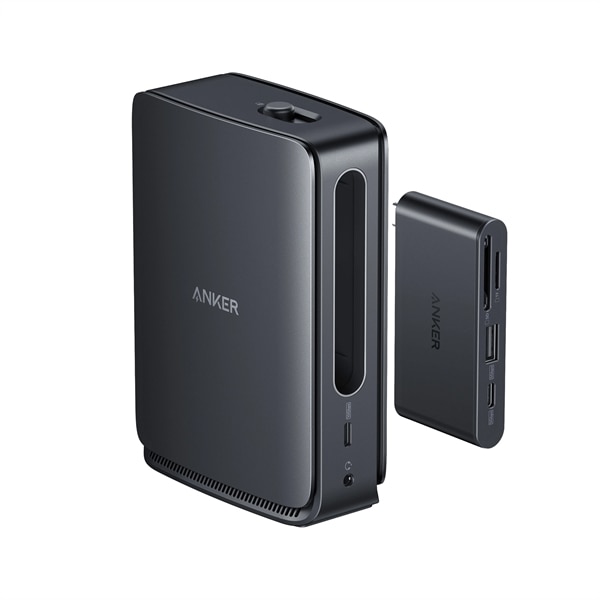
2. Anker Nano Laptop Docking Station (13-in-1) — Best for Triple Display
Best for: Windows users who want three monitors, or a dock that splits into a travel hub.
The Anker Nano 13-in-1, model A83C3, supports three displays through two HDMI ports and one DisplayPort, with 10Gbps USB-C data and up to 100W Power Delivery. It ships with a 140W power adapter, which helps it stay stable when fully loaded. Amazon listed it at $149.99 in mid-November 2026, sold by AnkerDirect. The main dock includes a removable 6-in-1 USB-C hub, so you can leave the full dock on your desk and take the smaller hub travelling.
Triple-display support is a Windows feature — on a Mac, the same MST limitation applies, so check your Mac model first.
Specs: 13 ports; 3 displays (2x HDMI + 1x DisplayPort); up to 100W charging; 140W adapter included; 10Gbps USB-C data; 3x USB-A; SD/microSD; Gigabit Ethernet; detachable hub.
Pros: Three-display support for Windows; detachable hub doubles as a travel accessory; 100W charging with a 140W adapter.
Cons: Three displays are a Windows benefit, not a Mac one; at $149.99 it is not a budget pick.
Who it is best for: Windows users with three monitors, or anyone who wants one dock for the desk and a travel hub.
Check price on Amazon — Anker Nano Laptop Docking Station (13-in-1)
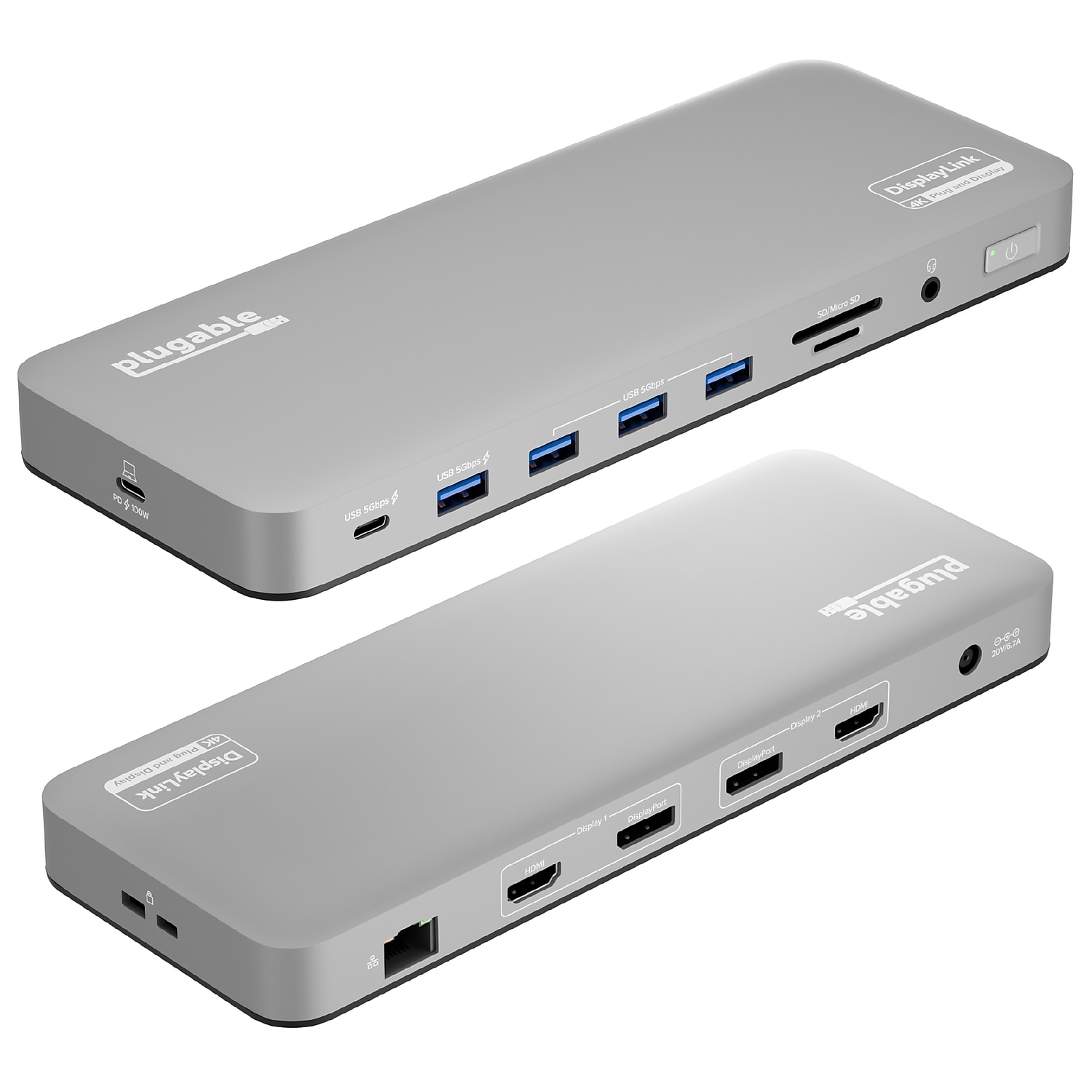
3. Plugable UD-6950PDH — Best for Mac Dual Display
Best for: Base-model MacBook owners who need two extended displays, and anyone who wants a proven DisplayLink dock.
The Plugable UD-6950PDH solves one specific problem: Apple’s base M1 through M5 chips support only one native external display. This dock uses DisplayLink technology to drive two 4K monitors at 60Hz anyway, on Macs and Windows alike. Each screen can use HDMI or DisplayPort, and it delivers up to 100W of laptop charging plus Gigabit Ethernet and USB ports.
The trade-off is the driver: you must install DisplayLink Manager first, and macOS updates occasionally require a fresh install. HDCP-protected content may not play on DisplayLink outputs, though for office work that rarely matters. Plugable lists the dock at $199.99, down from $279.99 — buy it only if you actually need DisplayLink.
Specs: DisplayLink dual 4K@60Hz; 2x HDMI + 2x DisplayPort (one per screen); up to 100W charging; 5Gbps USB data; Gigabit Ethernet; driver required.
Pros: True dual extended display on base M1–M5 MacBooks; flexible HDMI or DisplayPort per screen; 100W charging.
Cons: At $199.99 it is the most expensive pick here; driver required, with occasional reinstalls after macOS updates; protected-video playback has limits; USB data is 5Gbps.
Who it is best for: MacBook Air and base MacBook Pro owners who need two extended monitors.
Check price on Amazon — Plugable UD-6950PDH
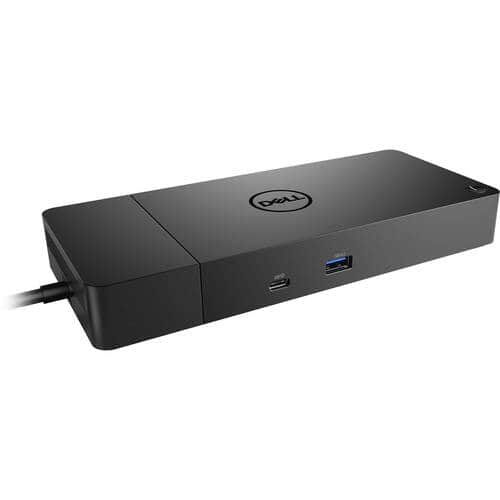
4. Dell WD19S 180W — Best Budget Office Dock
Best for: Office desks and Dell laptop owners who want a powered dock for well under $200.
This powered business dock has two DisplayPort 1.4 outputs and one HDMI port, supporting dual 4K monitors at 60Hz. It delivers up to 130W to Dell laptops and up to 90W to other brands, using its own 180W adapter. It also includes three USB-A ports, two USB-C ports, Gigabit Ethernet, and a combined audio jack.
It is the budget pick on price: Amazon listings were reported at roughly $70 to $115 in 2026 roundups, depending on seller, variant, and whether the unit is new or renewed. Read the listing carefully — the 180W model with 130W delivery is not the same as the 130W model with 90W delivery — and renewed units may lack the same cables or adapter.
Specs: 2x DisplayPort 1.4 + 1x HDMI, dual 4K@60Hz; up to 130W to Dell laptops, up to 90W to others; 180W adapter; 3x USB-A, 2x USB-C; Gigabit Ethernet; 5Gbps USB data.
Pros: Powered dock for often under $100; dual 4K at 60Hz; high charging wattage for Dell laptops.
Cons: Price and condition vary widely by seller and variant; 90W charging for non-Dell laptops; 5Gbps USB data.
Who it is best for: Dell laptop owners and office desks that want a powered dual-monitor dock.
Check price on Amazon — Dell WD19S 180W Docking Station
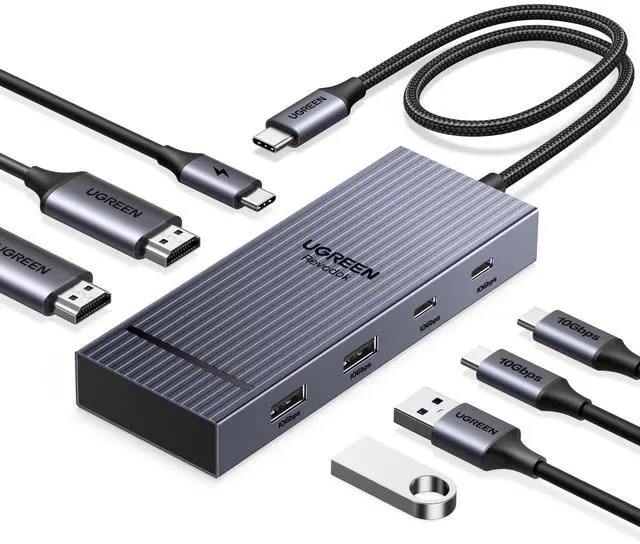
5. UGREEN Revodok Pro 7-in-1 (207) — Best Budget Hub
Best for: Tight budgets and simple two-monitor Windows desks.
The UGREEN Revodok Pro 7-in-1, model 207, is the cheapest way in this guide to get dual 4K monitors from one cable. It has two HDMI ports, each listed for 4K at 60Hz, two 10Gbps USB-A ports, two 10Gbps USB-C data ports, and a 100W USB-C PD port. In October 2026, Gizmodo reported it on Amazon at $29.
The main trade-off is power. The dock is bus-powered through pass-through: you plug your own USB-C charger into its PD port, and it sends up to 85W to the laptop. No charger is included, so you need one of your own, ideally 65W or higher. It has no Ethernet port and no card reader. On a Mac, the two HDMI ports will mirror rather than extend, because macOS does not support MST.
Specs: 7 ports; 2x HDMI, dual 4K@60Hz; 100W PD input, up to 85W pass-through; 2x 10Gbps USB-A, 2x 10Gbps USB-C; charger not included.
Pros: Dual 4K at 60Hz for around $29 in recent Amazon reports; 10Gbps data ports; compact aluminium body.
Cons: Charger not included, and only up to 85W reaches the laptop; no Ethernet and no card reader; mirrors instead of extending on Macs.
Who it is best for: Windows users on a tight budget, students, and anyone who needs a second dock.
Check price on Amazon — UGREEN Revodok Pro 7-in-1 Docking Station
What to Avoid
Do not buy on port count alone. A 13-in-1 hub with two 4K at 30Hz outputs will feel worse every day than an 8-port dock with dual 4K at 60Hz.
Do not assume your USB-C port carries video. Some USB-C ports handle data and charging only.
Do not buy a standard dock for two Mac displays. Base-model MacBooks need DisplayLink for a second extended screen.
Do not ignore the charger. Bus-powered hubs need your own charger, and the wattage reaching the laptop is always less than what you plug in.
Do not trust a single price. Dock prices move with sales, sellers, and variants — the Dell WD19S in particular. Check the exact listing, included adapter and cables, and return policy before you buy.
FAQ
What is the best USB-C docking station under $200?
For most desk setups, the Anker Prime Docking Station (14-in-1) is the best USB-C docking station under $200. It offers dual 4K monitors at 60Hz, up to 100W of laptop charging, 160W of total output, and 10Gbps data ports, and it was listed at $179.99 on Amazon in November 2026. Mac users who need two extended displays should choose the Plugable UD-6950PDH instead, because it uses DisplayLink to work around Apple’s one-display limit.
Can a USB-C docking station under $200 run two monitors?
Yes, on a Windows laptop with a USB-C port that supports DisplayPort Alternate Mode, all five docks here can run two monitors. On a base-model MacBook, only a DisplayLink dock will give you two extended displays.
How many watts do I need from a docking station?
Most 13- and 14-inch ultrabooks charge well at 65W to 85W. A 15- or 16-inch laptop, or one with a discrete graphics card, usually needs 90W to 100W. Four of the picks here deliver up to 100W; the UGREEN Revodok Pro passes up to 85W through, which suits ultrabooks but not power-hungry machines.
Do I need a DisplayLink docking station?
You need DisplayLink if you use a base-model MacBook (M1 through M5) and want two or more extended external displays. You do not need it on most Windows laptops, where native MST handles two monitors.
Is a USB-C docking station the same as a Thunderbolt dock?
No. A USB-C dock uses DisplayPort Alternate Mode and USB data, with speeds up to 10Gbps on the picks here. A Thunderbolt dock uses Thunderbolt 3 or 4, with speeds up to 40Gbps, and usually costs well over $200.
Verdict
Choose the Anker Prime Docking Station (14-in-1) for the most complete powered dock for a Windows desk, with dual 4K at 60Hz and 100W charging. Choose the Anker Nano 13-in-1 for three monitors or a detachable travel hub. Choose the Plugable UD-6950PDH if you own a base MacBook and need two extended displays. Choose the Dell WD19S 180W for a powered office dock at the lowest price — if you read the listing carefully. Choose the UGREEN Revodok Pro 7-in-1 if your budget is tight and you only need dual monitors, 10Gbps data, and pass-through charging on Windows. Before you order, confirm that your laptop’s USB-C port carries video and that the dock’s charging wattage matches your laptop.
As an Amazon Associate, we earn from qualifying purchases.
Suggested Internal Links for chartget.com
- Best dual monitor setup under $500 — pair a dock from this guide with two monitors and a monitor arm.
- Best standing desk for a dual monitor setup under $300 — a powered dock keeps cables tidy when the desk moves.
- Best USB-C monitor for laptops under $200 — a single-cable monitor can replace a dock on a minimal desk.
More from Amazon
Programs that pair well with the guide above. Offers and eligibility are set by Amazon and may change.
Free shipping on eligible items, Prime Video and more. Eligible new members can start with a free trial.
Start a Prime free trialAudiobooks and podcasts to listen to on the go. Eligible new members can start with a free trial.
Try Audible freeAd-free music streaming. Eligible new subscribers can start with a free trial.
Try Music Unlimited freeA free business account with business pricing and bulk-buying tools for work, shop or home office.
Create a business accountAs an Amazon Associate we earn from qualifying purchases.

Write Your Review
No reviews yet. Be the first to share your experience!