

Our Top Picks
 ASUS TUF Gaming VG34VQL1B 34 Inch 1440p 165Hz31.85 x 16.38 x 10.79 Inches19.86 poundsCheck on Amazon
 SANSUI 34-Inch Curved Gaming Monitor UWQHD 3440 x34 Inch8.6 x 31.8 x 17.96 inches15.4 PoundsCheck on Amazon
The best ultrawide monitor for most desks in this group is a 34-inch, 3440 x 1440 panel on a height-adjustable stand, and the ASUS TUF Gaming VG34VQL1B is the listing that pairs those with 165Hz and FreeSync Premium in its title. If you spend your day in spreadsheets and chat windows, the LG 34WR55QK-B adds USB-C and a calmer 100Hz refresh. The Samsung 49-inch is a different animal, offering two QHD screens’ worth of width in one body. One caution before you read on: refresh rates, HDR labels and response times below are seller claims from titles, and a couple are worded ambiguously, so we flag them instead of repeating them as fact.
The seven ultrawides side by side

Sceptre 34-inch Curved ultrawide WQHD Monitor (3440 × 1440), R1500, up to 180Hz/165Hz, DisplayPort x2, 99% sRGB, 1ms, Built-in Speakers, Machine Black, 2025 (C345B-QUT168)


As an Amazon Associate we earn from qualifying purchases. Product prices and availability are accurate as of the date/time indicated.
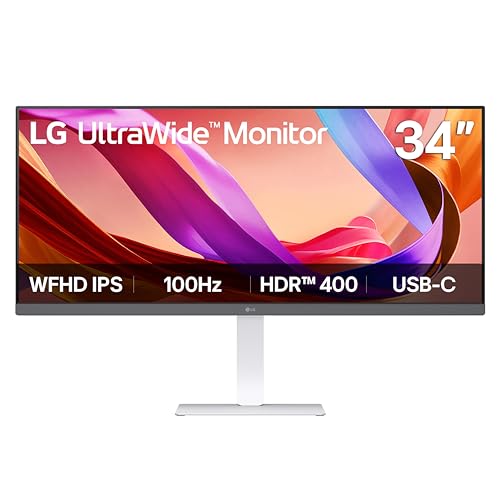
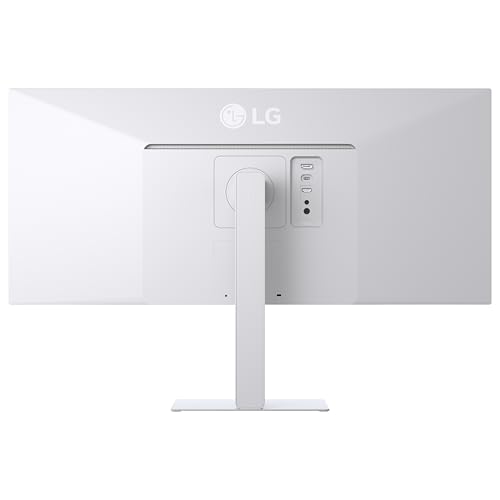
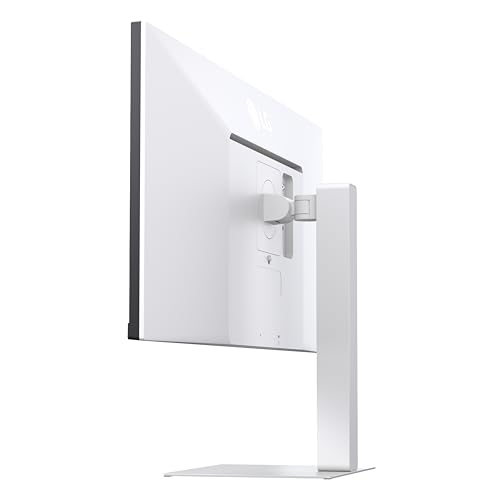
LG 34U530A-W 34-inch UltraWide WFHD (2560 x 1080) IPS Wide Computer Monitor, 100Hz, VESA DisplayHDR 400, HDMI, DisplayPort, USB Type-C, Tilt/Height/Swivel Stand, White









As an Amazon Associate we earn from qualifying purchases. Product prices and availability are accurate as of the date/time indicated.
ASUS TUF Gaming VG34VQL1B 34 Inch 1440p 165Hz Ultrawide HDR Gaming Monitor | ELMB Sync, 1ms, FreeSync Premium, Height Adjustable, HDR, DisplayHDR 400, Eye Care, 1500R Curve, for PS5 and Xbox


As an Amazon Associate we earn from qualifying purchases. Product prices and availability are accurate as of the date/time indicated.

LG 34WR55QK-B 34-inch UltraWide WQHD (3440 x 1440) Curved Computer Monitor, 100Hz, 5ms, HDR10, Reader Mode, HDMI, DisplayPort, USB Type-C, Tilt/Height Adjustable Stand, Black



As an Amazon Associate we earn from qualifying purchases. Product prices and availability are accurate as of the date/time indicated.
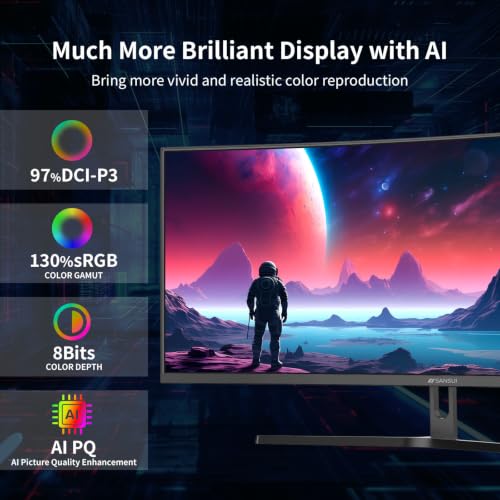
SANSUI 34-Inch Curved Gaming Monitor UWQHD 3440 x 1440P 200Hz Ultrawide | 34” Ultra Wide Gaming Computer Monitor-PBP, OD 1ms, HDR, 300nits, 130%sRGB, DCI-P3 97%,AI Crosshair,HDMI2.1x2,DP1.4




As an Amazon Associate we earn from qualifying purchases. Product prices and availability are accurate as of the date/time indicated.

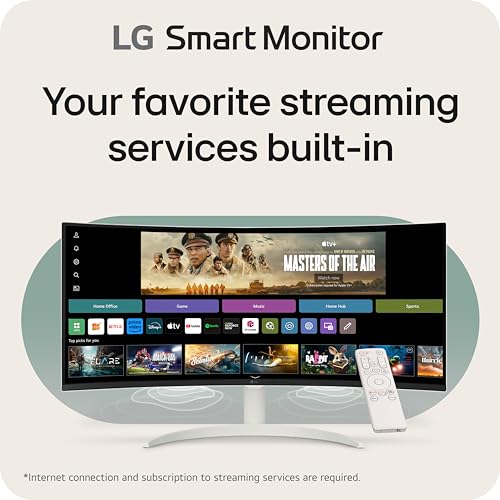
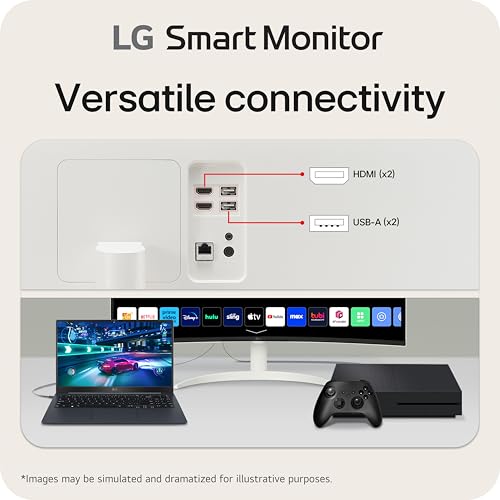
LG 34SR60QC-W 34-inch QHD (3440x1440) Curved Smart Monitor with Streaming, UltraWide Screen, webOS, HDR10, 100Hz, Built-in Speaker, AirPlay2, Screen Share, Bluetooth, ThinQ App, White



As an Amazon Associate we earn from qualifying purchases. Product prices and availability are accurate as of the date/time indicated.
| Model | Key point from title | Price tier | Best for |
|---|---|---|---|
| ASUS TUF Gaming VG34VQL1B | 34″, 1440p, 165Hz, 1ms, FreeSync Premium, 1500R, height adjustable | Mid-range | Gaming and desk work on one screen |
| LG 34WR55QK-B | 34″, 3440 x 1440, 100Hz, HDR10, HDMI + DisplayPort + USB-C | Mid-range | Laptop and office use |
| Sceptre C345B-QUT168 | 34″, 3440 x 1440, 1500R, “180Hz/165Hz”, two DisplayPort, speakers | Budget | PC-only gaming on a tight budget |
| SANSUI 34-inch UWQHD | 200Hz claim, 300 nits, HDMI 2.1 x2, DP 1.4, PBP | Budget | Feature-hungry bargain hunters |
| LG 34U530A-W | 2560 x 1080, IPS, 100Hz, DisplayHDR 400, USB-C | Budget | Basic multitasking at the lowest outlay |
| LG 34SR60QC-W | 3440 x 1440 curved, webOS smart features, AirPlay 2 | Mid-range | Work plus streaming without a PC attached |
| Samsung 49″ LS49C954UANXZA | Dual QHD (5120 x 1440), 120Hz, USB-C, height adjustable | Premium | Replacing a two-monitor desk |
Seven ultrawides, one at a time
ASUS TUF Gaming VG34VQL1B
The title lists a 34-inch 1440p panel, 165Hz, 1ms, FreeSync Premium, a 1500R curve, DisplayHDR 400 and a height-adjustable stand, which is the fullest all-round bundle in the set. ELMB Sync is ASUS’s name for a motion-blur reduction mode, and the listing pairs it with adaptive sync, so read the manual before assuming both can run together. The “for PS5 and Xbox” wording only means the screen accepts console signals; expect black bars at the sides, since consoles usually output 16:9. At 1440 pixels tall, it also gives you the same vertical room as a 27-inch QHD screen, so you gain width without losing height.
Pros
- Height adjustment and 1500R curve in the title
- FreeSync Premium and 165Hz for PC gaming
Cons
- No USB-C input mentioned for a single-cable laptop setup
- DisplayHDR 400 is an entry-level HDR tier
Who it’s for: someone who games in the evening and works at the same desk.
LG 34WR55QK-B
This one covers the office basics: 3440 x 1440 on a curved panel, HDMI, DisplayPort and USB Type-C, plus a tilt and height-adjustable stand. The 100Hz refresh and 5ms response are modest next to the gaming models, but they make for a smooth desktop. HDR10 on a screen of this class is mostly an input format, not a promise of bright highlights. The title does not state the USB-C power wattage, so check whether it can charge your laptop or only carry video. Reader Mode, a low-blue-light preset for documents, is the sort of comfort feature office buyers tend to use daily.
Pros
- Three input types including USB-C
- Reader Mode for long documents
- QHD detail on a 34-inch frame
Cons
- 5ms and 100Hz are not aimed at fast shooters
- USB-C charging power not given
Who it’s for: a laptop user who wants one wide, tidy workspace.
Sceptre C345B-QUT168
The headline is 3440 x 1440 on a 1500R curve with two DisplayPort inputs, 99% sRGB, 1ms and built-in speakers. The refresh wording is the awkward part: “up to 180Hz/165Hz” is ambiguous, and it may mean 165Hz at default and 180Hz when overclocked, or two modes on different inputs. Check the product page before you rely on the higher figure. There is no HDMI port in the title, so a console or a second PC would need a DisplayPort route. The built-in speakers are fine for alerts but rarely replace a headset or desk speakers.
Pros
- Two DisplayPort inputs for two PCs
- 99% sRGB claim for colour work
Cons
- Refresh rate claim is unclear
- No HDMI or USB-C mentioned
Who it’s for: a PC-only gamer who wants QHD width for less outlay.
SANSUI 34-Inch Curved Gaming Monitor
This listing is loaded with claims: 200Hz at 3440 x 1440, 1ms overdrive, 300 nits, “130% sRGB”, 97% DCI-P3, picture-by-picture mode, two HDMI 2.1 ports and DisplayPort 1.4. A percentage above 100% sRGB describes gamut volume, not accuracy. At 300 nits the picture is dimmer than most rivals here, and the plain “HDR” label without a certification tier deserves scepticism. The AI crosshair is a gimmick that some competitive-game rules dislike. Two HDMI 2.1 ports, if accurate, would suit a console or second device alongside a PC, but specs like these are worth confirming against the manual before you buy.
Pros
- HDMI 2.1 and DisplayPort 1.4 give bandwidth for 200Hz
- Picture-by-picture for two sources
Cons
- 300 nits is dim for bright rooms
- Several claims cannot be verified from the title
Who it’s for: a bargain hunter who accepts spec-sheet risk.
LG 34U530A-W
This is the older-format option: 2560 x 1080 on an IPS panel at 100Hz, with DisplayHDR 400, HDMI, DisplayPort and USB Type-C. The lower resolution means about 82 pixels per inch on 34 inches, so text looks visibly softer than on the 3440 x 1440 models, and the same wide picture needs fewer pixels, which is kinder to weaker graphics cards. The title also lists USB Type-C without saying whether it carries video or power, so confirm that on the page. The stand offers tilt, height and swivel. It is the weaker class of the seven for detail, though the price tier is the lowest.
Pros
- IPS panel with tilt, height and swivel
- Easy to drive on a modest graphics card
Cons
- Softer text at roughly 82 pixels per inch
- DisplayHDR 400 adds little on this panel type
Who it’s for: an office desk where price beats sharpness.
LG 34SR60QC-W
The odd one out: a 34-inch 3440 x 1440 curved screen with webOS, AirPlay 2, Bluetooth, screen share and the ThinQ app, plus HDR10 and 100Hz. Think of it as a monitor with a built-in streaming box. That helps if you want video apps without switching on a computer, though a smart system adds software that needs updates. The title does not list ports, so confirm HDMI and USB-C availability. It is a different class from the gaming models, aimed at home-office and media use. Screen share and AirPlay 2 let a phone or laptop cast wirelessly, which suits quick meetings but can add lag compared with a cable.
Pros
- Streaming apps and AirPlay 2 without a PC
- QHD ultrawide detail
Cons
- Ports and stand adjustment not stated
- Smart software may feel slower than a plain monitor
Who it’s for: a home worker who also watches shows at the desk.
Samsung 49″ Business Curved Dual QHD (LS49C954UANXZA)
At 49 inches and 5120 x 1440 this is effectively two 27-inch QHD screens joined together, at about 108 pixels per inch. The title adds 120Hz, DisplayHDR 400, USB-C, DisplayPort, HDMI, speakers, a height-adjustable stand and Eye Care. It is the only premium-tier model here, and the only one that needs real desk planning: roughly 47 inches of width and a deep desk. Confirm the DisplayPort version, because 5120 x 1440 at 120Hz needs about 21 gigabits per second of pixel data. Eye Care in the title is a general comfort label, so pair it with regular breaks and sensible room lighting.
Pros
- Replaces two monitors with one cable
- USB-C, DisplayPort and HDMI all listed
Cons
- Needs a wide, deep desk and a strong graphics card
- Highest price tier of the group
Who it’s for: a professional who wants a side-by-side layout without a bezel.
How we picked these
This roundup was written by the Editorial team from published specifications, manufacturer documentation and buyer reviews. We compared product titles, port lists and stated features, then sorted the group by resolution and size. Nobody on the team used or measured these units. Any number that is not in a title is a labelled estimate with its assumptions shown, and listings with unclear wording are flagged so you can check them on the product page. Price tiers are relative within these seven only, and we left out exact prices because they change often.
What the numbers mean on an ultrawide
Pixel density decides how sharp text looks
Divide the diagonal pixel count by the diagonal size. A 34-inch 3440 x 1440 panel works out to about 110 pixels per inch, the 49-inch 5120 x 1440 to about 108, and the 2560 x 1080 model to about 82. Below roughly 90, small text tends to look rough at normal desk distance. In practice, 3440 x 1440 can run at 100 percent scaling for most people, while the 2560 x 1080 model may feel cramped once you open two documents side by side.
Physical width matters more than the diagonal
A 34-inch ultrawide is about 31 inches wide, and a 49-inch super-ultrawide is about 47. Add a few inches of stand and bezel, then compare against your desk. As an estimate, sit about 28 to 32 inches from a 34-inch screen so the edges are not a head turn away.
Refresh rate is limited by the cable
Uncompressed data per second is width x height x refresh x 24 bits. For 3440 x 1440 at 165Hz that is roughly 19.6 gigabits per second, before blanking overhead. That sits near DisplayPort 1.2’s ceiling of about 17.3, so choose DisplayPort 1.4 or HDMI 2.1 for the fastest modes. HDMI 2.0, at about 14.4, covers 100Hz comfortably at this resolution.
Curve and HDR labels
A 1500R curve means a circle with a 1.5-metre radius, so it suits a desk about a metre deep with you sitting near the centre of that circle. DisplayHDR 400 is the lowest certified tier, and a plain “HDR” label with no tier is only a signal format, not a brightness promise.
Worked example: will your PC and cable cope?
Assume an 8-bit signal and no compression. The 34-inch QHD models at 100Hz need about 11.9 gigabits per second, which HDMI 2.0 handles. The Samsung at 5120 x 1440 and 120Hz needs about 21.2, so it requires DisplayPort 1.4 or better. Real links add blanking overhead of roughly 5 to 10 percent, so leave that margin when you check a cable’s rating.
Mistakes buyers make with ultrawides
- Buying on the refresh headline. A 200Hz claim means nothing if the graphics card cannot push that many frames at 3440 x 1440.
- Ignoring the cable in the box. Older HDMI cables cap the refresh rate, so use DisplayPort where offered and replace any unlabelled cable.
- Skipping the desk width. A 49-inch screen needs about 47 inches of clear space plus speakers or lamps.
- Expecting every game to fill the screen. Some titles and consoles show black bars at 21:9.
- Assuming USB-C means charging. Many USB-C ports carry video only, or deliver low power, which will not keep a performance laptop topped up.
If you are still deciding between one wide panel and two matched screens, our dual setup monitor guide lays out the desk-width maths for that route.
Verdict
For a single all-round pick, the ASUS TUF Gaming VG34VQL1B has the best mix of resolution, refresh and stand adjustment in its title. The LG 34WR55QK-B is the calmer choice for a laptop-based office. The Samsung 49-inch is the premium route for a two-monitor replacement, and the LG 34U530A-W is the lowest-cost way in if you accept softer text. Verify ports and refresh details on each page before you order. If a listing’s title and its specification table disagree, trust the table and ask the seller.
Related guides
Frequently asked questions
Is a 34-inch ultrawide better than two 24-inch monitors?
It depends on how you work. A single 34-inch panel has no bezel running through the middle, so spreadsheets, timelines and wide games stay in one piece. Two 24-inch screens give you separate windows that snap to each side and often cost less. If you want one cable and a clean desk, the ultrawide wins. If you juggle many full-screen apps, two panels can be easier to organise.
What resolution should an ultrawide monitor have?
For 34-inch screens, 3440 x 1440 is the sweet spot at about 110 pixels per inch, so text looks sharp without needing display scaling. The 2560 x 1080 option falls to roughly 82 pixels per inch and looks softer on small text. On the 49-inch Samsung, 5120 x 1440 works out to about 108 pixels per inch, which is similar in sharpness to the 34-inch QHD models.
Do ultrawide monitors work with PS5 and Xbox?
They accept the signal, but consoles generally output 16:9 modes, so you will usually see black bars on the sides rather than a stretched picture. Support for true 21:9 output varies by game and console, so check the game settings before buying. For a mostly console setup, a regular 16:9 monitor often makes better use of the screen.
Do I need DisplayPort for a high-refresh ultrawide?
Often yes. A 3440 x 1440 picture at 165Hz needs roughly 20 gigabits per second of raw pixel data before overhead, which is beyond older HDMI versions and close to the limit of DisplayPort 1.2. DisplayPort 1.4 or HDMI 2.1 handles it comfortably. Confirm the version on each listing, because the titles here do not always state it.
Is the curve on an ultrawide worth having?
On a 34-inch screen about 31 inches wide, a curve such as 1500R keeps the edges closer to your eyes and reduces the sense of looking across a flat wall. It is a comfort feature, not a quality one. Curved panels can reflect room light differently and are slightly harder to wall mount, so match the curve to your desk depth.





Write Your Review
No reviews yet. Be the first to share your experience!