

The best webcams for most people are the Logitech MX Brio for a premium all-purpose camera, the Logitech Brio 505 for everyday office calls, the Elgato Facecam MK.2 for streaming, the Insta360 Link 2 for presenters and small rooms, and the Logitech C920s for a low-cost upgrade.
Our top picks
 Logitech Brio 101 Full HD 1080p Webcam
- Compatible with Nintendo Switch 2’s new GameChat mode
- Auto-Light Balance: RightLight boosts brightness by up to…
- Privacy with a Slide: The integrated webcam cover…
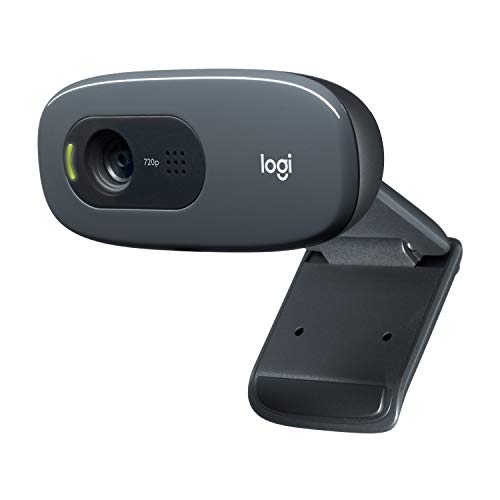 Logitech C270 720p Webcam Plug-and-Play Wide Screen
- Compatible with Nintendo Switch 2’s new GameChat mode
- Crisp HD 720p/30 fps video calls with diagonal…
- The built-in noise-reducing mic makes sure your voice…
 EMEET C960 1080P Webcam with Microphone
- 1080P Webcam with Cover for Video Calls -…
- Built-in 2 Omnidirectional Mics - EMEET webcam with…
- Automatic Light Adjustment - Automatic exposure adjustment is…
| Product | Key specs | |
|---|---|---|
| Logitech Brio 101 Full HD 1080p Webcam | Compatible with Nintendo Switch 2’s new GameChat mode Auto-Light Balance: RightLight boosts brightness by up to… Privacy with a Slide: The integrated webcam cover… | Check price |
| Logitech C270 720p Webcam Plug-and-Play Wide Screen | Compatible with Nintendo Switch 2’s new GameChat mode Crisp HD 720p/30 fps video calls with diagonal… The built-in noise-reducing mic makes sure your voice… | Check price |
| EMEET C960 1080P Webcam with Microphone | 1080P Webcam with Cover for Video Calls -… Built-in 2 Omnidirectional Mics - EMEET webcam with… Automatic Light Adjustment - Automatic exposure adjustment is… | Check price |
 Logitech C920x HD Pro PC Webcam Full Logitech C920x HD Pro PC Webcam Full | Compatible with Nintendo Switch 2’s new GameChat mode HD lighting adjustment and autofocus: The Logitech webcam… Advanced capture software: Easily create and share video… | Check price |
As an Amazon Associate we earn from qualifying purchases at no extra cost to you.
Best webcams at a glance
| Webcam | Maximum video | Field of view | Focus | Microphones | Privacy | Typical market range |
|---|---|---|---|---|---|---|
| Logitech MX Brio | 4K at 30 fps; 1080p at 60 fps | 65°, 78°, or 90° | Autofocus | Dual beamforming | Built-in shutter | $150–$200 |
| Logitech Brio 505 | 1080p at 30 fps | 90° | Autofocus | Dual noise-reducing | Built-in shutter | $60–$100 |
| Elgato Facecam MK.2 | 4K at 30 fps; 1080p at 60 fps | About 83° | Fixed focus | No built-in microphone | Lens cover included | $120–$170 |
| Insta360 Link 2 | 4K at 30 fps; 1080p at 60 fps | About 80° | Autofocus | Dual noise-cancelling | Privacy mode and lens protection | $150–$220 |
| Logitech C920s | 1080p at 30 fps | 78° | Autofocus | Dual stereo | Clip-on shutter | $50–$80 |
Video applications may limit these cameras below their maximum specifications. For example, a webcam capable of 4K may still transmit at 720p or 1080p when used with a particular meeting service, browser, bandwidth setting, or computer. A better camera can still improve exposure, color, and sharpness at 1080p, but do not buy 4K solely to expect every call to appear in 4K.
Best overall: Logitech MX Brio
The Logitech MX Brio is the strongest general-purpose choice for people who move between work calls, presentations, recording, and occasional streaming. Its 4K sensor produces detailed video, while 1080p at 60 frames per second gives smoother motion when you do not need maximum resolution. The three selectable viewing angles—approximately 65, 78, and 90 degrees—make it easier to switch from a tight head-and-shoulders composition to a wider desk view.
Autofocus is useful when you hold documents or products toward the camera, and the built-in shutter provides an obvious physical privacy barrier. Its dual beamforming microphones are adequate for a quiet room, but a dedicated USB microphone or headset remains preferable in a room with keyboard noise, fans, or echo.
Choose the MX Brio if you want one webcam that handles most situations without adding a separate microphone. It is less compelling if all your calls are limited to 1080p and you already own good audio equipment.
Best for regular office calls: Logitech Brio 505
The Brio 505 is a practical choice for daily Zoom, Microsoft Teams, Google Meet, and similar calls. It records at 1080p and has a wide 90-degree field of view, which is useful when you sit close to a laptop or need to include another person. Autofocus helps maintain clarity when you lean forward, and its automatic framing features can keep you positioned more consistently.
Its two microphones can reduce some background noise, and the physical shutter is more reliable than software-only camera blocking. The main compromise is that it does not offer 4K or 60 fps video. That is rarely a problem for ordinary meetings, where stable exposure and clear audio matter more than extra pixels.
Buy the Brio 505 when you want a dependable office camera rather than a production camera. It is also a sensible upgrade for a laptop whose built-in camera looks soft or struggles with changing light.
Best for streaming and recorded video: Elgato Facecam MK.2
The Facecam MK.2 is aimed at creators who care more about image control than built-in convenience. It supports 4K at 30 fps and 1080p at 60 fps, with software controls for exposure, color, and other image settings. This makes it a better fit for streaming layouts, tutorials, and recorded presentations where consistent framing is more important than automatic camera movement.
Its fixed-focus design is a strength at a desk: once you sit in the intended position, the camera does not repeatedly refocus or blur the background when you gesture. It is less suitable for someone who frequently moves between the desk and a whiteboard. The Facecam MK.2 also lacks a built-in microphone, so budget for a USB microphone, headset, or audio interface.
The included lens cover addresses privacy, although it is a physical accessory rather than an integrated electronic shutter. For a creator with separate audio, this is one of the better webcams for a controlled home-office setup.
Best for presenters and small rooms: Insta360 Link 2
The Insta360 Link 2 uses a motorized gimbal and AI tracking to follow a presenter. That makes it useful for demonstrations, standing presentations, teaching, and calls where you need to move instead of remaining centered in a chair. It supports 4K at 30 fps and 1080p at 60 fps, includes autofocus, and has built-in microphones with noise reduction.
The tracking system is helpful but not magic. It can react poorly when another person enters the frame, when lighting is very low, or when you move behind an object. A motorized camera also introduces more mechanical complexity than a fixed webcam. Use its privacy mode when you finish a call, and confirm that the lens is physically oriented away from the room before discussing confidential material.
Choose the Link 2 if movement is central to your work. For a conventional seated meeting, a fixed webcam usually offers better value and fewer settings to manage.
Best budget webcam: Logitech C920s
The Logitech C920s remains a good low-cost option because 1080p at 30 fps, autofocus, a 78-degree field of view, and dual stereo microphones cover the essentials. Its image is not as clean in dim rooms as newer premium models, and it lacks 4K, but it can produce a substantial improvement over many built-in laptop cameras.
The clip-on privacy shutter is simple and effective. The C920s connects through USB and works with common desktop video applications without requiring a specialized capture workflow. It is a good choice for occasional calls, a secondary workstation, or a family computer where spending more would not change the way the camera is used.
Which webcam fits your situation?
| Your situation | Recommended choice | Why |
|---|---|---|
| Daily one-person meetings | Logitech Brio 505 | Good autofocus, wide framing, microphones, and shutter without a premium price |
| Calls plus recording and streaming | Logitech MX Brio | 4K detail, 60 fps at 1080p, adjustable field of view, and built-in microphones |
| Streaming with a separate microphone | Elgato Facecam MK.2 | Consistent fixed focus and stronger creator-oriented image controls |
| Standing presentations or demonstrations | Insta360 Link 2 | Gimbal movement, tracking, autofocus, and presentation-oriented framing |
| Occasional calls on a tight budget | Logitech C920s | Reliable 1080p video, autofocus, and a physical privacy cover |
How to set up a webcam for better calls
- Place the lens at eye level. Raise a laptop or mount the camera on a monitor so you are not looking sharply downward. This also leaves more room for a natural background.
- Put light in front of you. A window behind your head can turn your face into a silhouette. A desk lamp bounced off a wall often gives a softer result than a bare bulb aimed directly at you.
- Start with a medium field of view. A 78-degree view usually suits one seated person. Use 90 degrees when the camera is close or two people need to fit; use a narrower setting when the background is distracting.
- Test audio separately. In the video app, select the intended microphone rather than assuming it has chosen the webcam. Listen for fan noise, keyboard sound, and room echo.
- Check compatibility before an important call. Confirm that the camera appears in the operating system, then select it inside the meeting application. Some apps retain an old camera choice after a new device is connected.
Ownership details that affect the decision
Webcam lenses collect fingerprints and dust, which can create a permanent-looking haze around lights. Clean the lens with a clean microfiber cloth; avoid spraying liquid directly onto the camera. Do not use abrasive paper towels. Keep the privacy shutter closed or use the supplied cover when the camera is not needed, especially on a shared desk.
The first parts likely to cause inconvenience are usually the USB cable, mounting clip, and privacy accessory rather than the sensor. Avoid bending the cable sharply at the camera, and check whether the model uses a detachable USB cable before buying. A camera mounted on a laptop may also wobble when the screen moves, so a monitor mount or small tripod can improve consistency.
Finally, prioritize audio and lighting once image quality reaches 1080p. A well-lit 1080p webcam with clear speech usually makes a better call than a poorly lit 4K camera with distant, echoing audio. That is why the Brio 505 is the sensible office pick, while the MX Brio and Facecam MK.2 make more sense for people who will actually use their extra image capability.




Write Your Review
No reviews yet. Be the first to share your experience!