

The best monitors for office work are usually 27-inch models with a 2560×1440 or 3840×2160 resolution, a height-adjustable stand, low-glare coating, and USB-C connectivity if you want one-cable laptop docking.
Our top picks
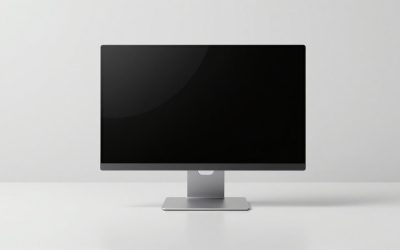
 Philips 24 Inch Computer Monitor FHD 100Hz
- This 23.8″ Philips V line monitor delivers crisp…
- The VA panel produces brighter whites and deeper…
- The 178/178 degree extra wide viewing angle prevents…
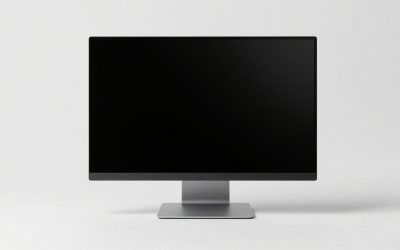
 Philips 22 Inch Computer Monitor FHD 100Hz
- This 22 inch class (21.5″ viewable) Philips V…
- 100Hz brings your favorite movies and video games…
- Adaptive-Sync technology ensures fluid action sequences and rapid…
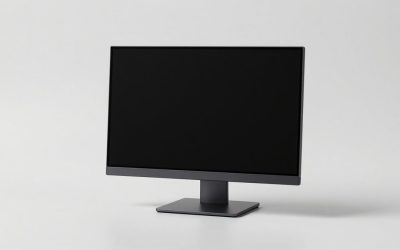
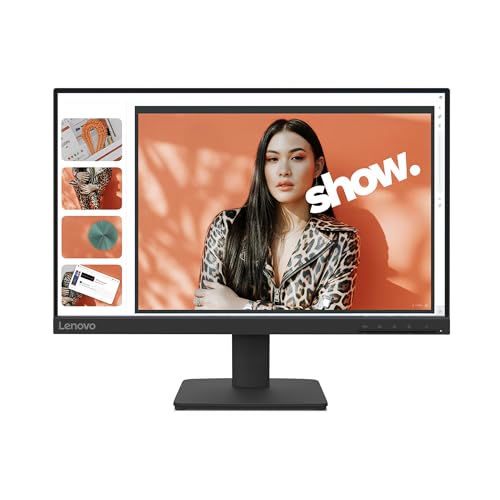 Lenovo L22-4e
- The Lenovo L22-4e monitor packs a visual punch…
- Encased in a 3-sided borderless design for a…
- The 99% sRGB gamut and 1300:1 contrast ratio…
| Product | Key specs | |
|---|---|---|
| Philips 24 Inch Computer Monitor FHD 100Hz | This 23.8″ Philips V line monitor delivers crisp… The VA panel produces brighter whites and deeper… The 178/178 degree extra wide viewing angle prevents… | Check price |
| Philips 22 Inch Computer Monitor FHD 100Hz | This 22 inch class (21.5″ viewable) Philips V… 100Hz brings your favorite movies and video games… Adaptive-Sync technology ensures fluid action sequences and rapid… | Check price |
| Lenovo L22-4e | The Lenovo L22-4e monitor packs a visual punch… Encased in a 3-sided borderless design for a… The 99% sRGB gamut and 1300:1 contrast ratio… | Check price |
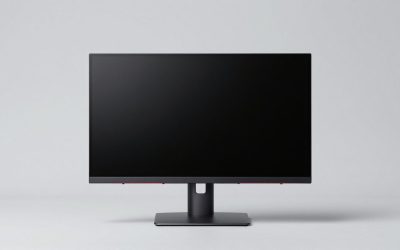
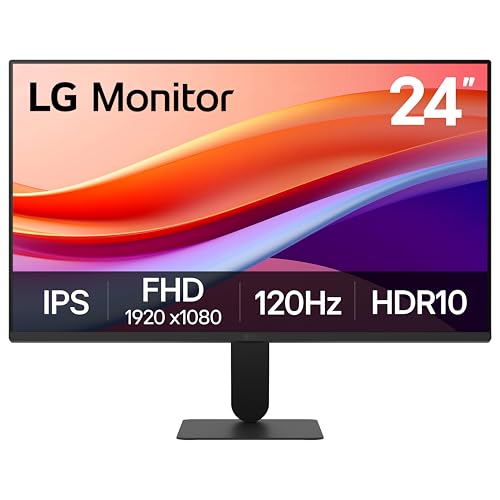 LG 24U411A-B 24-inch Full HD LG 24U411A-B 24-inch Full HD | Vivid Color with Full HD Resolution - The… Virtually Borderless Experience Smooth Motion with 120Hz - With a… | Check price |
As an Amazon Associate we earn from qualifying purchases at no extra cost to you.
Quick recommendations by working situation
| Situation | Best fit | Useful target specifications | Typical market range |
|---|---|---|---|
| General office work on a budget | 27-inch QHD monitor | 2560×1440, IPS, 60–100Hz, height adjustment | $180–$350 |
| Text-heavy work and spreadsheets | 27-inch 4K monitor | 3840×2160, IPS, matte coating, 350–450 nits | $300–$650 |
| USB-C laptop workstation | 27-inch USB-C dock monitor | 90W or more USB-C power delivery, Ethernet, USB hub | $400–$900 |
| Large documents and several windows | 32-inch 4K monitor | 3840×2160, height-adjustable stand, 100% sRGB or better | $350–$800 |
| Two-screen productivity setup | Two matching 24- or 27-inch monitors | Thin bezels, VESA support, identical resolution and scaling | $300–$1,000 for two |
What matters most when choosing a work monitor
Screen size and desk depth
A 24-inch screen is still practical for a compact desk, but a 27-inch display gives documents and side-by-side windows noticeably more room. A 32-inch monitor is useful for large spreadsheets, timelines, and multiple applications, though it can feel too wide on a shallow desk.
Measure viewing distance before buying. A 27-inch display generally works well at roughly 60–80 cm from your eyes; a 32-inch model is more comfortable when it can sit farther away. Leave space behind the monitor for its stand and cables. Many deep stands consume 20–25 cm of desk depth, while a VESA arm can free much of that space.
Resolution and text sharpness
Resolution should be considered together with screen size. A 27-inch 4K monitor has about 163 pixels per inch, producing very crisp text. A 27-inch QHD monitor has about 109 pixels per inch and is less demanding on the computer, while still providing substantially more workspace than a 1920×1080 display.
- 24-inch, 1920×1080: affordable and usable, but text is less refined and workspace is limited.
- 27-inch, 2560×1440: the sensible value choice for everyday office work.
- 27-inch, 3840×2160: the sharpest common choice for text, photographs, and detailed documents.
- 32-inch, 3840×2160: spacious and sharp, with comfortable scaling options.
4K does not automatically mean more usable content. At 27 inches, many people use 125% or 150% operating-system scaling. That makes text easier to read while retaining a sharp image, but it reduces the amount of content shown compared with running the same screen at 100% scaling.
Panel type, refresh rate, and glare
IPS panels are a dependable office choice because they provide consistent color and wide viewing angles. VA panels can deliver deeper contrast, which may help in a dim room, but text and dark interface elements can look less consistent at off-center angles. OLED monitors offer excellent contrast but are usually expensive for office-only use and require more care around static interface elements.
A 60Hz refresh rate is adequate for documents, email, and coding. A 75Hz or 100Hz monitor can make scrolling and cursor movement feel smoother without becoming a gaming purchase. Prioritize resolution, text rendering, and stand quality over a very high refresh rate for office work.
Look for a matte or low-reflection coating rather than simply choosing the brightest screen available. Brightness around 300–400 nits is normally sufficient indoors. A glossy screen may look clearer in controlled lighting, but reflections from windows and overhead lights can become tiring. Position the screen perpendicular to windows, then adjust brightness to match the room instead of using maximum brightness all day.
Best monitor types for office work
Best value: 27-inch QHD IPS
A 27-inch QHD IPS monitor is the strongest default recommendation for mixed office tasks. It gives enough space for two moderately sized windows, keeps text reasonably sharp, and typically costs less than a comparable 4K model. Choose one with height, tilt, and swivel adjustment rather than a basic tilt-only stand. Models such as the Dell UltraSharp U2724D represent the premium end of this category, while many mainstream 27-inch QHD IPS displays cost less.
Best for text: 27-inch 4K IPS
For long documents, spreadsheets, programming, or detailed design work, 27-inch 4K is the clearest option. The benefit is most obvious around small fonts and fine interface details. The trade-off is that scaling is usually required, and older laptops may need DisplayPort, HDMI, or USB-C output capable of driving 4K at the desired refresh rate.
Consider the BenQ PD2725U or similar professional 27-inch 4K displays when color consistency and connectivity matter. For ordinary business documents, a less expensive 4K IPS monitor can provide similar text sharpness; you do not need a design-focused model unless your work requires its color features.
Best laptop companion: USB-C monitor with docking
A USB-C monitor can carry video, USB data, and power through one cable. For a laptop workstation, check the details rather than assuming every USB-C port does the same thing. A practical dock monitor should offer:
- USB-C DisplayPort Alt Mode for video;
- at least 65W power delivery for many thin laptops, or 90–100W for larger business laptops;
- USB-A ports for peripherals;
- an Ethernet port if you want wired networking through the monitor;
- DisplayPort output or another suitable connection for daisy-chaining a second screen.
The Dell UltraSharp U2724DE is an example of a 27-inch QHD monitor with advanced docking features. Lenovo ThinkVision P27h-30 is another type of business monitor to consider when USB-C connectivity and office ergonomics are priorities. Confirm your laptop’s charging requirements: a monitor that supplies 65W may not fully charge a workstation-class laptop under heavy load.
Best for a large single screen: 32-inch 4K
A 32-inch 4K screen provides a comfortable canvas for wide spreadsheets and multiple applications without the center bezel of a dual-monitor setup. It is a good choice when you have at least 70–80 cm of viewing distance and enough desk width. A single large screen also avoids window-management differences between two displays, but it cannot place two applications directly in front of you as naturally as separate monitors.
One large monitor or two smaller monitors?
| Factor | One 32-inch 4K | Two 27-inch QHD |
|---|---|---|
| Workspace | 8.3 million pixels | 7.4 million pixels combined |
| Typical width | About 71 cm without stand | About 122 cm before accounting for bezels |
| Best advantage | No center bezel; simple cabling | Separate full-screen apps and flexible positioning |
| Main drawback | Less flexible window placement | More desk width, cables, and power use |
| Recommended desk depth | At least 70 cm | At least 70 cm, plus adequate width |
Choose two monitors if your work regularly involves comparing documents, keeping communication visible, or referencing one application while writing in another. Choose one 4K monitor if you value a clean desk, want fewer compatibility problems, or frequently use a full-width spreadsheet.
Ergonomics and mounting details that are easy to miss
The stand should provide height adjustment, tilt, and ideally swivel. The top of the active viewing area should be near eye level, with the screen angled slightly upward or downward according to your seating position. A monitor that is excellent on paper can be uncomfortable if its stand is too low.
VESA support, commonly 100×100 mm, makes it easier to use a monitor arm later. Check the display’s weight without its stand before buying an arm. A typical 27-inch office monitor weighs roughly 5–8 kg with its stand, but the arm’s rating should be based on the monitor without the stand and should include room for adjustment.
Ownership realities: what wears out first
- Stand and hinges: repeated adjustment can loosen inexpensive mechanisms before the panel fails.
- Ports and cables: USB-C ports are convenient but can be stressed by sideways cable pulls. Use a short, flexible cable and avoid hanging its weight from the connector.
- Backlight: LED backlights gradually lose brightness over years. Running at maximum brightness accelerates wear and increases heat.
- Surface coating: spray cleaner directly on a screen can allow liquid to reach the bezel and damage the coating or electronics.
- Dust and fingerprints: turn the display off, use a clean microfiber cloth, and apply a small amount of screen-safe cleaner to the cloth rather than the panel.
For a two-monitor setup, match resolution, panel size, and scaling whenever possible. Place the primary display directly in front of you and the secondary screen beside it. In a stacked arrangement, use a sturdy arm and keep the upper screen for occasional reference rather than constant reading.
Bottom line
For most people, buy a 27-inch QHD IPS monitor with a fully adjustable stand. Move to 27-inch 4K when text sharpness is the priority, choose a 32-inch 4K model when you need a large single canvas, and choose a USB-C docking monitor when reducing laptop cables matters more than the lowest purchase price. The best monitors for office work are not defined by resolution alone: the right combination of viewing distance, glare control, stand adjustment, ports, and screen arrangement will determine whether the display remains comfortable and useful for years.
Write Your Review
No reviews yet. Be the first to share your experience!