

Key takeaways
- Best USB-C Docking Station Under $100 — the only true powered dock under $100.
- Best USB-C Docking Station Under $200 — the Anker Prime 14-in-1 leads.
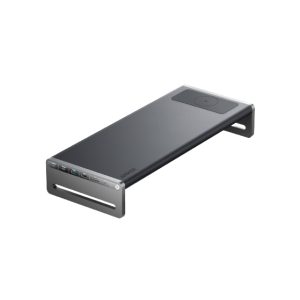
- Best USB-C Docking Station Under $300 — the Anker 675 combines a dock, a monitor stand, and a phone charger.
Four hundred dollars is where docking stations stop being a compromise. Below $200, you choose between hubs that borrow your laptop’s charger and business docks a generation old. At $400, you can buy a proper Thunderbolt 4 dock with its own power brick, dual 4K monitors at 60Hz, 100W charging, and 2.5-gigabit Ethernet — all through one cable.
The honest headline: at this budget, almost everything real fits — dual 4K at 60Hz, 100W charging, Thunderbolt 4 with room to spare, Thunderbolt 5 if you spend the whole budget, and USB4 for AMD or Qualcomm laptops. What still does not fit is 10-gigabit Ethernet on a current-generation Thunderbolt dock, or a Thunderbolt 5 dock with native video outputs.
Quick Picks
| Docking Station | Best For | Price (Nov 2026) | Connection | Displays | Charging | Ports |
|---|---|---|---|---|---|---|
| CalDigit TS4 | Best Overall | $379.99 | Thunderbolt 4 | Dual 4K@60Hz, single 8K@30Hz | 98W, own adapter | 18 |
| CalDigit TS5 | Best Thunderbolt 5 | $399.99 | Thunderbolt 5 | Dual 6K via TB ports | 140W, own adapter | 15 |
| Plugable TBT4-UDZ | Best for Four Displays | $289.99 | Thunderbolt 4 | Up to 4 displays | 100W, own adapter | 16 |
| OWC 11-Port Thunderbolt Dock | Best Value | $229.99 | Thunderbolt 4 | Dual 4K@60Hz | 90W, own adapter | 11 |
| Kensington SD5800T | Best USB4 Quad Dock | $269.99 | Thunderbolt 4 & USB4 | Up to 4 displays | 100W, own adapter | 13 |
How to Choose a USB-C Docking Station Under $400
Ports and video outputs
Count the video outputs first — they decide how many monitors you can run. The CalDigit TS4 has one DisplayPort plus three Thunderbolt ports, so its second monitor runs off a Thunderbolt port. A dock that lists “dual 4K” may run both screens at 30Hz — only trust one that states 4K at 60Hz per output.
Power delivery wattage
Every dock here ships with its own power adapter — the dividing line between a dock and a hub. In practice, 90W to 100W charges any 13- or 14-inch laptop at full speed, and only Thunderbolt 5 docks reach the 140W a 16-inch MacBook Pro needs to fast charge.
USB speed
Thunderbolt 4 gives you 40Gbps of total bandwidth, but the dock’s USB ports are a separate question. Most docks here run their USB data ports at 10Gbps, moving files from an NVMe enclosure at roughly 1,000 MB/s; cheaper ones still use 5Gbps ports, which cap the same enclosure at about 400 MB/s.
Display resolution and refresh
Dual 4K at 60Hz is the standard at $400, and every dock here delivers it on Windows. At the edges, single 8K at 30Hz is possible on the TS4 and dual 6K at 60Hz on the TS5 — but only over Thunderbolt, and only if your laptop and monitors support it. Also watch for the DisplayLink trap: some docks achieve dual monitors on base-model Macs by compressing video in software, which needs a driver and blocks protected video playback while connected.
Build quality
Every dock here is fanless — but check whether the power brick is external, because a 230W brick is a lump under your desk. On warranty, CalDigit and Plugable offer two years, Kensington three.
Compatibility
Check your laptop’s port before you buy: a Thunderbolt 4 dock works on a plain USB-C port, but it drops to USB-C speeds and may drive only one monitor, while a USB4 dock is the safer buy for AMD and Qualcomm laptops. A base-model MacBook with an M1–M4 chip supports only one external display over Thunderbolt — you need a DisplayLink dock, like the Plugable UD-6950PDH from our under-$200 guide, for a second screen.
1. CalDigit TS4 — Best Overall
Specs: Thunderbolt 4, 40Gbps; 18 ports incl. 3x Thunderbolt 4, DisplayPort 1.4, 2.5GbE, SD/microSD UHS-II readers; 98W charging; single 8K@30Hz or dual 4K@60Hz; 2-year warranty.
The TS4 is the dock every other dock here is measured against, and it earns that on port count alone. Eighteen connections cover a whole desk: two monitors, a wired network, an SD reader at full UHS-II speed, and enough 10Gbps USB ports for an external SSD, a webcam, and a keyboard. The 2.5-gigabit Ethernet port is the fastest wired networking in this guide, and 98W charging keeps any 14-inch laptop full. The catches are small: exactly one native video output — a single DisplayPort 1.4, no HDMI — so an HDMI monitor needs a USB-C to HDMI cable and the second monitor occupies a Thunderbolt port. The TS4 was out of stock at CalDigit’s own store and at B&H in November 2026; Amazon is where it turns up, at $379.99.
Pros: Most ports of any dock here; 2.5GbE Ethernet; UHS-II readers; 10Gbps on all USB data ports.
Cons: Only one native video output, no HDMI; 98W charging, not 100W; huge 230W brick.
Best for: Anyone who wants one cable to run an entire desk.
2. CalDigit TS5 — Best Thunderbolt 5
Specs: Thunderbolt 5, 80Gbps; 15 ports incl. 3x Thunderbolt 5, 2.5GbE, SD/microSD UHS-II readers; 140W charging; dual 6K@60Hz via Thunderbolt; 2-year warranty.
The TS5 is the cheapest way into Thunderbolt 5, and it costs exactly $399.99 — one cent under our budget. For that you get 80Gbps of bandwidth, double Thunderbolt 4, and 140W of charging, the first dock in this series that can fast charge a 16-inch MacBook Pro. It keeps the TS4’s 2.5GbE Ethernet and UHS-II card readers, but drops the DisplayPort entirely: all video goes out over Thunderbolt ports, which is how you get dual 6K at 60Hz. That is also the catch: the TS5 has no native DisplayPort or HDMI at all, so every monitor needs a USB-C cable or an adapter. Budget $20 to $40 per monitor for cables if your screens are HDMI or DisplayPort only. Thunderbolt 5 exists on only a handful of laptops so far — recent MacBook Pros with M4 Pro or M4 Max, and a few high-end Windows machines. Plug the TS5 into a Thunderbolt 4 laptop and it works, but it runs at Thunderbolt 4 speeds — $400 for a dock with fewer ports than the $379.99 TS4.
Pros: Thunderbolt 5, 80Gbps; 140W fast charging for a 16-inch MacBook Pro; dual 6K@60Hz; 2.5GbE Ethernet; UHS-II readers.
Cons: No native DisplayPort or HDMI; 15 ports versus the TS4’s 18; only worth it on a Thunderbolt 5 laptop.
Best for: Owners of Thunderbolt 5 laptops that need 140W charging.
3. Plugable TBT4-UDZ — Best for Four Displays
Specs: Thunderbolt 4, 40Gbps; 16 ports incl. 2x HDMI, 2x DisplayPort, 2.5GbE, SD/microSD UHS-II readers; 100W charging; up to four displays (two at 4K@60Hz, two at 4K@30Hz); 2-year warranty.
The TBT4-UDZ is the only dock here with four native video outputs, and that is its entire reason to exist. Two HDMI and two DisplayPort outputs mean four monitors plug straight in with the cables you already own — no adapters, no dongles. On a Windows laptop with a discrete GPU, it will run all four at once: two at 4K and 60Hz, two at 4K and 30Hz. The rest is just as serious: 2.5GbE Ethernet, UHS-II card readers, and 100W charging, all for $289.99 — $90 less than the TS4. The headline needs a footnote: on a Mac, the dock will not drive four independent monitors, because macOS does not support DisplayPort MST — a MacBook Pro with an M4 Pro chip gets two external displays, a base M4 MacBook Air gets one. On Windows, the third and fourth monitors run at 30Hz — fine for email, choppy for video.
Pros: Four native video outputs; no adapters needed; 2.5GbE Ethernet; UHS-II readers; $90 cheaper than the TS4.
Cons: Third and fourth monitors run at 4K@30Hz; macOS display limits apply; the widest dock here.
Best for: Windows users with three or four monitors.
4. OWC 11-Port Thunderbolt Dock — Best Value
Specs: Thunderbolt 4, 40Gbps; 11 ports incl. 2x Thunderbolt 4 downstream, Gigabit Ethernet, SD UHS-II reader; 90W charging; dual 4K@60Hz or single 5K@60Hz; 2-year warranty.
The OWC 11-Port Thunderbolt Dock is the cheapest genuine Thunderbolt 4 dock from a major brand, at $229.99 on OWC’s own store and $231.99 in the catalog — $150 less than the TS4 for the same single-cable idea. You still get a powered dock with its own adapter, dual 4K monitors at 60Hz, and 90W of charging, enough for any 13- or 14-inch laptop and for a 15-inch machine doing office work. Both monitors connect over USB-C or Thunderbolt cables, and the three 10Gbps USB ports handle an external SSD at full speed. What the $150 saving costs you: gigabit Ethernet, not 2.5-gigabit; one SD reader and no microSD slot; 90W charging; and no native HDMI or DisplayPort outputs, so HDMI-only monitors need adapters.
Pros: Cheapest Thunderbolt 4 dock from a major brand; dual 4K@60Hz; 90W charging; 10Gbps USB ports; $150 less than the TS4.
Cons: Gigabit Ethernet, not 2.5GbE; no microSD reader; 90W charging is the lowest here; no native video outputs.
Best for: Anyone who wants a real Thunderbolt 4 dock and would rather keep $150.
5. Kensington SD5800T — Best USB4 Quad Dock
Specs: Thunderbolt 4 and USB4, 40Gbps; 13 ports incl. 2x HDMI, 2x DisplayPort, Gigabit Ethernet, SD/microSD UHS-II readers; 100W charging; up to four displays; 3-year warranty.
The SD5800T is the dock to buy if your laptop does not have Thunderbolt at all. It is certified for both Thunderbolt 4 and USB4, which means it runs at full 40Gbps on an AMD Ryzen laptop or a Snapdragon laptop — machines where a Thunderbolt-only dock either refuses to work or falls back to slow USB-C speeds. Like the Plugable, it has four native video outputs — two HDMI and two DisplayPort — so four monitors plug in with ordinary cables, and it costs $269.99, twenty dollars less. The trade-offs: gigabit Ethernet rather than 2.5-gigabit; the third and fourth monitors run at 4K and 30Hz, same as the Plugable; and the same macOS limits apply. Beyond USB4, the warranty stands out: three years, the longest in this guide.
Pros: Thunderbolt 4 and USB4 certified; four native video outputs; 100W charging; longest warranty here at 3 years; $20 cheaper than the Plugable.
Cons: Gigabit Ethernet, not 2.5GbE; third and fourth monitors at 4K@30Hz; macOS limits still apply.
Best for: AMD and Snapdragon laptop owners who want USB4 certification and a three-year warranty.
What to Avoid
A hub sold as a dock. If it has no power brick of its own, it is a hub. Every pick here ships with its own adapter.
“Dual 4K” at 30Hz. A dock that lists dual 4K without a refresh rate is almost always running both screens at 30Hz. Every dock here does dual 4K at 60Hz on at least its first two outputs.
15W charging traps. Some cheap docks advertise USB-C Power Delivery and then deliver 15W — enough to slow a laptop’s battery drain, not enough to charge it. The minimum worth buying here is 90W, and every dock clears it.
“Thunderbolt compatible” without certification. A dock can carry a Thunderbolt-shaped port and still not be Thunderbolt certified, which usually means USB-C speeds and one monitor instead of two. Look for “Thunderbolt 4 certified” on the maker’s own page, not just in a marketplace listing.
Paying Thunderbolt 5 money for a Thunderbolt 4 laptop. If your laptop has Thunderbolt 4 or plain USB-C, the TS5 runs at Thunderbolt 4 speeds — $400 for a dock with fewer ports than the $379.99 TS4.
DisplayLink without knowing it. DisplayLink docks are the only way to get two monitors from a base-model MacBook, but they need a driver, add latency, and block protected video playback while connected. None of the five docks here use DisplayLink.
FAQs
Is a Thunderbolt 4 dock worth it over a USB-C dock?
Yes, if your laptop has a Thunderbolt port. Thunderbolt 4 gives you 40Gbps — four times the 10Gbps of a USB-C 3.2 Gen 2 connection — which lets a dock run two 4K monitors at 60Hz, a 10Gbps SSD, and gigabit-plus networking through one cable. A plain USB-C dock shares one 10Gbps link, so the second monitor usually drops to 30Hz.
Can a dock under $400 charge a 16-inch MacBook Pro?
It can charge it, but only one dock here can fast charge it: the CalDigit TS5, with 140W. The other four docks deliver 90W to 100W, which keeps a 16-inch MacBook Pro charged during office work. Under a sustained heavy load, a 100W dock may not keep up, and the battery will drain slowly even while plugged in.
Does a USB-C dock work with a USB4 or AMD laptop?
A Thunderbolt-only dock may work on an AMD laptop, but it usually falls back to USB-C speeds and may drive only one monitor. A USB4-certified dock like the Kensington SD5800T is the safe buy: USB4 is the open standard AMD and Qualcomm laptops implement, at the same 40Gbps as Thunderbolt 4.
Do I need a Thunderbolt cable, or will any USB-C cable work?
You need a Thunderbolt cable for full speed. A plain USB-C cable will connect the dock and pass power, but it caps the link at 10Gbps or 20Gbps. Every dock here ships with a Thunderbolt cable in the box — if you replace it, buy one Thunderbolt certified and rated for 40Gbps.
Verdict
The CalDigit TS4 is the best USB-C docking station under $400 for most desks. Eighteen ports, 2.5-gigabit Ethernet, UHS-II card readers, dual 4K at 60Hz, and 98W charging from its own adapter — no other dock here covers as much desk for the money, and at $379.99 it leaves $20 for the HDMI adapter its single DisplayPort might force you to buy.
Spend the full $400 on the TS5 only if you own a Thunderbolt 5 laptop and need 140W fast charging. Buy the TBT4-UDZ for three or four monitors, the OWC dock for the cheapest real Thunderbolt 4, and the SD5800T for AMD or Snapdragon laptops. Prices are November 2026 snapshots — check the current price on Amazon before buying.
As an Amazon Associate, we earn from qualifying purchases.
Suggested internal links
- Best USB-C Docking Station Under $100 — the only true powered dock under $100.
- Best USB-C Docking Station Under $200 — the Anker Prime 14-in-1 leads.
- Best USB-C Docking Station Under $300 — the Anker 675 combines a dock, a monitor stand, and a phone charger.
More from Amazon
Programs that pair well with the guide above. Offers and eligibility are set by Amazon and may change.
Free shipping on eligible items, Prime Video and more. Eligible new members can start with a free trial.
Start a Prime free trialAudiobooks and podcasts to listen to on the go. Eligible new members can start with a free trial.
Try Audible freeAd-free music streaming. Eligible new subscribers can start with a free trial.
Try Music Unlimited freeA free business account with business pricing and bulk-buying tools for work, shop or home office.
Create a business accountAs an Amazon Associate we earn from qualifying purchases.
Write Your Review
No reviews yet. Be the first to share your experience!