

Our Top Picks
 Anker 2.4G Wireless Ergonomic Mouse4.72"L x 2.94"W3.98 x 3.23 x 3.15 inches0.28 poundsCheck on Amazon
 Logitech MX Vertical Wireless Mouse Ergonomic DesignMouse for Medium-Large Hands4.7 x 3.11 x 3.09 inches0.5 poundsCheck on Amazon

The Logitech MX Vertical is the best all-round ergonomic vertical mouse in this group. It pairs a 57-degree handshake angle with a rechargeable battery, Bluetooth or receiver pairing for up to three computers, and a sensor that scales to 4000 DPI, so it suits full-time desk workers who want one mouse for a laptop and a desktop. A vertical mouse tilts the body upright so your forearm rests in a neutral, handshake-style position rather than flat and twisted. If you are on a tighter budget, wired, or have smaller hands, the other five picks below cover those cases.
Quick List
- Anker 2.4G Wireless Vertical Mouse – best for a simple, no-pairing wireless setup with a USB receiver
- Logitech MX Vertical – best overall for multi-computer desks and long workdays
- TECKNET 4800 DPI Vertical Mouse (3-device) – best for quiet clicks and Bluetooth plus 2.4G switching
- ProtoArc EM11 NL – best for small to medium hands and a rechargeable battery
- Anker USB Wired Vertical Mouse – best for a no-battery, no-lag wired option
- TECKNET Bluetooth 5.0/3.0 Vertical Mouse – best for older laptops that need Bluetooth 3.0 or a USB-A dongle
Which One Is Right for You?
| If you… | Choose |
|---|---|
| Switch between a work laptop and a home PC every day | Logitech MX Vertical |
| Have small or medium hands and a narrow desk | ProtoArc EM11 NL |
| Want the fewest cables and no charging routine | Anker 2.4G Wireless Vertical Mouse |
| Share a quiet office or work late at night | TECKNET 4800 DPI Vertical Mouse |
| Hate batteries and want zero input delay | Anker USB Wired Vertical Mouse |
| Use an older laptop with Bluetooth 3.0 or a spare USB-A port | TECKNET Bluetooth 5.0/3.0 Vertical Mouse |
| Want a thumb-friendly layout with several programmable buttons | Logitech MX Vertical |
Most people will be happiest with the Logitech because it is the most complete package. Choose a wired or budget wireless model when the mouse is a trial run for the vertical style, since it can take a week or two to adjust to the new grip. Hand size matters more than any spec on this list, so measure your hand before you decide. If two models seem equal, pick the one whose connection type matches the ports you actually have free, and prefer a rechargeable battery if you dislike buying AAA cells. Anyone who shares a desk with a colleague or a partner should also weigh click noise, since a quiet-click model avoids the constant tapping that a standard switch makes.
All 6 Picks in Detail
1. Anker 2.4G Wireless Vertical Mouse – Best for a Simple Wireless Setup
As an Amazon Associate we earn from qualifying purchases at no extra cost to you.

This is the plainest wireless vertical mouse in the group, and that is its appeal. A USB receiver gives you a 2.4 GHz connection that works the moment you plug it in, with no Bluetooth pairing menus. It suits office workers on a desktop or a laptop with a free USB-A port who want to try a vertical shape without spending much or learning new software. The listing names three DPI settings, 800, 1200 and 1600, which cover everyday browsing, spreadsheets and light photo work comfortably.
- Right-hand vertical shape
- 2.4 GHz wireless with a USB receiver
- 800 / 1200 / 1600 DPI steps
- Five buttons, including thumb navigation buttons (confirm layout on the listing)
- Powered by AAA batteries according to the manufacturer’s specification
- Works with Windows, macOS and Linux; thumb buttons may not register on macOS
Pros:
- Receiver pairing is immediate and reliable
- Replaceable batteries mean no charging cable on the desk
Cons:
- Only one computer at a time, no Bluetooth
- The angle is gentler than the steepest designs here, so the posture change is smaller
It also works well as a first vertical mouse for someone who is unsure about the style, because the lower commitment makes it easy to judge whether the posture suits you. Next to the wired Anker, you trade a cable for batteries; next to the Logitech, you give up multi-device switching and a rechargeable cell.
2. Logitech MX Vertical – Best for Multi-Computer Desks

The MX Vertical is the reference point other vertical mice are measured against, and it earns the top slot because its details are well resolved. Logitech specifies a 57-degree angle, a sensor adjustable from 400 to 4000 DPI, a rechargeable battery charged over USB-C, and connections through the Unifying receiver, Bluetooth or the charging cable. It can store up to three computers and switch between them with a button, and Logitech Flow lets the cursor travel between a Windows PC and a Mac. It suits anyone who spends most of the day at the mouse and moves between machines.
- 57-degree vertical angle, right-handed
- Adjustable sensor, 400 to 4000 DPI, with a button to cycle speed
- Rechargeable lithium-polymer battery via USB-C; Logitech quotes up to four months per charge
- Unifying receiver, Bluetooth, or wired use while charging
- Easy-Switch for three devices and Flow cross-computer control
- Four customizable buttons through Logitech software
Pros:
- Long battery life and fast top-up charging
- Software lets you remap buttons per application
Cons:
- Large for small hands
- Right-handed only
Compared with the ProtoArc EM11 NL, it is bigger and more configurable; the ProtoArc is the better fit when hand size, not features, is the constraint.
3. TECKNET 4800 DPI Vertical Mouse (3-Device) – Best for Quiet Clicks

This TECKNET model is built for people who work around others or at odd hours. The listing highlights quiet clicks, six DPI levels topping out at 4800, and the ability to switch among three devices using Bluetooth 5.0 and a 2.4 GHz USB-A receiver. It suits remote workers who alternate between a laptop, a tablet and a desktop. The sensor range is generous for a mouse in this category, which helps on large or multi-monitor desktops where you want fast cursor travel.
- Right-hand vertical design
- Bluetooth 5.0 plus 2.4 GHz USB-A receiver, three-device switching
- Six DPI levels, up to 4800 DPI
- Quiet-click buttons
- Rechargeable battery (confirm charging port and runtime on the listing)
- Receiver needs a USB-A port
Pros:
- Low click noise
- Wide DPI range for multi-monitor setups
Cons:
- No cross-computer cursor feature like Flow
- Software customization is limited compared with Logitech’s
It is the closest match to the other TECKNET listing, but this one emphasizes the Bluetooth 5.0 and 2.4 GHz pairing and the higher DPI range.
4. ProtoArc EM11 NL – Best for Small to Medium Hands

The EM11 NL is the pick when most vertical mice feel like oversized boxes. Its slim profile is aimed at smaller hands, and the 58-degree design in the listing keeps the wrist in a natural handshake posture. It is rechargeable over USB-C and connects to up to three devices through Bluetooth and a 2.4 GHz receiver, which makes it a good travel companion for a laptop bag. The scroll wheel and side buttons are not silent, though the main clicks are described as quiet.
- 58-degree vertical angle, compact body
- Bluetooth 5.0 and 2.4 GHz USB-A, up to three devices
- Three DPI levels: 1000, 1600 and 2400, per the manufacturer
- Built-in rechargeable battery with Type-C cable
- Five clickable inputs including the wheel
- Back and forward buttons may not work on macOS
Pros:
- Fits smaller hands better than the Logitech
- Rechargeable and multi-device at a modest feature level
Cons:
- Less comfortable for large hands
- No dedicated software for deep button remapping
Its compact footprint also fits smaller desks and laptop bags, and the multi-device switching helps if you carry a tablet. Choose it over the Anker wireless when you want Bluetooth and charging instead of batteries and a dongle.
5. Anker USB Wired Vertical Mouse – Best for a No-Battery Wired Option
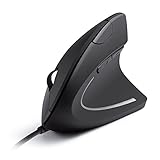
A wired vertical mouse is the lowest-friction way to find out whether the vertical style works for you. It draws power from the USB port, has no lag from wireless interference and never needs charging. The listing names five buttons and two DPI settings, 1000 and 1600, with optical tracking. It suits shared computers, work desktops where Bluetooth is locked down, and anyone who wants a dependable backup mouse.
- Right-hand vertical shape with a wired USB connection
- 1000 / 1600 DPI optical sensor
- Five buttons including thumb navigation
- No battery to replace or charge
- Cable length is roughly five feet according to the manufacturer (confirm on the listing)
- Needs a USB-A port
Pros:
- Plug-and-play with zero latency concerns
- Always ready, no battery management
Cons:
- Cable drag on a tidy desk
- Fewer DPI steps and no multi-device switching
For shared or hot-desk computers it also avoids the pairing hassle entirely, since anyone can plug it in and start working. It shares its shape with the wireless Anker, so the real decision between them is cable versus batteries.
6. TECKNET Bluetooth 5.0/3.0 Vertical Mouse – Best for Older Laptops and Dongle Fallback

The second TECKNET listing leads with Bluetooth 5.0 and 3.0 plus a USB-A connection, which is useful if you own an older laptop or tablet that only speaks the earlier Bluetooth standard. The USB-A option gives you a fallback when Bluetooth misbehaves, such as on a docked desktop with crowded wireless traffic. Treat the details beyond the connection list as something to confirm on the product page, since the listing name is short.
- Right-hand vertical design
- Bluetooth 5.0 and Bluetooth 3.0 modes plus a USB-A receiver
- Rechargeable operation is typical for this line (confirm on the listing)
- DPI steps and button count vary by TECKNET listing; confirm before buying
- Supports Windows, macOS, Linux and Chrome OS in the brand’s family specs
- Not designed for devices with only USB-C ports unless you add an adapter
Pros:
- Broad compatibility with older Bluetooth hardware
- USB-A receiver as a dependable fallback
Cons:
- Specs are less clearly stated in the listing name
- Similar enough to the other TECKNET that the choice can be confusing
Pick it over the first TECKNET only if the Bluetooth 3.0 mode matters to you; otherwise the 4800 DPI model is more clearly specified.
Specs Compared
| Mouse | Connection | Power | DPI range | Angle / shape | Devices |
|---|---|---|---|---|---|
| Anker 2.4G Wireless Vertical | 2.4 GHz receiver | AAA batteries | 800 / 1200 / 1600 | Vertical, right-hand | 1 |
| Logitech MX Vertical | Unifying, Bluetooth, USB-C cable | USB-C rechargeable | 400 to 4000 | 57 degrees | 3 |
| TECKNET 4800 DPI | Bluetooth 5.0 and 2.4 GHz | Rechargeable (confirm port) | Six levels up to 4800 | Vertical, right-hand | 3 |
| ProtoArc EM11 NL | Bluetooth 5.0 and 2.4 GHz | USB-C rechargeable | 1000 / 1600 / 2400 | 58 degrees | 3 |
| Anker USB Wired Vertical | Wired USB | USB bus power | 1000 / 1600 | Vertical, right-hand | 1 |
| TECKNET Bluetooth 5.0/3.0 | Bluetooth 5.0 / 3.0 and USB-A | Confirm on listing | Confirm on listing | Vertical, right-hand | Confirm on listing |
How We Chose These
We built this list from the products currently listed for this topic and compared them on the details a buyer can verify: stated vertical angle, connection type, power source, DPI range, hand-size fit and device switching. We read manufacturer specification pages and retailer listing fields, and where a listing was vague we say so instead of guessing. We favored models that are clearly right-hand vertical designs, weighed ergonomic shape ahead of gaming features, and balanced a premium option against budget and wired choices. We have not tried these mice ourselves, so the guidance reflects published specifications and widely documented ergonomic principles, not personal use. Always confirm current specifications on the product page.
What to Look For
Angle and Hand Position
A standard mouse forces your forearm to twist so your palm faces down, a position called pronation. A vertical mouse stands the body up so your hand sits like it does when you shake hands, with your thumb on top. Most designs sit between about 55 and 75 degrees from the desk, and the models here that state an angle land at 57 or 58 degrees. A steeper angle means a more neutral forearm, but it also takes longer to adapt to. If you are new to the style, a moderate angle is easier to learn and keeps fine pointer control intact.
Size and Fit
Fit matters more than any feature. Measure your hand from the base of your palm to the tip of your middle finger. Under about 7 inches usually means a compact model such as the ProtoArc; over about 8 inches generally suits the larger Logitech shape. Your thumb should rest on the thumb ledge without stretching, and your fingers should reach the buttons without curling. A mouse that is too large forces you to grip it, which defeats the purpose of a relaxed posture. Also check the hand orientation, since every mouse here is right-handed.
Connection, Battery and Latency
Wired mice are simple and have no battery. A 2.4 GHz receiver gives a stable wireless link that is generally the better choice for fast, sustained work. Bluetooth is convenient for laptops without spare ports, and Bluetooth 5.0 improves range and power draw over 3.0. Multi-device switching, usually a button on the underside, saves you from unplugging receivers. For batteries, a rechargeable cell removes the AAA routine, while replaceable cells never leave you waiting for a charge. If your laptop only has USB-C ports, check that a USB-A receiver will not need an adapter.
DPI, Buttons and Software
DPI measures how far the cursor moves for each inch you move the mouse. Around 800 to 1600 DPI is comfortable on a single 1080p or 1440p monitor, while 2400 DPI and above helps on ultrawide or multi-monitor desks. A rule of thumb: if you find yourself lifting the mouse to cross the screen, step the DPI up one level. Thumb buttons for back and forward are valuable when you browse a lot, and software that remaps them is a bonus. Remember that some of these side buttons do not function on macOS, so check before you commit if you use a Mac.
Desk Setup That Makes Any Vertical Mouse Work Better
The mouse is only half the equation. Keep your keyboard and mouse at the same height, roughly at elbow level, with your upper arm relaxed beside your torso. Leave enough room to move the mouse with your whole forearm, because a cramped mouse pad pushes you back to wrist flicks. A low-friction, medium-size mat gives the feet of the mouse a consistent surface, and a simple wrist rest can help only if you rest the heel of the hand on it between movements rather than pinning the wrist to it while you work. As a rule of thumb, if you notice your shoulder rising or your wrist bending upward after thirty minutes, lower the chair arms or raise the desk surface slightly. These small changes often matter as much as the shape of the mouse itself.
Common Buying Mistakes. The most frequent mistake is buying on angle alone and ignoring hand size, which leads to a mouse you grip tightly instead of resting your hand on. The second is overlooking port availability: a receiver that needs USB-A is awkward on a thin laptop with only USB-C, and Bluetooth-only mice can be frustrating on a locked-down work computer where pairing is disabled. The third is expecting a vertical mouse to feel instantly natural; most people need a short break-in. Finally, avoid assuming that a higher DPI number means a better mouse. Extra DPI is only useful if you have the screen space to use it, and a modest sensor with a comfortable shape will serve an office worker better than a high-DPI model that sits awkwardly in the hand.
Making the Switch. Expect an adjustment period of several days. Start with an hour or two a day, keep your wrist off the edge of the desk, and move from the elbow and shoulder rather than flicking the wrist. If you have persistent pain or numbness, a mouse is not a treatment, and you should talk to a health professional about it.
Questions
Are vertical mice actually better for your wrist?
A vertical mouse holds your forearm in a neutral, handshake position, which many people find more comfortable than a flat mouse over long sessions. Comfort varies from person to person, and a mouse does not replace good desk posture or breaks. If you have symptoms, consult a health professional.
How long does it take to get used to a vertical mouse?
Most people feel clumsy for the first few days and settle in within one to two weeks. Use it for short sessions at first and lower the DPI a step if the cursor feels twitchy.
Is a wired vertical mouse better than a wireless one?
Wired models avoid batteries and interference, which makes them dependable for office desktops. Wireless models free your desk from cable drag and often add multi-device switching, so the choice comes down to your setup.
What angle is best for a vertical mouse?
Angles in the high 50s to 70s degrees are common. A moderate angle around 57 to 60 degrees is easier to adapt to, while steeper shapes place the forearm more neutrally but feel stranger at first.
Can left-handed people use these?
All six picks here are described as right-handed designs, so left-handed users should look for a mirrored vertical model. Using a right-hand shape in the left hand is uncomfortable and defeats the ergonomic benefit.
Do vertical mice work with Mac and Windows?
Yes, the basic pointing functions work on both. Extra thumb buttons and software features can differ by operating system, and some back and forward buttons do not function on macOS, so check the listing before buying.
Update History
- October 20, 2026 – Initial publication; product set drawn from current catalog listings.
- Check the product page for current specifications and availability before buying.
Sources
- Manufacturer product and specification pages and data sheets for Logitech, Anker, ProtoArc and TECKNET
- Retailer listing titles and specification fields for each product
- Independent hardware reviews and ergonomic guidance used to cross-check angle, DPI and battery details





Write Your Review
No reviews yet. Be the first to share your experience!