

Key takeaways
- IPS: Usually the safest choice for office work because of wide viewing angles and consistent color. IPS Black, used in the Dell U3223QE, improves contrast over conventional IPS but still cannot match OLED black levels.
- VA: Often offers stronger native contrast and is common in curved gaming displays. Dark transitions can show more smearing on some models, so check response behavior rather than relying only on the advertised response-time number.
- OLED: Delivers near-black shadows, excellent motion response, and strong gaming immersion. Static desktop elements create long-term image-retention risk, so use screen savers, varied content, and built-in panel-care routines.
- Mini-LED: Uses many local-dimming zones to improve HDR brightness and contrast. It can produce blooming around bright objects on dark backgrounds, but it is often a better fit than OLED for bright, static desktop use.
The best 32 inch monitors are usually 4K models, because 3840 × 2160 resolution keeps text and images sharp at this size; choose a high-refresh gaming monitor instead if smooth motion matters more than USB-C convenience or color-critical work.
Our top picks


As an Amazon Associate we earn from qualifying purchases at no extra cost to you. Ratings are shown as listed on Amazon.
Quick picks by situation
| Best for | Recommended type or model | Key specifications | Why choose it |
|---|---|---|---|
| Mixed work and gaming | Gigabyte M32U | 31.5 inches, 3840 × 2160, 144Hz, HDMI 2.1, USB hub | A strong balance of sharpness, speed, and price |
| Office and creative work | Dell UltraSharp U3223QE | 31.5 inches, 4K, 60Hz, IPS Black, USB-C hub, Ethernet | Excellent connectivity and deep contrast for an IPS work display |
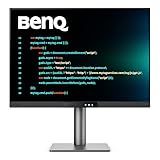
| MacBook or laptop docking | BenQ PD3225U | 31.5 inches, 4K, 60Hz, Thunderbolt 4, 90W power delivery | One cable can carry video, data, and laptop charging |
| Competitive and cinematic gaming | LG UltraGear 32GS95UE | 32 inches, 4K 240Hz or Full HD 480Hz, OLED | Very fast response with a useful dual-resolution mode |
| HDR gaming | Samsung Odyssey Neo G8 | 32 inches, 4K, 240Hz, Mini-LED backlight, curved panel | High refresh rate combined with stronger HDR brightness |
What makes a 32-inch monitor different?
A 32-inch monitor is generally about 28 inches wide and 16 inches tall before its stand. That is substantially more desk coverage than a 27-inch display, while offering more usable workspace and a more immersive gaming image. The extra size is most useful when you regularly work with two large windows, timelines, spreadsheets, large images, or a game plus communication software.
The trade-off is viewing distance. A 32-inch screen placed too close can feel overwhelming, particularly in fast games or when reading dense text. Plan for roughly 28 to 36 inches between your eyes and the panel. A monitor arm can make this easier by freeing desk depth and allowing the screen to sit farther back.
Resolution and pixel density: 4K is the sensible default
At 32 inches, 4K provides about 138 pixels per inch (PPI). That is considerably sharper than 2560 × 1440 at the same size, which is about 92 PPI. Text, interface edges, and fine image detail look less coarse on a 4K panel, although operating-system scaling is normally needed.
| Resolution | Approximate density at 32 inches | Best use | Main drawback |
|---|---|---|---|
| 2560 × 1440 | 92 PPI | Lower-cost gaming and larger text | Text and diagonal lines look less refined |
| 3840 × 2160 | 138 PPI | General work, design, photography, and gaming | Requires a stronger graphics card for high frame rates |
| 5120 × 2880 | ~189 PPI | High-end Mac and professional image workflows | Costs more and demands compatible hardware |
For a 4K 32-inch display, 125% or 150% scaling often produces a comfortable working size, depending on the operating system and eyesight. Scaling does not make the panel less sharp; it uses the extra pixels to render smoother text and interface elements.
Refresh rate: decide whether motion or desktop features come first
Work-focused 32-inch monitors commonly run at 60Hz. This is adequate for documents, coding, email, design applications, and video playback. A 120Hz or 144Hz screen feels more responsive when scrolling, dragging windows, and gaming. Models such as the Gigabyte M32U go further with 144Hz at 4K, while the Samsung Odyssey Neo G8 and LG UltraGear 32GS95UE target high-end gaming at up to 240Hz.
High refresh rate is not automatically better. To benefit from 4K at 144Hz or 240Hz, a computer must render enough frames and connect through suitable DisplayPort or HDMI hardware. A midrange laptop may be better matched to 4K at 60Hz, or to 1440p at a higher refresh rate.
The LG 32GS95UE is unusual because it can switch between 4K at 240Hz and Full HD at 480Hz. The latter favors competitive games where motion clarity and frame rate are more important than fine detail, but Full HD will look visibly soft on a 32-inch screen outside that mode.
Panel types and image quality
- IPS: Usually the safest choice for office work because of wide viewing angles and consistent color. IPS Black, used in the Dell U3223QE, improves contrast over conventional IPS but still cannot match OLED black levels.
- VA: Often offers stronger native contrast and is common in curved gaming displays. Dark transitions can show more smearing on some models, so check response behavior rather than relying only on the advertised response-time number.
- OLED: Delivers near-black shadows, excellent motion response, and strong gaming immersion. Static desktop elements create long-term image-retention risk, so use screen savers, varied content, and built-in panel-care routines.
- Mini-LED: Uses many local-dimming zones to improve HDR brightness and contrast. It can produce blooming around bright objects on dark backgrounds, but it is often a better fit than OLED for bright, static desktop use.
Connectivity matters more at 32 inches
A basic monitor may have DisplayPort and two HDMI inputs. A work-oriented model can add USB-C video, laptop charging, USB-A ports, Ethernet, speakers, and a KVM switch. The difference is practical: the Dell U3223QE and BenQ PD3225U can act as part of a docking setup, reducing cable clutter on a desk shared by a laptop and desktop computer.
Check the exact USB-C power-delivery rating. Around 90W is suitable for many productivity laptops, but high-performance mobile workstations may still need their own charger. Also verify whether the USB-C port supports full-resolution output at the intended refresh rate; not every USB-C port provides the same bandwidth.
A KVM switch is valuable if one keyboard and mouse must control two computers. Ethernet built into the monitor can also provide a stable wired connection to a laptop through one USB-C cable. These features usually matter more for office ownership than a small difference in peak brightness.
Desk-space calculation before you buy
Measure both the desk depth and the monitor stand footprint. A typical 32-inch monitor is about 28 inches wide, but its stand may occupy 9 to 12 inches of depth. A simple fit check is:
Usable desk depth = desk depth − stand depth − keyboard depth.
For example, on a 24-inch-deep desk with an 11-inch stand and a 7-inch keyboard, only 6 inches remain for a mouse and comfortable hand movement in front of the display. That setup may feel cramped even though the monitor technically fits. A monitor arm, a shallower stand, or a desk at least 28 to 30 inches deep can improve the result.
Also leave space behind the monitor for cables and ventilation. A curved gaming display may have a deeper housing than a flat office monitor, and a large power brick can consume additional space under the desk.
How to choose by budget and use
| Your situation | Minimum sensible specification | What to prioritize |
|---|---|---|
| Budget office setup | 32 inches, 4K, IPS or VA, 60Hz | Stand adjustment, text clarity, warranty, and an uncluttered image |
| Frequent gaming and work | 4K, 144Hz, adaptive sync, HDMI 2.1 | Refresh rate, input lag, response behavior, and GPU compatibility |
| Photo or video work | 4K, wide-gamut coverage, factory calibration | Color modes, uniformity, calibration controls, and USB-C connectivity |
| Small or shallow desk | 32 inches only with a suitable arm or deep desk | Stand depth, VESA support, viewing distance, and height adjustment |
| Static office use all day | IPS, IPS Black, or Mini-LED | Ergonomics, text rendering, brightness control, and burn-in risk |
General market pricing ranges from roughly $250 to $450 for basic 32-inch 4K models, $500 to $900 for better-connected or high-refresh displays, and $900 or more for premium OLED, Mini-LED, or very high-resolution monitors. Prices vary by region and sales period, so compare the specification sheet rather than the headline discount.
Ownership details that are easy to miss
The stand is often the first frustrating part of ownership: a monitor may have a good panel but only tilt adjustment. VESA support, usually 100 × 100 mm on this class of display, gives you an upgrade path to an arm. Check weight without the stand before buying an arm; large gaming models can be substantially heavier.
Keep the panel clean with a dry microfiber cloth, or one lightly dampened with distilled water. Do not spray liquid directly onto the screen, and avoid household glass cleaner, which can damage coatings. Dust the ventilation openings and allow OLED panel-care cycles to complete rather than repeatedly interrupting them.
Common buying mistakes include choosing 4K 240Hz without a computer capable of driving it, assuming every USB-C port supplies laptop charging, placing a 32-inch panel too close, and paying for HDR without local dimming or OLED technology. For most people, a 32-inch 4K monitor at 60Hz or 144Hz is the best balance; move to OLED or Mini-LED when gaming motion or HDR is a central priority, not simply because the specification is higher.






Write Your Review
No reviews yet. Be the first to share your experience!