

Key takeaways
- Best all-rounder: Dell G2724D — 27-inch, 2560 × 1440, IPS, up to 165Hz, and a practical ergonomic stand.
- Best for fast gaming: Gigabyte M27Q X — 1440p IPS with a 240Hz refresh rate, USB hub, and KVM functionality.
- Best for office work: Dell U2724D — 1440p IPS Black panel, USB-C hub features, and a 120Hz refresh rate.
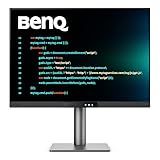
- Best for design and color-sensitive work: BenQ PD2705Q — 1440p IPS, factory-oriented color modes, and a highly adjustable stand.
- Best value when discounted: LG 27GP850-B — 1440p Nano IPS, up to 180Hz, and a broad gaming feature set.
The best 27 inch monitors for most people are 1440p IPS models with a height-adjustable stand: they provide noticeably sharper text and more desktop space than 1080p, while 144–180Hz makes gaming feel much smoother than a conventional 60–75Hz office display.
Our top picks


As an Amazon Associate we earn from qualifying purchases at no extra cost to you. Ratings are shown as listed on Amazon.
Quick picks by setup
- Best all-rounder: Dell G2724D — 27-inch, 2560 × 1440, IPS, up to 165Hz, and a practical ergonomic stand.
- Best for fast gaming: Gigabyte M27Q X — 1440p IPS with a 240Hz refresh rate, USB hub, and KVM functionality.
- Best for office work: Dell U2724D — 1440p IPS Black panel, USB-C hub features, and a 120Hz refresh rate.
- Best for design and color-sensitive work: BenQ PD2705Q — 1440p IPS, factory-oriented color modes, and a highly adjustable stand.
- Best value when discounted: LG 27GP850-B — 1440p Nano IPS, up to 180Hz, and a broad gaming feature set.
What matters most at 27 inches?
A 27-inch monitor is large enough for two documents side by side but small enough to fit on many 120–140cm desks. The resolution determines how comfortable that space is. A 1080p 27-inch screen has a relatively low pixel density of about 82 pixels per inch, so text and fine interface details can look coarse. A 2560 × 1440 monitor reaches roughly 109 pixels per inch, a useful middle ground for spreadsheets, coding, photo work, and games.
4K gives a sharper image at approximately 163 pixels per inch, but it also makes interface elements smaller at native scaling and demands considerably more graphics performance in games. For a mixed work-and-gaming computer, 1440p is usually the best balance. Choose 4K when text clarity, high-resolution photography, or console-style single-player gaming matters more than maximum frame rate.
Head-to-head specifications
| Monitor | Resolution and panel | Maximum refresh rate | Stand adjustment | Typical ports | Approximate market range |
|---|---|---|---|---|---|
| Dell G2724D | 2560 × 1440, IPS | 165Hz | Height, tilt, swivel, pivot | DisplayPort, HDMI, 3.5mm audio | $200–$300 |
| Gigabyte M27Q X | 2560 × 1440, SuperSpeed IPS | 240Hz | Height, tilt, swivel, pivot | DisplayPort, HDMI, USB hub, USB-C, KVM | $350–$500 |
| Dell U2724D | 2560 × 1440, IPS Black | 120Hz | Height, tilt, swivel, pivot | DisplayPort, HDMI, USB hub, DisplayPort out | $350–$500 |
| BenQ PD2705Q | 2560 × 1440, IPS | 60Hz | Height, tilt, swivel, pivot | DisplayPort, HDMI, USB hub, USB-C | $300–$450 |
| LG 27GP850-B | 2560 × 1440, Nano IPS | 180Hz | Height, tilt, pivot | DisplayPort, HDMI, 3.5mm audio, USB hub | $250–$400 |
Prices vary substantially with sales and regional availability, so treat these as broad market ranges rather than fixed prices. Port configurations can also differ between revisions; check the manufacturer specification sheet before buying a monitor for a particular laptop or docking setup.
Best 27 inch monitors by priority
Dell G2724D: the sensible all-round choice
The G2724D is a strong fit for a desk shared between office applications and gaming. Its 1440p IPS panel offers wide viewing angles and good motion performance, while 165Hz is high enough for smooth competitive and everyday gaming without the cost or graphics demand of 240Hz. The stand is particularly important for work: height, swivel, tilt, and pivot adjustments let you position the top of the screen at a comfortable eye level.
Its limitations are practical rather than fundamental. It does not function as a full laptop dock, so you will need separate USB accessories or a hub. It is also less specialized than a color-focused professional display. Buy it when you want one uncomplicated monitor for documents, web work, and games.
Gigabyte M27Q X: for high-frame-rate gaming and two computers
The M27Q X is the specialist pick for players with a graphics card capable of producing high frame rates at 1440p. Its 240Hz refresh rate reduces visible motion blur and makes fast camera movement feel more immediate than 144–180Hz. The built-in KVM feature can also share a keyboard and mouse between two connected computers, which is useful for a work laptop and gaming desktop.
The trade-off is cost and diminishing returns. You need a suitable DisplayPort connection and a system that can approach 240 frames per second in the games you play. For slower strategy games, office work, or a mid-range graphics card, money spent on 240Hz may be better directed toward a larger SSD, a better chair, or a second monitor.
Dell U2724D: for long office days and modern connectivity
The U2724D targets productivity rather than esports. Its IPS Black panel is designed to produce deeper blacks than conventional IPS while retaining wide viewing angles. The 120Hz refresh rate also makes scrolling and window movement smoother than 60Hz office displays. Its USB hub and DisplayPort output are useful in multi-monitor arrangements, reducing the number of cables that need to reach the computer.
Check the exact model carefully if you need charging over one USB-C cable. The U2724D has USB connectivity, but a monitor in the same family with a USB-C docking connection may be the better choice for a laptop-based desk. Neither high refresh rate nor a USB hub automatically means that the monitor can power a laptop.
BenQ PD2705Q: for design tools and careful color work
The PD2705Q is aimed at designers, editors, and office users who value useful color-oriented modes and ergonomic positioning more than gaming speed. Its 1440p resolution is comfortable for timelines, palettes, and application panels, and its USB-C connection can simplify a compatible laptop setup.
At 60Hz, it is noticeably less fluid for games than the other recommendations. It makes sense for design software, writing, coding, and occasional gaming—not for competitive shooters. For professional color-critical work, a monitor specification alone is not enough: calibration equipment, the correct color profile, ambient lighting, and the requirements of the client or print workflow also matter.
LG 27GP850-B: a gaming-first 1440p option
The 27GP850-B combines a fast Nano IPS panel with a refresh rate up to 180Hz. It is a good match for gamers who want vivid motion and broad viewing angles without moving to a 4K display. Adaptive-sync support helps reduce tearing when frame rates fluctuate, provided the graphics card and connection are configured correctly.
Its stand is adjustable, but connectivity is less useful as a laptop docking solution than a monitor with USB-C power delivery. Choose it over the Dell G2724D when the LG is meaningfully cheaper or when its gaming features are more important to you than a simpler office-focused design.
Decision matrix: match the monitor to your situation
| Your situation | Recommended specification | Best fit | Why |
|---|---|---|---|
| Small desk, mixed work and gaming | 1440p, 144–180Hz, IPS, adjustable stand | Dell G2724D | Good density, smooth gaming, modest cable and desk demands |
| Competitive gaming, powerful graphics card | 1440p, 240Hz, fast IPS | Gigabyte M27Q X | Prioritizes motion clarity and high frame rates |
| Laptop plus desktop on one desk | USB hub, KVM, USB-C where required | Gigabyte M27Q X or a USB-C dock monitor | Reduces repeated keyboard, mouse, and cable changes |
| Design, coding, and documents | 1440p, IPS, ergonomic stand, color modes | BenQ PD2705Q | Prioritizes workspace and positioning over refresh rate |
| Text-heavy work with occasional games | 1440p, 100–165Hz, strong connectivity | Dell U2724D | Combines sharper text, smoother scrolling, and office features |
Will a 27-inch monitor fit your desk?
Measure more than the diagonal size. A 27-inch monitor is 27 inches diagonally, but its panel is usually about 24 inches wide and 14 inches high before the bezel. Add the stand footprint, which commonly extends roughly 7–10 inches front to back. A practical single-monitor arrangement therefore needs around 26 inches of width and 20–24 inches of usable depth once you include a keyboard, mouse, and viewing distance.
For a shallow desk, use a VESA arm or a stand with a compact base, but check the monitor’s VESA pattern and the arm’s weight capacity. A 27-inch screen is generally most comfortable around 60–80cm from your eyes. If the screen is closer, reduce scaling or move it back rather than leaning forward for long periods.
Panel type, resolution, and refresh rate explained
- IPS: the safest general-purpose choice for viewing angles, color consistency, and motion. Most recommendations here use IPS.
- VA: often provides stronger contrast, but some VA panels show dark-level smearing in fast games.
- OLED: offers exceptional contrast and response time, but costs more and requires care with static desktop elements because image retention and burn-in remain ownership considerations.
- 60–75Hz: adequate for office work and many creative tasks.
- 120–180Hz: the useful sweet spot for mixed work and gaming.
- 240Hz: worthwhile mainly when competitive games and consistently high frame rates are central to the purchase.
Setup mistakes that reduce value
Use DisplayPort when the computer and monitor require it for the highest refresh rate, and confirm the selected refresh rate in the operating system after connecting the cable. A monitor may default to 60Hz even when it supports 165Hz or 180Hz. Enable adaptive sync on both the monitor and graphics driver when supported, then check for flicker or blanking at the frame rates you actually use.
Position the screen so its top edge is approximately level with, or slightly below, your eyes. Keep brightness appropriate for the room rather than using maximum brightness all day. Clean the panel with a dry microfiber cloth first; for stubborn marks, lightly dampen the cloth with distilled water and never spray liquid directly onto the screen.
The parts most likely to show wear are the stand hinge, buttons, cables, and backlight—not the pixel count printed on the box. A loose or unstable stand is difficult to replace, so an adjustable, solid stand can be worth more than a small contrast or refresh-rate advantage. For a work-and-gaming setup, the best 27 inch monitors are the ones that balance 1440p clarity, appropriate refresh rate, reliable ports, and a position you can maintain comfortably every day.





Write Your Review
No reviews yet. Be the first to share your experience!