

Key takeaways
- The best USB-C docking station under $150 is the Anker 565 11-in-1 at $131.98. It has the most complete port set in the guide, two genuinely fast 10 Gbps data ports, HDMI and DisplayPort together, and a brand warranty you can actually use.
A good USB-C docking station turns one cable into a full desk: two monitors, a keyboard, a mouse, wired internet and laptop charging, all connected at once. The problem is that the box lies — “dual 4K” can mean two screens at a stuttering 30Hz, “100W charging” can need a power brick it does not include, and “dual monitors on Mac” can mirror the same image twice on an Apple Silicon MacBook.
Every price below is a November 2026 snapshot — check the current price on Amazon before buying.
The honest headline first: $150 buys a genuinely good dual-display dock, but not a Thunderbolt dock, dual 4K at 60Hz without a driver, or 140W charging. The best dock under $150 is the Anker 565, an 11-in-1 hub with a 10 Gbps data port, HDMI and DisplayPort, and 85W pass-through charging — with one catch you need to know before you buy it.
Quick Picks
| Dock | Best For | Displays | Power Delivery | Price |
|---|---|---|---|---|
| Anker 565 11-in-1 | Best overall | 2x 2K@60Hz (1x 4K@60Hz) | 85W pass-through | $131.98 |
| WAVLINK WL-UG69PD2N-Pro | Best for Mac dual display | 2x 4K@60Hz (DisplayLink) | 96W | $149.99 |
| UGREEN Revodok Pro 210 | Best value | 2x 4K@60Hz | 100W pass-through | $49.99 |
| Kensington SD1700P | Best portable dock | 2x 4K (HDMI + DP) | 100W pass-through | $139.99 |
| UGREEN Revodok Pro 313 | Most ports | 2x 4K@60Hz | 100W pass-through | $105.00 |
How to Choose a USB-C Docking Station Under $150
Number and type of ports
Count the ports you will actually use, not the number in the name. An “11-in-1” dock can include two slow 480 Mbps USB-A ports.
Display outputs and resolution
This is where most buyers get burned. “Dual 4K” on the box can mean two screens at 4K and 60Hz, two at 4K and 30Hz, or one at 4K and a second at 1080p.
Power delivery wattage
A dock’s charging number is only half the story. Many docks quote 100W pass-through charging but ship with no power adapter, so you must supply your own 100W USB-C charger and cable — another $30 to $40 if you do not already own one.
USB speed (5/10/20 Gbps)
USB 3.2 Gen 1 runs at 5 Gbps, Gen 2 at 10 Gbps, and USB4 at up to 40 Gbps. In practice, 5 Gbps is fine for a keyboard, a mouse and a webcam, and 10 Gbps is what you want for an external SSD.
Ethernet speed
Almost every dock under $150 has a gigabit Ethernet port — 1,000 Mbps, faster than most home internet connections.
Driver support (Windows/macOS)
This is the single most important compatibility question. Driverless docks use your laptop’s own DisplayPort Alt Mode signal, so they work on Windows, macOS and ChromeOS with nothing to install — but on a base Apple Silicon MacBook (M1, M2, M3 or M4 without the Pro or Max chip), they can only drive one external display, and a second screen will mirror the first. DisplayLink docks compress the video signal over plain USB, so they can drive two extended displays on any Mac — but they need a driver on macOS, and Netflix will not play on a DisplayLink screen because HDCP is not supported. Pick driverless if you run Windows, and pick DisplayLink only if you run a base MacBook and truly need two extended displays.
1. Anker 565 11-in-1 — Best Overall
Specs: 11 ports; 1x HDMI 4K@60Hz, 1x DisplayPort 4K@60Hz; dual displays at 2K@60Hz (DP 1.4) or 1080p@60Hz (DP 1.2); 1x USB-C 10 Gbps, 1x USB-A 10 Gbps, 2x USB-A 480 Mbps; 1 Gbps Ethernet; microSD/SD slots; 3.5mm AUX; 85W pass-through charging (charger not included); model A8388.
Pros: The most complete port set under $150 from a brand with real warranty support; two genuinely fast 10 Gbps data ports; HDMI and DisplayPort together, so mixed-monitor desks work without adapters.
Cons: Dual displays top out at 2K@60Hz, not dual 4K — the “4K” in the listing is single-display only; 85W pass-through charging, and the 100W charger it needs is not in the box; two USB-A ports run at 480 Mbps.
Best for: Windows laptop owners who want one cable for a dual-monitor desk and do not need dual 4K.
The Anker 565 is the best dock under $150 because it is honest about what it is: a well-built, driverless hub that does everything a normal desk needs, and its two 10 Gbps ports mean an external SSD and a 4K webcam both run at full speed. The catch is the display spec, stated plainly: with a DisplayPort 1.4 laptop, two monitors run at 2K and 60Hz; with an older DP 1.2 laptop, they run at 1080p and 60Hz, and only a single monitor runs at 4K and 60Hz.
2. WAVLINK WL-UG69PD2N-Pro — Best for Mac Dual Display
Specs: 13 ports; 2x DisplayPort 1.2, 2x HDMI 2.0; dual 4K@60Hz via DisplayLink; 96W charging (power supply included); 2x USB-C 10 Gbps, 4x USB-A; gigabit Ethernet; 3.5mm audio.
Pros: The cheapest honest route to two 4K screens at 60Hz on a base Apple Silicon MacBook; 96W charging with the power supply in the box; four video outputs, so HDMI and DisplayPort monitors mix freely; two 10 Gbps USB-C ports.
Cons: DisplayLink driver is mandatory on macOS and must be reinstalled after some OS updates; no HDCP, so Netflix, Disney+ and Prime Video refuse to play protected content; compression is visible in fast-moving video; no Thunderbolt downstream port.
Best for: MacBook Air and base MacBook Pro owners who need two extended displays from one cable.
This is the only dock in the guide that solves the Mac dual-display problem at this price, for exactly $149.99 — one cent under the budget. The trade is real and the listing does not disclose it prominently: the second screen is not driven by your Mac’s GPU. It is compressed by a DisplayLink chip, sent over USB, and decoded by a driver. For documents, code and spreadsheets, you will not notice. For 4K video editing, you will see softness — and for streaming, the HDCP gap is a genuine surprise, because the compressed stream cannot carry copy protection.
3. UGREEN Revodok Pro 210 — Best Value
Specs: 10 ports; 2x HDMI 4K@60Hz; 100W pass-through charging (charger not included); 1x USB-C 5 Gbps, 2x USB-A 5 Gbps; gigabit Ethernet; microSD/SD slots.
Pros: Dual 4K at 60Hz for $49.99 — a third of the price of the top pick; 100W pass-through charging.
Cons: USB data ports top out at 5 Gbps — no 10 Gbps port for a fast SSD; 100W charging needs a charger you supply yourself; on a base Apple Silicon Mac, the second display mirrors the first.
Best for: Windows users who want dual 4K monitors and do not move large files over USB.
The Revodok Pro 210 is the value pick of this guide by a wide margin, and it returns from the under-$100 guide where it was the runner-up — it is still the cheapest way to put two 4K screens at 60Hz on a Windows desk. At $49.99 it does the core job — two sharp screens, wired internet, card reader, 100W charging — without a driver or a fuss. The compromises are honest ones: every USB port runs at 5 Gbps, so an external SSD transfers at roughly half the speed it manages on the Anker 565, and the 100W charging is pass-through, so you need your own 100W charger. On a base M-series MacBook this dock mirrors the second screen.
4. Kensington SD1700P — Best Portable Dock
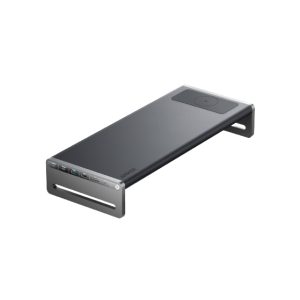
Specs: Dual 4K video (1x HDMI, 1x DisplayPort); 100W pass-through charging (charger not included); Qi wireless charging pad; USB-A and USB-C data ports; gigabit Ethernet; SD card reader.
Pros: The only dock in this guide with a built-in Qi wireless charging pad — set your phone down and it charges while you work; dual 4K outputs in a dock small enough to carry in a laptop bag; 100W pass-through charging.
Cons: Fewer USB ports than the Anker or UGREEN picks, so heavy peripheral setups need a second hub; 100W charging needs a charger you supply yourself; the Qi pad charges slowly (around 10W); on a base Apple Silicon Mac, the second display mirrors the first.
Best for: Hybrid workers who carry their dock between home and office and want their phone charging on the desk.
The SD1700P is the travel pick because it is the only dock here designed to move. It is smaller and lighter than the desktop docks, it runs off a single USB-C cable, and the Qi pad on top is the kind of small convenience that becomes a habit — phone down, phone charging, no cable hunt. The display outputs are genuinely useful: one HDMI and one DisplayPort, both 4K-capable. The trade is port count — a desk full of peripherals will need a cheap hub alongside it.
5. UGREEN Revodok Pro 313 — Most Ports
Specs: 13 ports; 2x HDMI 4K@60Hz; 100W pass-through charging (charger not included); 1x USB-C 10 Gbps; USB-A data ports; gigabit Ethernet; microSD/SD slots.
Pros: Thirteen ports for $105 — the most connectivity per dollar in this guide; dual 4K at 60Hz; a 10 Gbps USB-C data port for a fast external SSD.
Cons: 100W charging needs a charger you supply yourself; no DisplayPort output; on a base Apple Silicon Mac, the second display mirrors the first.
Best for: Windows users who want the maximum number of ports and a fast SSD connection without paying for a brand-name dock.
The Revodok Pro 313 is the “one more port” pick. Where the Revodok Pro 210 gives you the essentials for $50, the 313 adds a 10 Gbps USB-C port, more USB-A ports and a fuller card reader set for $55 more.
What to Avoid
Docks that need a paid driver. DisplayLink itself is free. If a dock’s listing points you at a paid driver download, a subscription, or a “pro” unlock to enable the second display, walk away.
Inflated port counts. Count the ports on the product photo, not in the title. A “14-in-1” dock can include the host USB-C cable, the power input and the audio jack in its count. If the photo shows eight holes and the title says fourteen, the title is lying.
“Dual 4K” at 30Hz. Two 4K monitors at 30Hz look sharp in a still photo and feel terrible in use. Always confirm the refresh rate before you buy.
Weak power delivery. A dock that delivers 45W or 60W will charge a 13-inch ultrabook and slowly drain a 15-inch performance laptop under load.
The Mac mirroring trap. Any driverless dock will mirror the second display on a base Apple Silicon MacBook — a limit of the Mac’s chip, not a defect in the dock. If you own an M1, M2, M3 or M4 MacBook Air or base MacBook Pro and you need two extended displays, you need a DisplayLink dock such as the WAVLINK in this guide.
Discontinued docks. The Anker 777, a USB4 dock that sold for $149, is discontinued — Anker’s own store lists it as sold out and its Amazon listing is gone.
No-name docks under $25. A $20 dock with dual 4K, 100W charging and twelve ports is not a bargain — it is a listing with invented specs. The floor for a usable dual-display dock is around $40.
Still Doesn’t Fit
Some docks are excellent and simply cost more than $150. The Anker Prime 14-in-1, the top pick of the under-$200 guide, costs $179.99 and earns it with 140W upstream charging and dual 4K at 60Hz. The Plugable UD-6950PDH lists at $199.99. The CalDigit TS4, the Thunderbolt 4 flagship that leads the under-$400 guide, lists at $399.99 and streets around $249. The Dell WD19S 180W sits around $200 even refurbished. They are simply the next tier.
FAQs
Will a USB-C docking station work with my laptop?
It works if your laptop’s USB-C port supports DisplayPort Alt Mode or Thunderbolt — nearly every laptop sold since 2020 does, but some budget laptops have USB-C ports that carry data and charging only.
Can I run two monitors from a MacBook Air?
Yes, but only with a DisplayLink dock such as the WAVLINK WL-UG69PD2N-Pro in this guide. A base Apple Silicon MacBook (M1 through M4, without the Pro or Max chip) supports only one external display, so a driverless dock mirrors the second screen.
Does a docking station charge my laptop?
Most docks in this guide do, but check whether the power adapter is included. The WAVLINK includes its power supply and delivers 96W out of the box. The Anker, UGREEN and Kensington picks use pass-through charging, so they need your own charger.
Is 100W charging enough for a gaming laptop?
No. Gaming laptops typically ship with 180W to 280W power bricks, and a 100W dock will drain the battery under load.
What is the difference between a hub and a docking station?
Mostly marketing. A “hub” is usually bus-powered, compact and portable. A “docking station” usually has its own power supply and more ports. Ignore the label and read the spec sheet.
Verdict
The best USB-C docking station under $150 is the Anker 565 11-in-1 at $131.98. It has the most complete port set in the guide, two genuinely fast 10 Gbps data ports, HDMI and DisplayPort together, and a brand warranty you can actually use.
If you run a base MacBook Air or MacBook Pro and need two extended displays, the Anker cannot do the job — buy the WAVLINK WL-UG69PD2N-Pro at $149.99 instead, and accept the DisplayLink trade-offs (driver install, no HDCP, visible compression) as the price of a second screen. If your desk is simple and your budget is tight, the UGREEN Revodok Pro 210 at $49.99 delivers dual 4K at 60Hz for a third of the top pick’s price.
What $150 does not buy is a Thunderbolt dock, dual 4K at 60Hz without a driver, or 140W charging. Those live at $180 and above — but $150 buys a dock you will not regret, as long as you read the refresh rate before you read the price.
As an Amazon Associate, we earn from qualifying purchases.
Suggested internal links
- Best Webcam for Streaming Under $100
- Best KVM Switch for Dual Monitors Under $100
- Best USB Audio Interface Under $100
More from Amazon
Programs that pair well with the guide above. Offers and eligibility are set by Amazon and may change.
Free shipping on eligible items, Prime Video and more. Eligible new members can start with a free trial.
Start a Prime free trialAudiobooks and podcasts to listen to on the go. Eligible new members can start with a free trial.
Try Audible freeAd-free music streaming. Eligible new subscribers can start with a free trial.
Try Music Unlimited freeA free business account with business pricing and bulk-buying tools for work, shop or home office.
Create a business accountAs an Amazon Associate we earn from qualifying purchases.

Write Your Review
No reviews yet. Be the first to share your experience!